

Welcome to StoreCashier Pro 👋
StoreCashier Pro turns WordPress + WooCommerce into a complete business system: a keyboard-first POS, multi-location inventory, purchasing, accounting, CRM, leads, HRM & payroll, bookings, subscriptions, support desk, projects, tasks, manufacturing, repair, fixed assets, approvals, documents, an audit trail, a REST API and 60 reports — in one plugin.
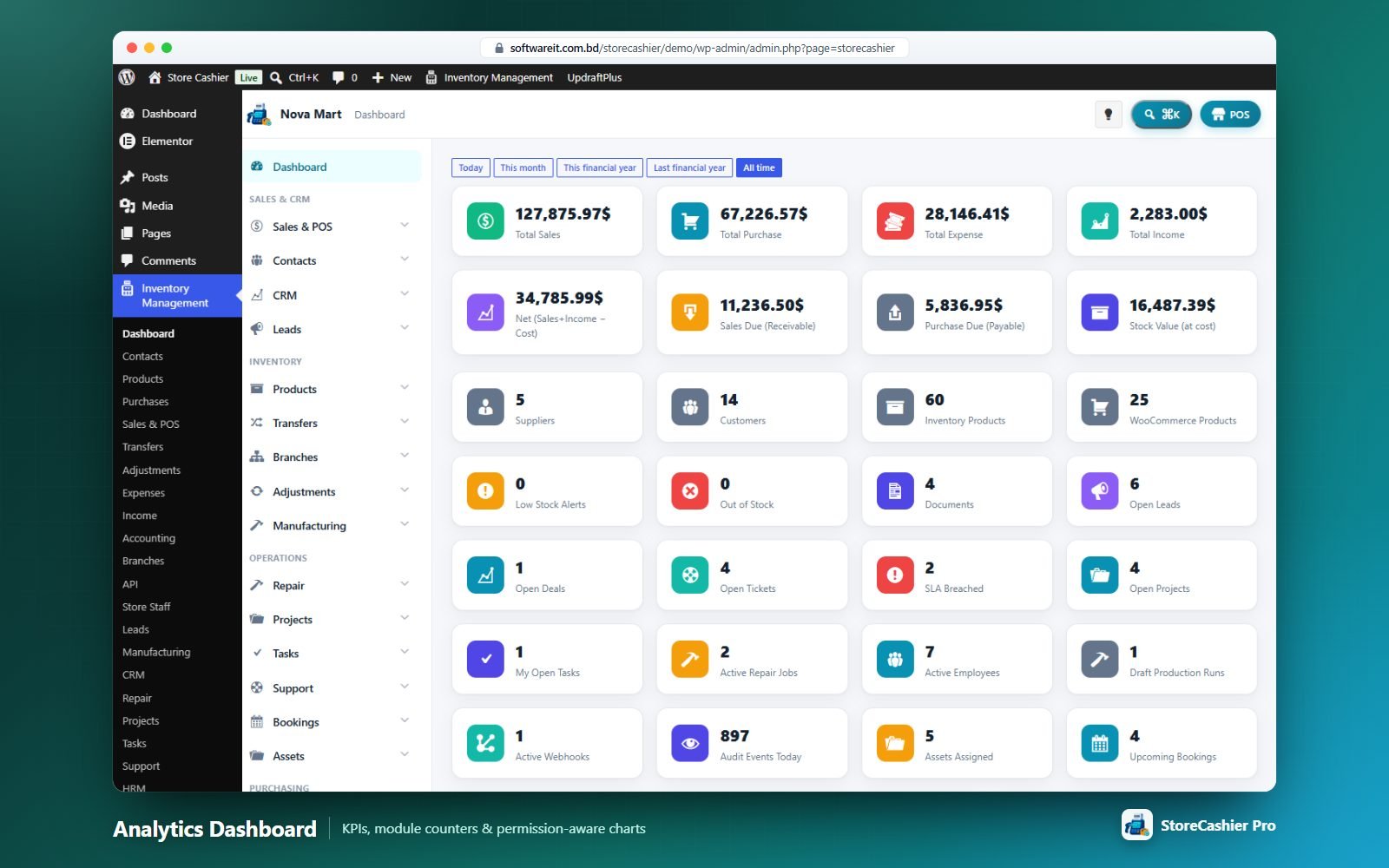
What’s inside
POS register
Full-screen, keyboard-first, barcode-ready register with split payments, hold/quote, cash register sessions and calculator.
Inventory
Per-location stock ledger, opening stock, transfers, adjustments, labels, lots & expiry, multi-branch.
Purchasing
Supplier purchases with landed costs, shipping status, payments and returns.
Accounting
Payment accounts with account books, expenses, income, balance sheet, trial balance and cash flow.
CRM & Leads
Pipelines, deals, proposals, estimates, e-signed contracts, lead scoring and web-to-lead forms.
Operations
Repair, projects, tasks, support tickets, bookings and fixed assets.
Manufacturing
Multi-level BOMs, routings, job cards, QC, MRP and actual costing.
HRM & Payroll
Employees, attendance, leave, payroll with tax, PDF payslips and a self-service portal.
Bookings & Subscriptions
WooCommerce bookable and subscription products with My Account tabs and Elementor widgets.
Workflow
Multi-step approvals, document library with versions and an audit trail with field-level diffs.
60 reports + builder
Sales, stock, finance, CRM, HR, assets, manufacturing and repair reports plus a no-code report builder.
REST API
Scoped API keys, webhooks with HMAC signatures and an interactive developer portal.
Requirements
| Item | Minimum | Notes |
|---|---|---|
| WordPress | 6.2+ | Tested up to 7.1 |
| WooCommerce | 8.0+ | Required. Tested up to 11.1. HPOS and Cart/Checkout blocks compatible. |
| PHP | 7.4+ | PHP 8.x supported |
| MySQL / MariaDB | 5.7+ / 10.3+ | Works with ONLY_FULL_GROUP_BY |
| Elementor | Optional | Only for the Elementor widgets — every widget except two has a shortcode equivalent. |
| PHP zip extension | Optional | Only for “Download as ZIP” in the document library. |
Requires Plugins: woocommerce. It won’t activate without WooCommerce and stays dormant (with an admin notice) if WooCommerce is deactivated later.Installation & Activation
Install from the WordPress admin (recommended)
- Install and activate WooCommerce.
- Go to Plugins → Add New → Upload Plugin, choose
storecashier-pro.zipand click Install Now. - Click Activate. The Quick Setup wizard opens automatically.
- Open Inventory Management in the WordPress admin menu.
- Enter your CodeCanyon purchase code under Settings → License.
Install via FTP
- Unzip
storecashier-pro.zip. - Upload the
storecashier-profolder to/wp-content/plugins/. - Activate it under Plugins.
Activate your license
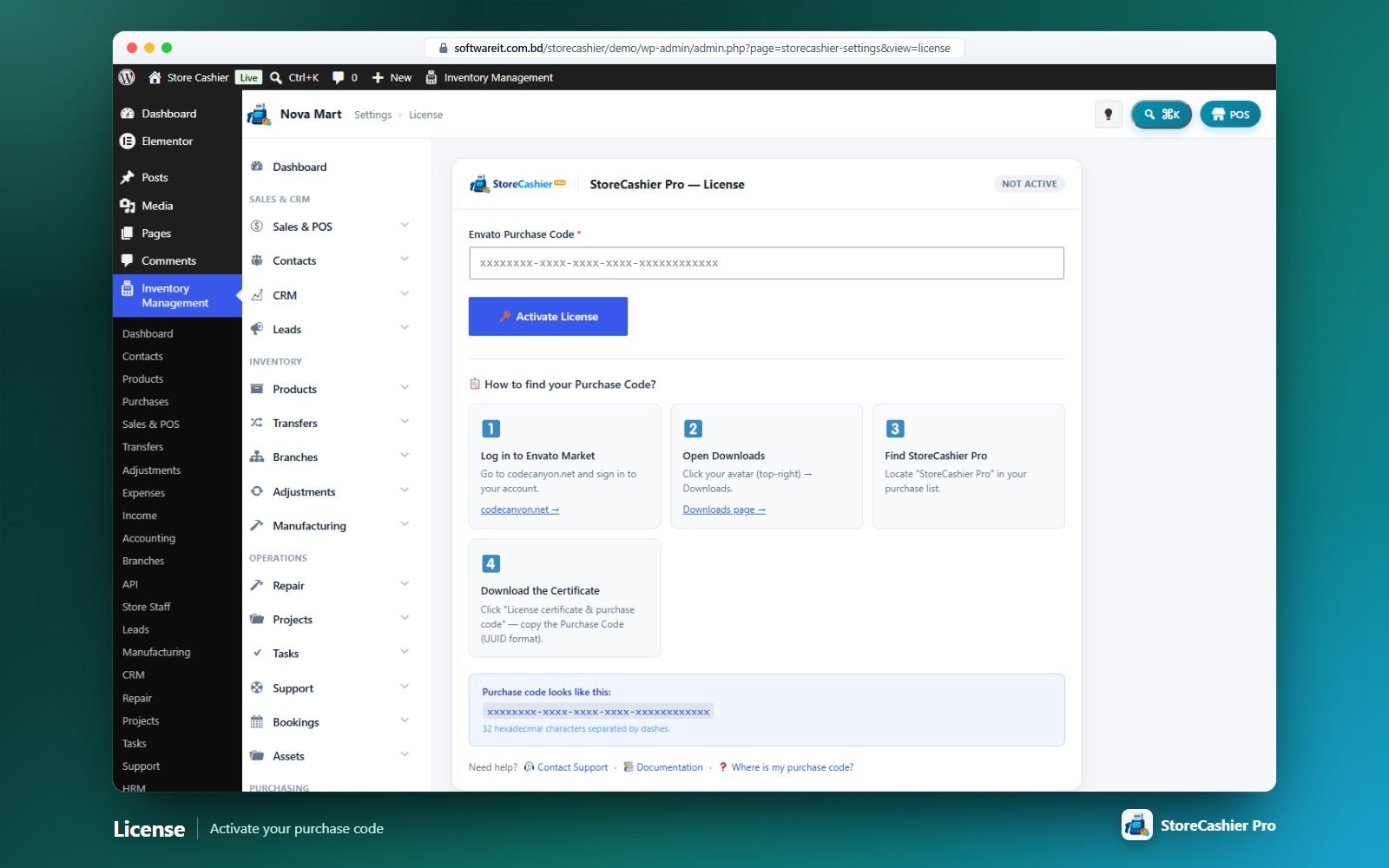
Paste your Envato Purchase Code (32 hexadecimal characters separated by dashes) and click Activate License. The screen then shows the masked key, buyer, license type, registered domain and last verification, with Re-verify Now and Deactivate License buttons. The license is re-checked every few days; if the license server is unreachable a grace period applies. To move to another domain, deactivate first.
Upgrading from StoreCashier (free)
Activating Pro safely deactivates the free edition. Both editions use the same storecashier_ database tables, so all existing data remains available. Database upgrades run automatically.
Uninstalling
Deactivating or deleting the plugin keeps your data by default. Data is removed only if you tick Delete all StoreCashier data when the plugin is deleted in Settings → Business & General before deleting. WooCommerce products and orders are never touched.
Quick Setup Wizard
Nine short steps that configure your business, currency & tax, locations, modules, invoices, inventory and team. Every step writes to the same settings as the Settings screens.
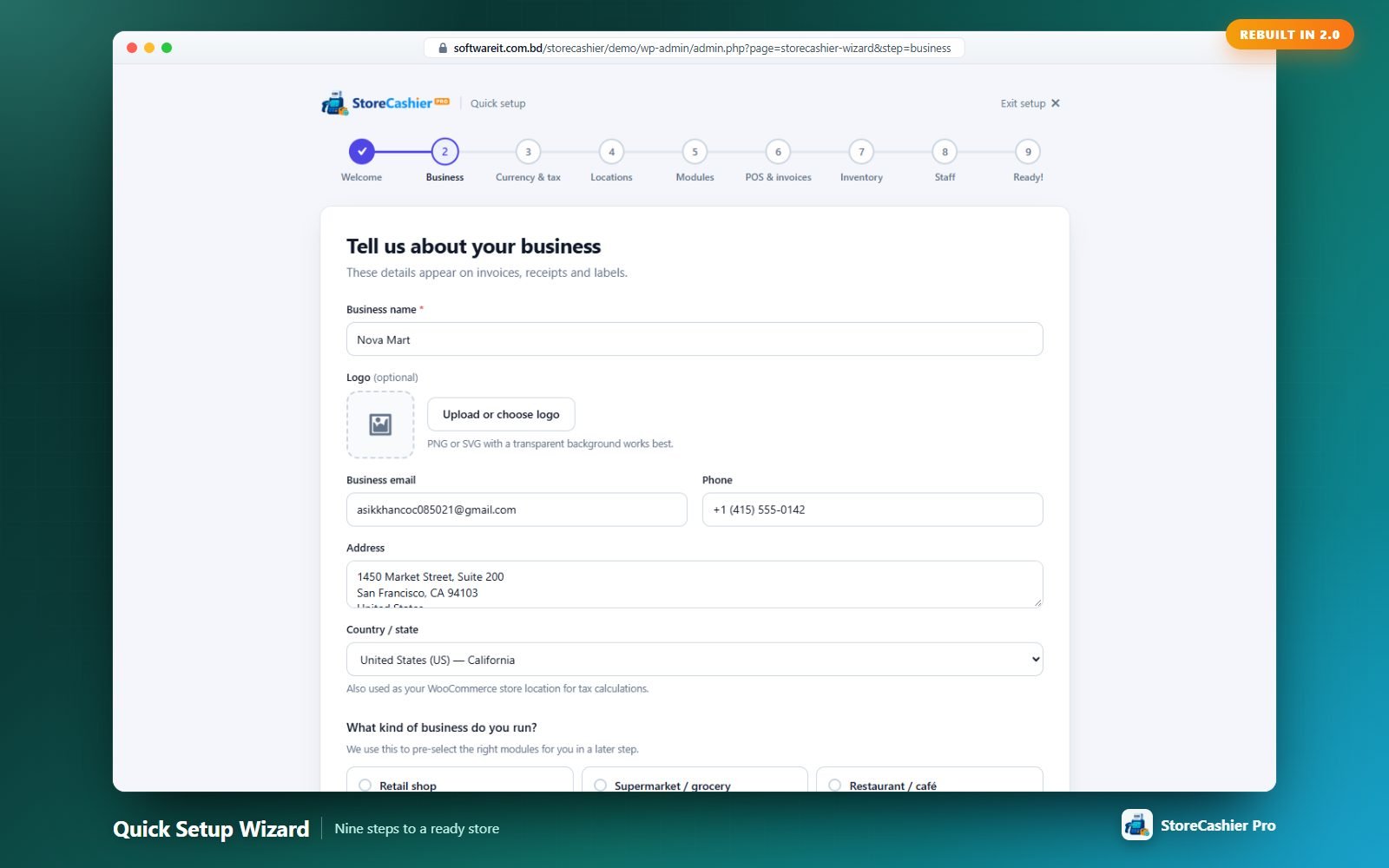
It opens automatically after activation. Re-run it any time from the Setup wizard link under the plugin on the Plugins screen, or from the “Welcome to StoreCashier Pro!” notice (Run Setup Wizard / Skip setup). URL: admin.php?page=storecashier-wizard. Each step has Back · Skip this step · Continue.
| Step | What you set |
|---|---|
| 1. Welcome | Overview; warns if WooCommerce is inactive. |
| 2. Business | Business name, logo (also used on invoices), e-mail, phone, address, country/state (also sets the WooCommerce store country) and business type — retail, supermarket, restaurant, pharmacy, electronics & repair, fashion, wholesale, manufacturer, salon/clinic, hotel/rentals, service agency, SaaS/membership or other. |
| 3. Currency & tax | Currency and position, time zone, date format, “Charge tax on sales”, prices entered incl./excl. tax, tax name, default rate (creates a WooCommerce standard rate) and tax registration number. |
| 4. Locations | Main business location and optional extra branches/warehouses. |
| 5. Modules | Recommended modules for your business type, with Use recommended / Select all / Clear; dependencies are switched on automatically. |
| 6. POS & invoices | Default invoice layout (A4 or 80 mm receipt), receipt footer, reference prefixes, SKU and barcode prefixes/length. |
| 7. Inventory | Sync stock with WooCommerce, track stock for new products, deduct stock for completed online orders, low-stock threshold and Sync products now (imports your WooCommerce products with a progress bar). |
| 8. Staff | Invite team members (name, e-mail, role: custom roles, Cashier or Shop manager) and optionally e-mail them a password link. |
| 9. Ready! | Summary with Edit links and next steps: add a product, open the POS, go to the dashboard, read the docs. |
Module Manager
Show your team only what your business needs. Open Settings → Modules.
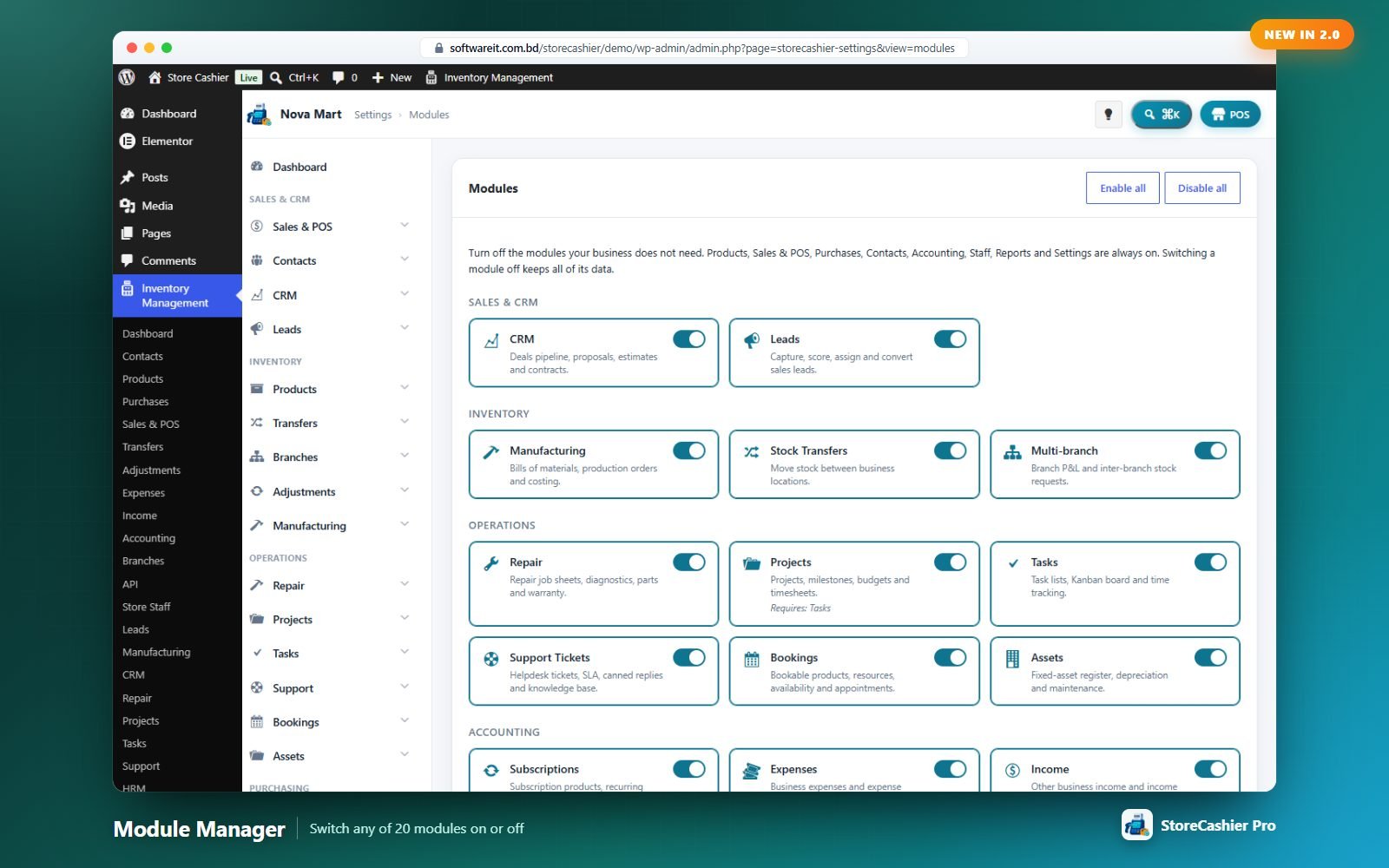
Always on (core): Dashboard, Products, Sales & POS, Purchases, Contacts, Stock Adjustments, Accounting, Store Staff, Reports and Settings.
| Category | Optional modules |
|---|---|
| Sales & CRM | CRM, Leads |
| Inventory | Manufacturing, Stock Transfers, Multi-branch |
| Operations | Repair, Projects (requires Tasks), Tasks, Support Tickets, Bookings, Assets |
| Accounting | Subscriptions, Expenses, Income |
| Workflow & Documents | Documents, Approvals |
| HR & People | HRM & Payroll |
| Insights & Integrations | Audit Trail, Report Builder, REST API & Webhooks |
Toggle the cards and click Save Modules (or Enable all / Disable all). Ticking a module also ticks what it needs; unticking one also unticks modules that depend on it.
Using the Interface
A consistent, fast admin app inside WordPress: sectioned sidebar, command palette, dark mode, smart tables and quick-add popups.
Top bar & sidebar
The top bar shows the business name, a breadcrumb, the dark-mode toggle, the ⌘K search button and a POS button. The sidebar groups modules into Sales & CRM · Inventory · Operations · Purchasing · Accounting · Workflow & Documents · HR & Staff · Reports · Configuration, followed by Help links. Users only see groups they have permission for.
Command palette — Ctrl/⌘ + K
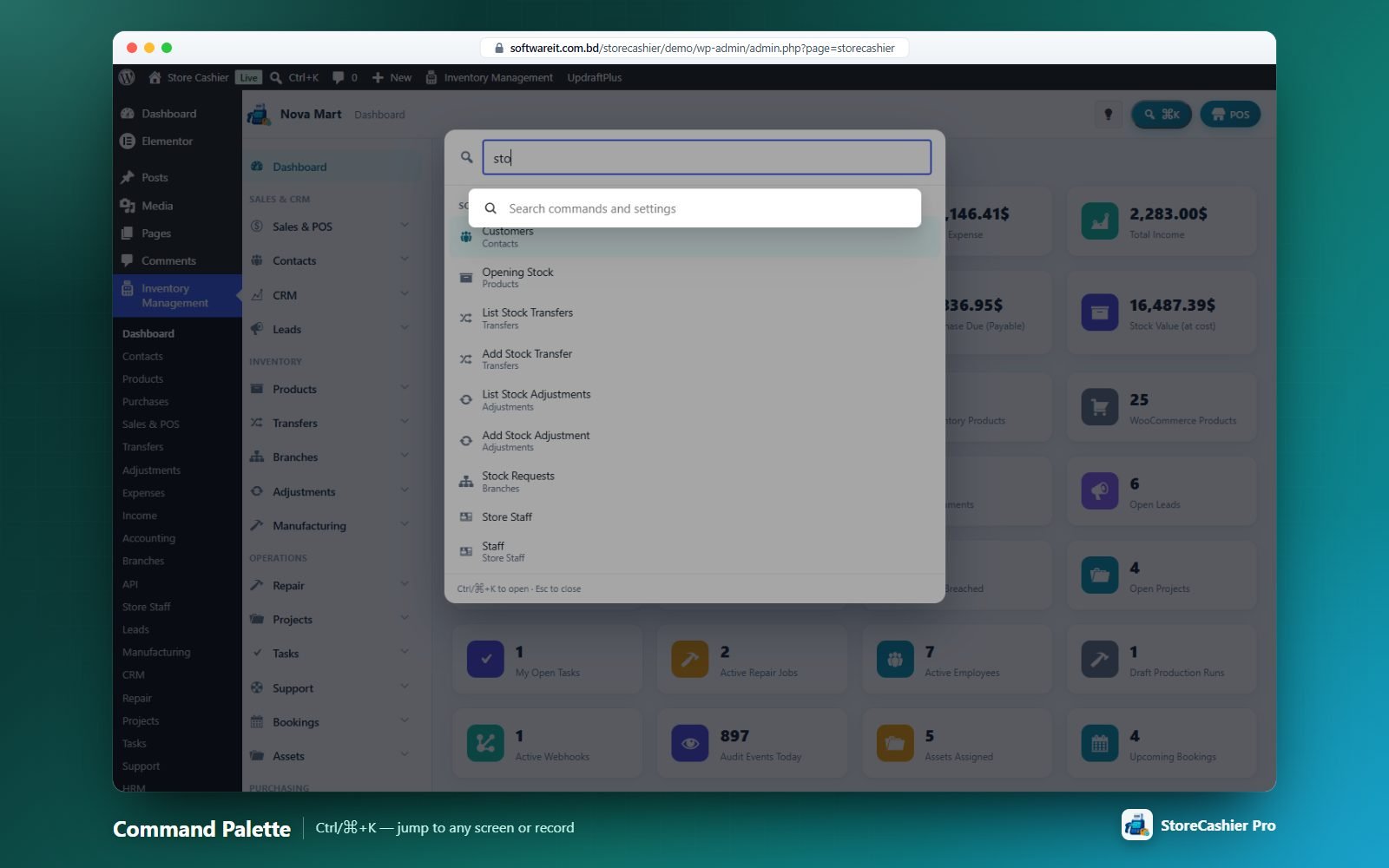
Type to jump to any screen, or search live records (contacts, products, deals, leads, employees, production orders, projects, repair jobs, tasks, tickets). ↑/↓ to move, Enter to open, Esc to close.
Dark mode
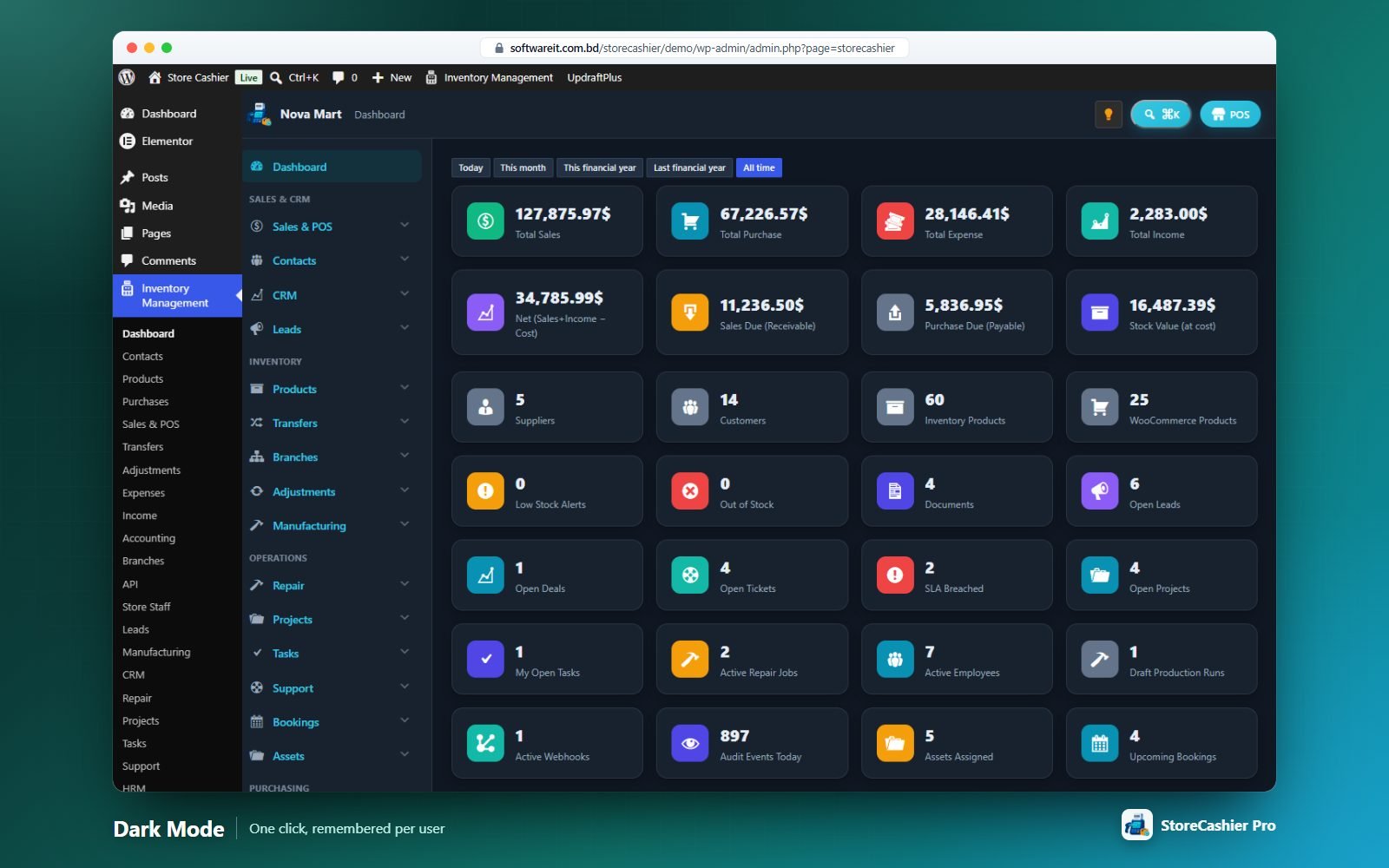
Click the lightbulb icon in the top bar. The choice is saved to your user profile and browser. The POS has its own Light / Dark / Auto theme.
Smart tables
Every list table gets a toolbar: Show 10/25/50/100/All entries, live Search, export to CSV and Excel, Print and Column visibility (remembered per screen), plus paging. Filter bars apply instantly without reloading the page.
Quick-add popups
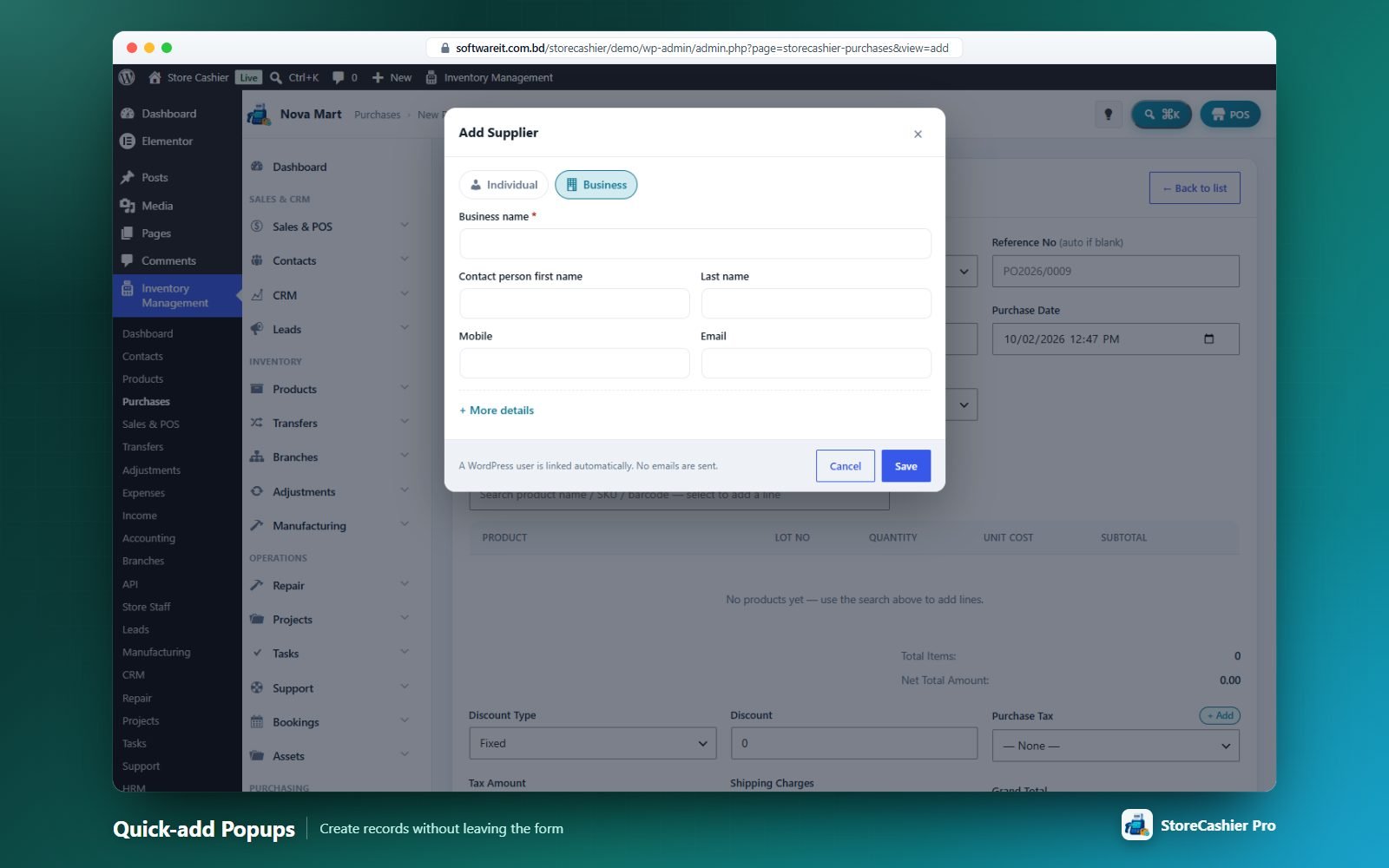
Wherever you pick a related record you’ll find a + Add button that creates it in a popup and selects it: customers and suppliers (from purchases, the POS, CRM, leads, projects, repair, bookings, subscriptions, tickets, assets, expenses/income), payment accounts, tax rates, units, expense/income categories, asset categories, lead sources, departments and designations.
Installing on an Existing Store
Already selling with WooCommerce? StoreCashier picks up your catalogue, customers and order history without changing your stock.
- Products — run Sync products now in the wizard (or Products → Opening Stock → Sync all WooCommerce products). Every product and variation is linked to the inventory; products that manage stock get an Opening Stock entry equal to their current WooCommerce quantity at the default location.
- Opening stock per location — if you have several locations, set the real quantities per location with the product’s Add or edit opening stock action or import a CSV (SKU, location id, quantity, unit cost, lot, expiry) in Products → Opening Stock.
- Customers — Contacts → Customers → Sync WooCommerce customers imports every registered and guest customer in the background (no e-mails are sent). New customers and orders sync automatically afterwards.
- Sales history — after installation, existing WooCommerce orders are imported into the sales reports in the background. A notice shows the progress.
Report tools
Reports → Report Tools → Rebuild sales data re-syncs every WooCommerce order into the sales records (safe to run any number of times): refunds become sell returns and payments are recorded only for paid orders that have none.
Dashboard
Your business at a glance. Every card, counter and chart respects the user’s permissions and assigned locations.
KPI cards
Total Sales, Total Purchase, Total Expense, Total Income, Net (Sales + Income − Cost), Sales Due (receivable), Purchase Due (payable) and Stock Value (at cost).
Counters
Suppliers, Customers, Inventory Products, WooCommerce Products, Low Stock Alerts, Out of Stock — plus module counters when active: Pending Approvals, Documents, Open Leads, Open Deals, Contract Renewals Due, Open Tickets, SLA Breached, Open Projects, My Open Tasks, Active Repair Jobs, Active Employees, Pending Leave Requests, Draft Production Runs, Pending Branch Requests, Active Webhooks, Audit Events Today, Assets Assigned, Upcoming Bookings and Subscriptions Due.
Charts
Sales vs Purchase (12 months), Sales by Payment Method, Sales Trend (30 days), Orders by Status, Profit / Loss Breakdown, Income vs Expense (6 months), Top Selling Products, Expenses by Category, Sales by Location (multi-location), Top Customers, Sales by Representative and Tax Summary. Reports you pin in the Report Builder appear below as extra widgets.
Tables
Low Stock Alerts, Recent Sales and Recent Activity — each with a link to the full screen.
POS Register
A full-screen, touch-friendly and keyboard-first register. Every sale becomes a real WooCommerce order, deducts stock from the selected business location and posts the payments to your accounts.
Open it from Sales & POS → POS, the POS button in the top bar, or admin.php?page=storecashier-sells&view=pos_add. Access requires the Use POS capability (or manage_woocommerce).
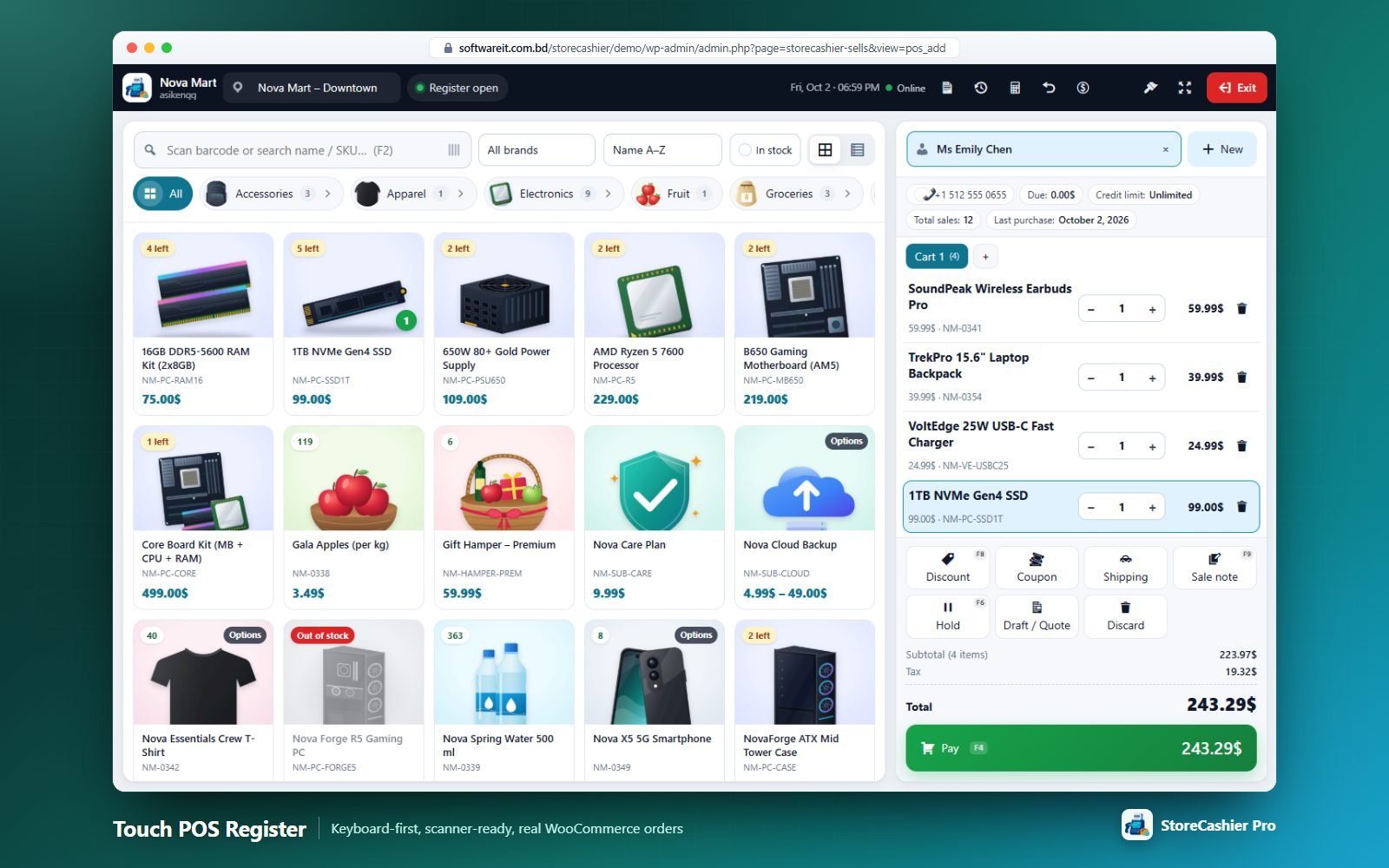
Header bar
| Element | What it does |
|---|---|
| Business location | Lists only the active locations the cashier is assigned to. The choice is remembered in the browser; changing it reloads products, the held-sales count and the register status. |
| Register chip | Shows Register open / Register closed for the current location. Click it to open the cash-register dialog. |
| Clock & network badge | Live clock and an Online / Offline indicator. |
| Recent sales Alt+R | The 15 most recent POS orders (cashiers see their own; managers see all) with Receipt and Invoice reprint buttons. |
| Held sales F7 | Held carts, drafts and quotations with a badge counter (shown when “Hold / park sales” is enabled). |
| Calculator F10 | Built-in calculator (when enabled in settings). |
| Returns | Opens Sell Return. |
| Cash in / out | Cash register sessions, cash movements and closing report. |
| Shortcuts F1 | Shows the keyboard shortcut map. |
| Theme | Cycles auto → light → dark (remembered per browser). |
| Full screen | Native browser full screen (hidden on touch devices). |
| Exit | Back to All Orders filtered to POS sales. |
On narrow screens the tool buttons collapse behind a More (…) menu, and a bottom bar switches between Products and Cart (the Cart button shows item count and total).
Finding products
- Search box F2 — live search by name, SKU or barcode. Enter does an exact lookup by SKU, then StoreCashier barcode, then the WooCommerce GTIN/EAN field. Esc clears; ↓ moves into the grid.
- Barcode scanners work anywhere on the screen — fast keystrokes ending with Enter are treated as a scan and go straight into the cart. Normal typing outside an input is redirected to the search box.
- Sort — Name A–Z, Best sellers, Newest, Price low → high, Price high → low. In stock toggle hides unavailable items. Grid / List layout toggle. A Brand filter appears when WooCommerce brands exist.
- Category chips — hierarchical with breadcrumbs and product counts (“All · Parent” inside a parent).
- Product cards show image, name, SKU, price (sale price struck through, variable products as a range), a stock badge (“Out of stock”, “3 left” at or below the low-stock threshold, or the quantity), an Options tag on variable products and the quantity already in the cart. Infinite scroll plus Load more.
- Variable products open a Select variation dialog with image, price, stock and SKU per variation.
- Products assigned to specific business locations only appear at those locations; grouped and external products are excluded.
The cart
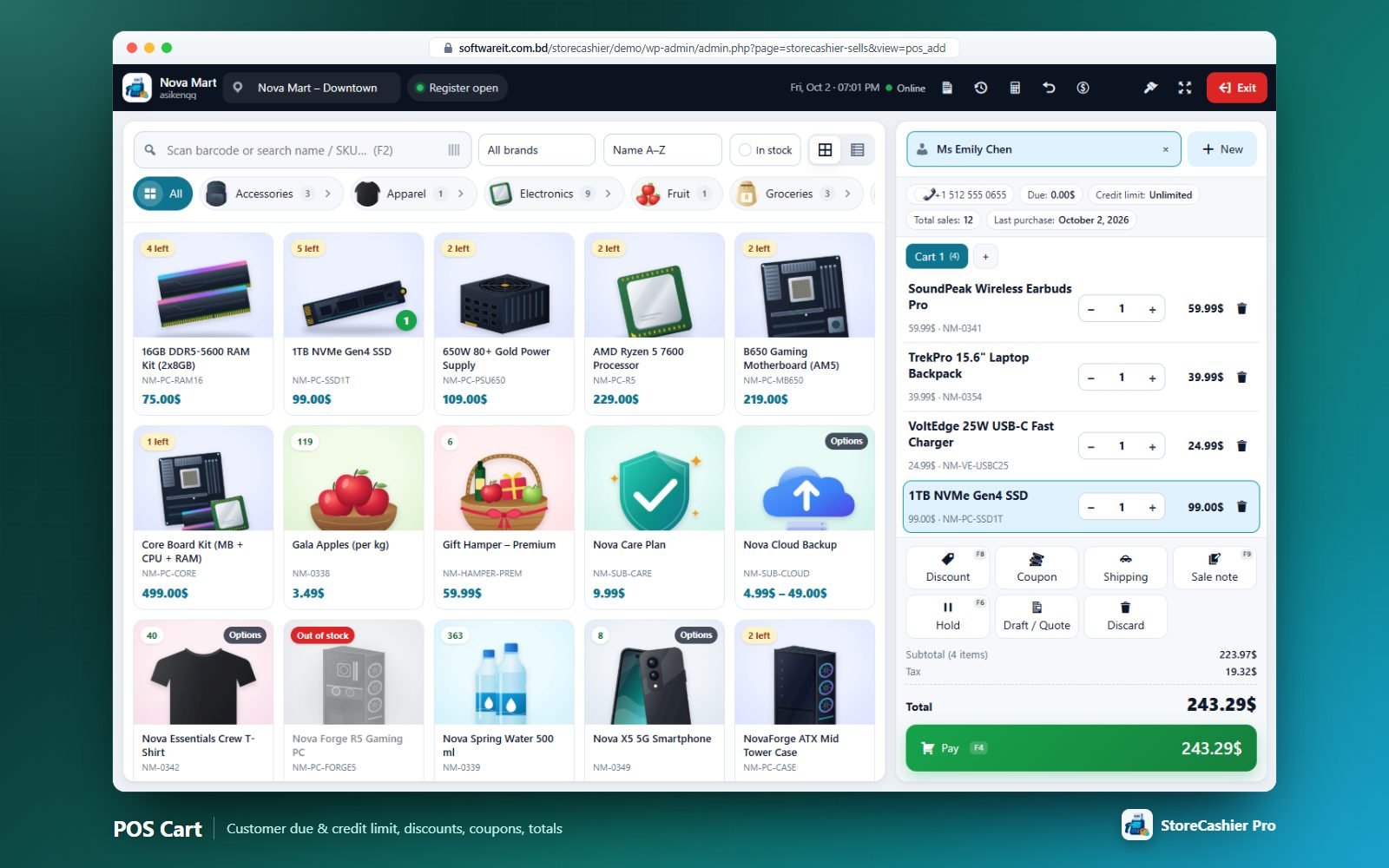
- Customer F3 — search by name, phone, email, contact ID or business name. Selecting a customer shows phone, Due, Credit limit, Total sales and Last purchase. New Alt+N opens the quick-add customer popup; typing a name with no match offers “+ name”.
- Multiple carts — tabs Cart 1, Cart 2… (when enabled); carts are saved in the browser and survive a reload.
- Edit line (click a line) — Quantity, Unit price (if allowed), Line discount (% or fixed), Line total and a Line note printed on the receipt.
- Action buttons — Discount F8, Coupon Alt+C, Shipping, Sale note F9, Hold F6, Draft / Quote and Discard Alt+D.
- Totals — Subtotal, line discounts, coupons, order discount, shipping, tax (separate line or “incl. tax”), cash rounding and Total. Pay F4 opens the payment dialog.
Discounts, coupons, shipping & notes
- Order discount — Percentage or Fixed amount with 5/10/15/20/25/50 % presets (presets above the cashier’s maximum are hidden). Stored on the WooCommerce order as a negative fee “Discount (x%)”.
- Maximum discount for cashiers is enforced in the browser and on the server. Managers are exempt.
- Coupons — any WooCommerce coupon code; validated immediately (existence, expiry, usage limit, min/max spend) and applied by WooCommerce on completion. If WooCommerce recalculates a different total, the sale is rolled back and the cashier is asked to review.
- Shipping / delivery charge — label + amount, added as a WooCommerce shipping line.
- Sale note — always saved as an order note; tick “Print this note on the receipt / invoice” to make it a customer note.
Payment
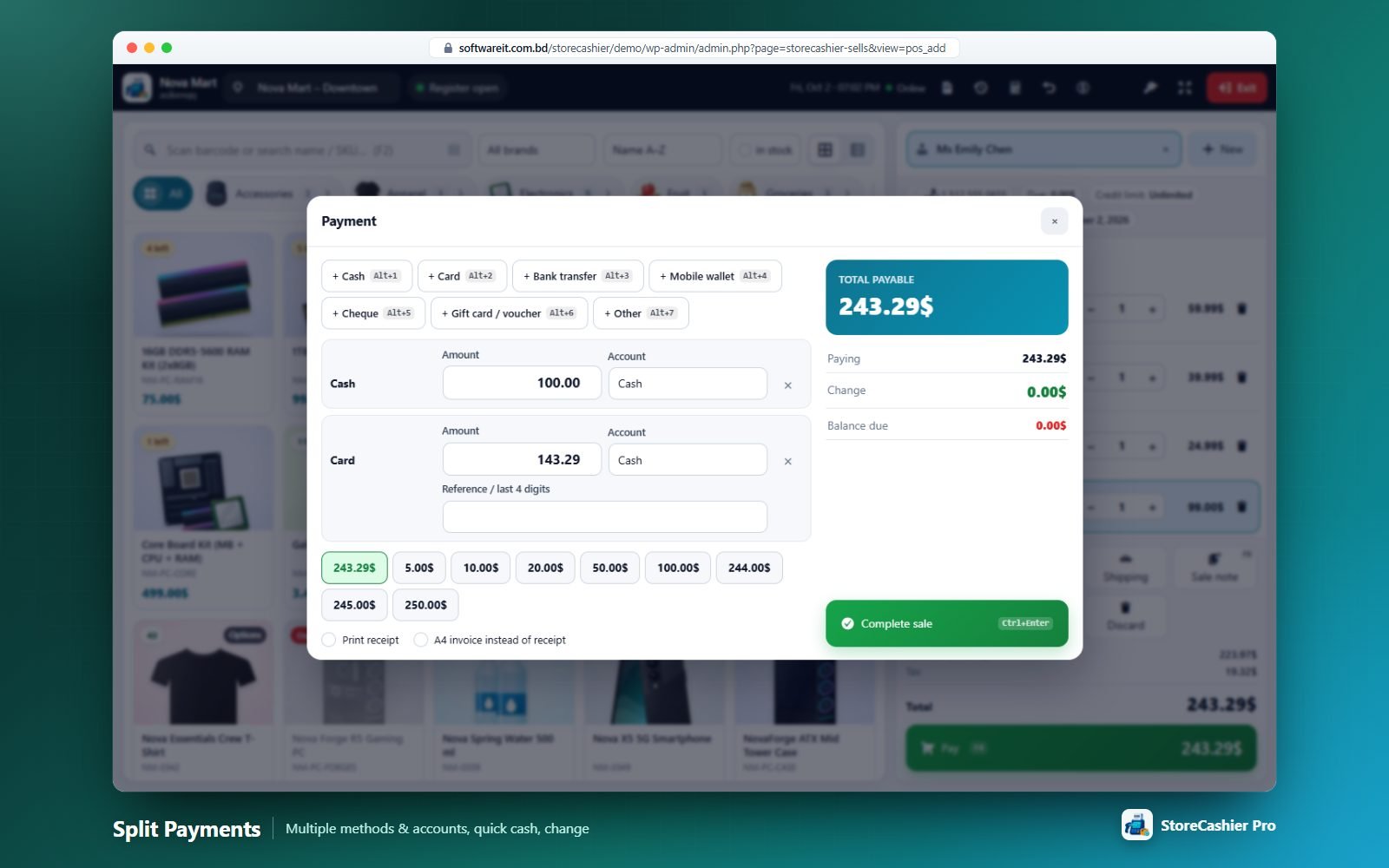
- Split / multiple payments — one “+ method” button per enabled method (Alt+1…Alt+9). Each line has Amount, Account (the payment accounts the cashier may use) and Reference / last 4 digits for non-cash methods.
- Built-in methods: Cash, Card, Bank transfer, Mobile wallet, Cheque, Gift card / voucher, Other.
- Quick-cash buttons — exact total, rounded-up amounts and your configured values.
- Summary: Total payable, Paying, Change, Balance due. Card/bank payments can’t exceed the total (change is only given in cash).
- Credit sales — leaving a balance due requires a registered customer and respects the customer’s credit limit (or the default credit limit).
- Print receipt and A4 invoice instead of receipt checkboxes. Complete sale Ctrl+Enter. The success panel offers Print receipt, A4 invoice and New sale.
created_via = storecashier_pos) with location, cashier, customer, register and payment details; status Completed (or Processing, per settings) when fully paid, or On hold with a balance due. Stock is deducted from the POS location, a sales ledger record and account credits are created, and an activity-log entry is written.Overselling & stock rule
Controlled by Settings → Orders & POS → Overselling (off by default):
- On — anything can be sold regardless of stock.
- Off — a product that manages stock can only be sold up to the quantity available at the POS location (from the StoreCashier ledger, or from WooCommerce if it has no ledger yet). Products that don’t manage stock can be sold unless marked “Out of stock”. WooCommerce backorders are ignored at the POS and “Sold individually” products are capped at 1. Enforced in the browser and on the server.
Hold, drafts & quotations
- Hold F6 parks the cart on the server with a reference such as
HLD-00001and clears it. - Draft / Quote saves the cart as a Draft (
DRF-…) or Quotation (QUO-…) with an optional title and “Print after saving”. Quotations print with a validity note. - Recall F7 — tabs Held / Drafts / Quotations with Print, Load and Delete. Cashiers see their own entries and those parked at their location; managers see all.
Cash register sessions
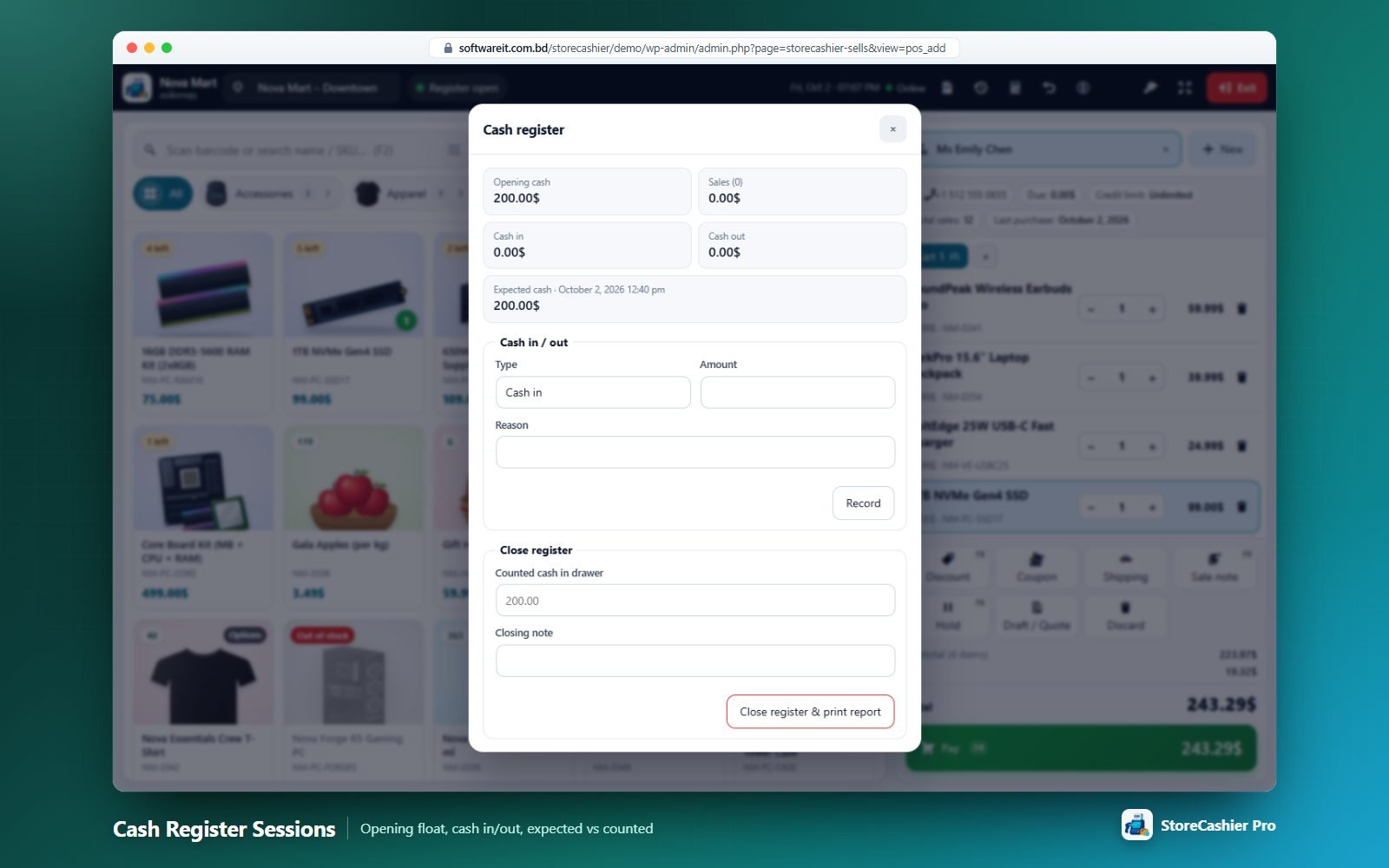
- Open — enter the Opening cash float and an optional note, then Open register. One open register per user.
- During the shift — the dialog shows Opening cash, Sales, one line per payment method, Cash in, Cash out and Expected cash. Record Cash in / Cash out movements with an amount and reason (posted to the location’s cash account).
- Close — enter Counted cash in drawer and a closing note, then Close register & print report. The report shows expected vs counted cash and the difference.
Turn on Require an open cash register to sell to force cashiers to open a register first. Closed sessions are listed in Reports → POS Register Report.
Calculator
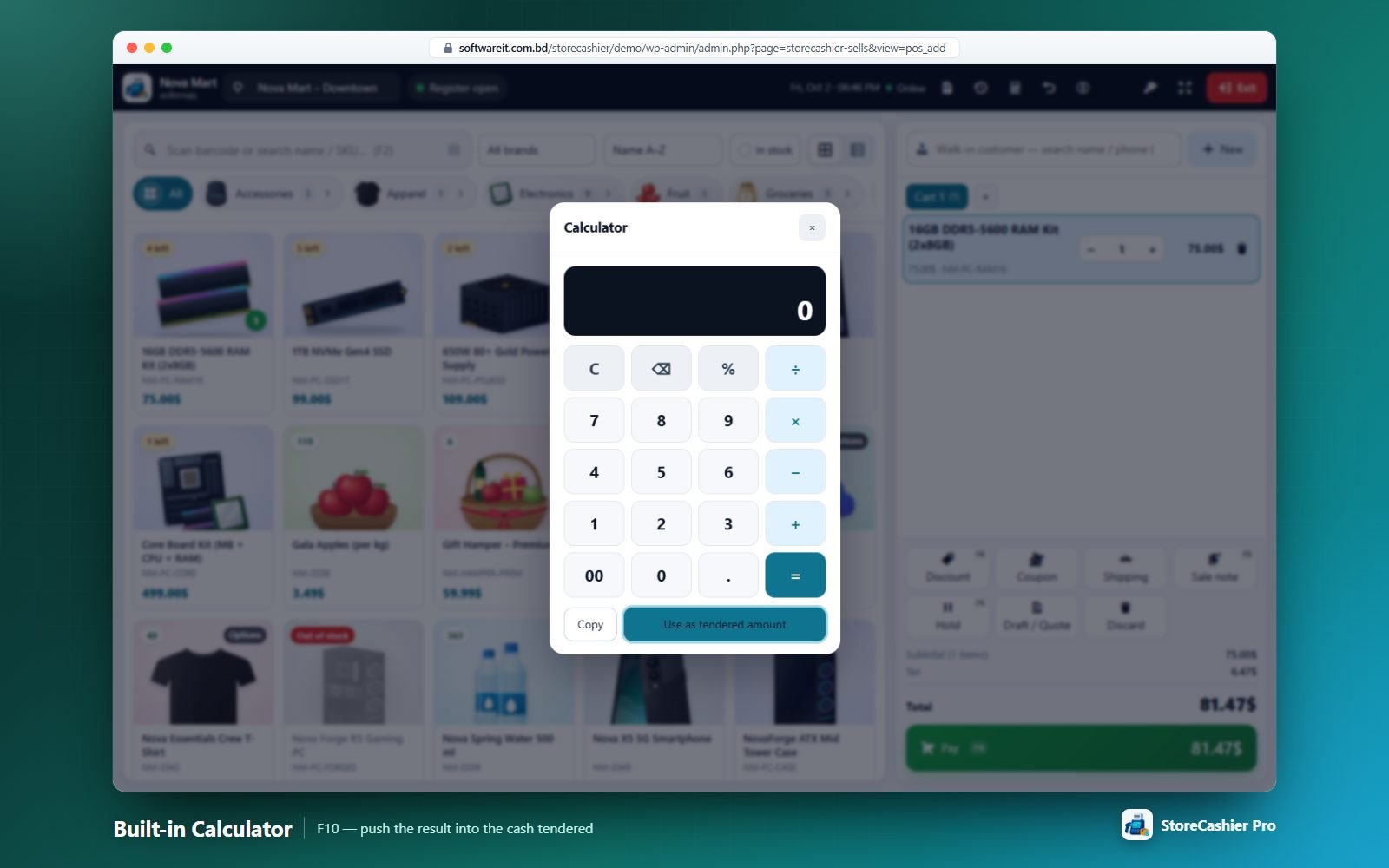
Press F10. Supports + − × ÷ %, 00 and decimal keys, typing on the keyboard (Enter/= equals, Backspace, C/Delete clears). Copy copies the result; Use as tendered amount opens the payment dialog and fills the cash line.
Offline behaviour
The POS is an online register. If the connection drops a banner appears and Pay is disabled until the connection returns; carts are kept in the browser so nothing is lost.
POS Keyboard Shortcuts
Every POS action is reachable from the keyboard. Press F1 inside the POS to see this map; it is also shown in Settings → Orders & POS.
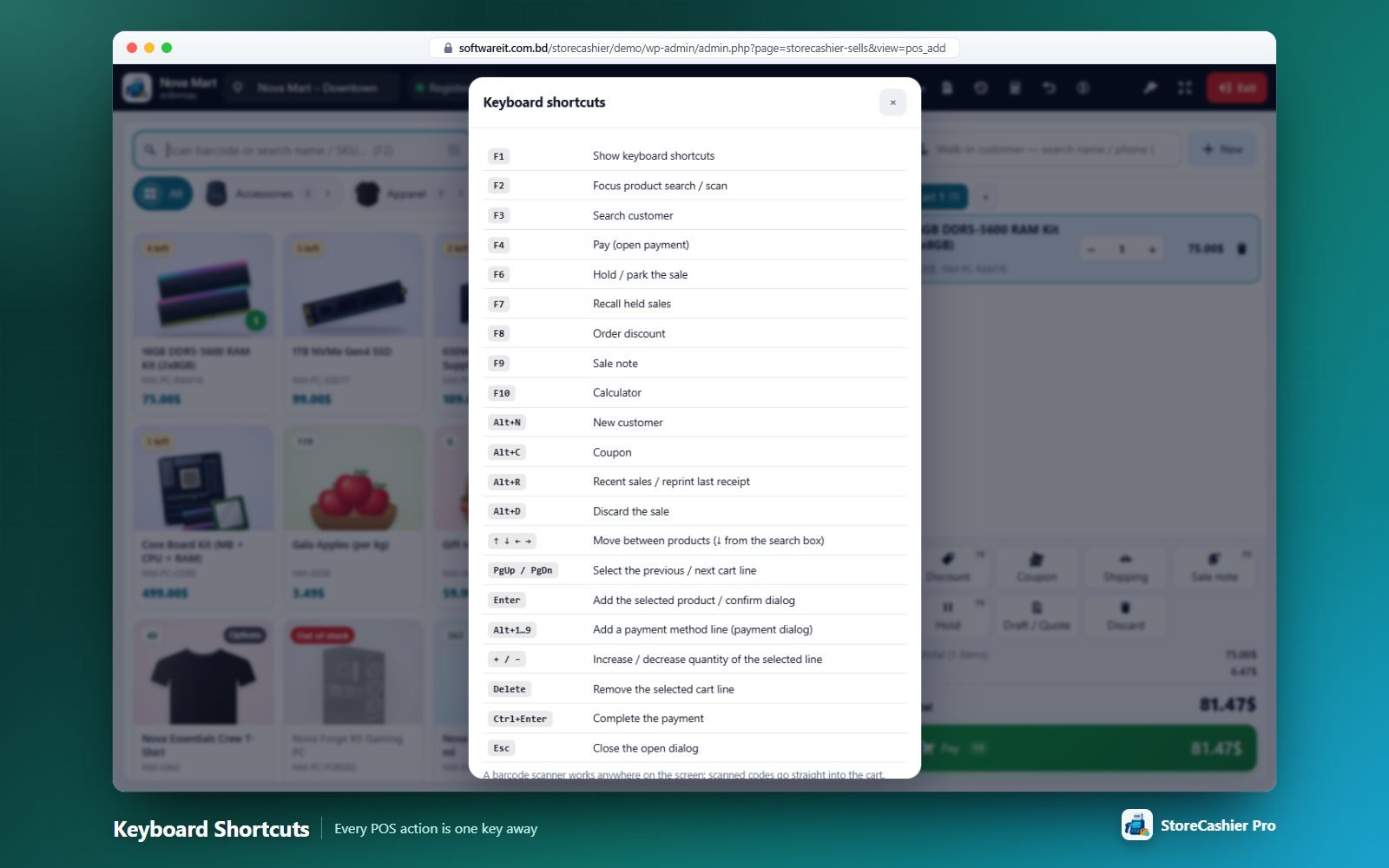
| Key | Action |
|---|---|
| F1 | Show keyboard shortcuts |
| F2 | Focus product search / scan |
| F3 | Search customer |
| F4 | Pay (open payment) |
| F6 | Hold / park the sale |
| F7 | Recall held sales |
| F8 | Order discount |
| F9 | Sale note |
| F10 | Calculator |
| Alt+N | New customer |
| Alt+C | Coupon |
| Alt+R | Recent sales / reprint |
| Alt+D | Discard the sale |
| ↑ ↓ ← → | Move between products (↓ from the search box) |
| PgUp / PgDn | Select the previous / next cart line |
| Enter | Add the selected product / confirm dialog |
| Alt+1…Alt+9 | Add a payment method line (payment dialog) |
| + / − | Increase / decrease quantity of the selected line |
| Delete | Remove the selected cart line |
| Ctrl+Enter | Complete the payment |
| Esc | Close the open dialog |
All Orders
One list for website and POS orders — read straight from WooCommerce (HPOS or legacy storage) and enriched with location, cashier, payments and profit.
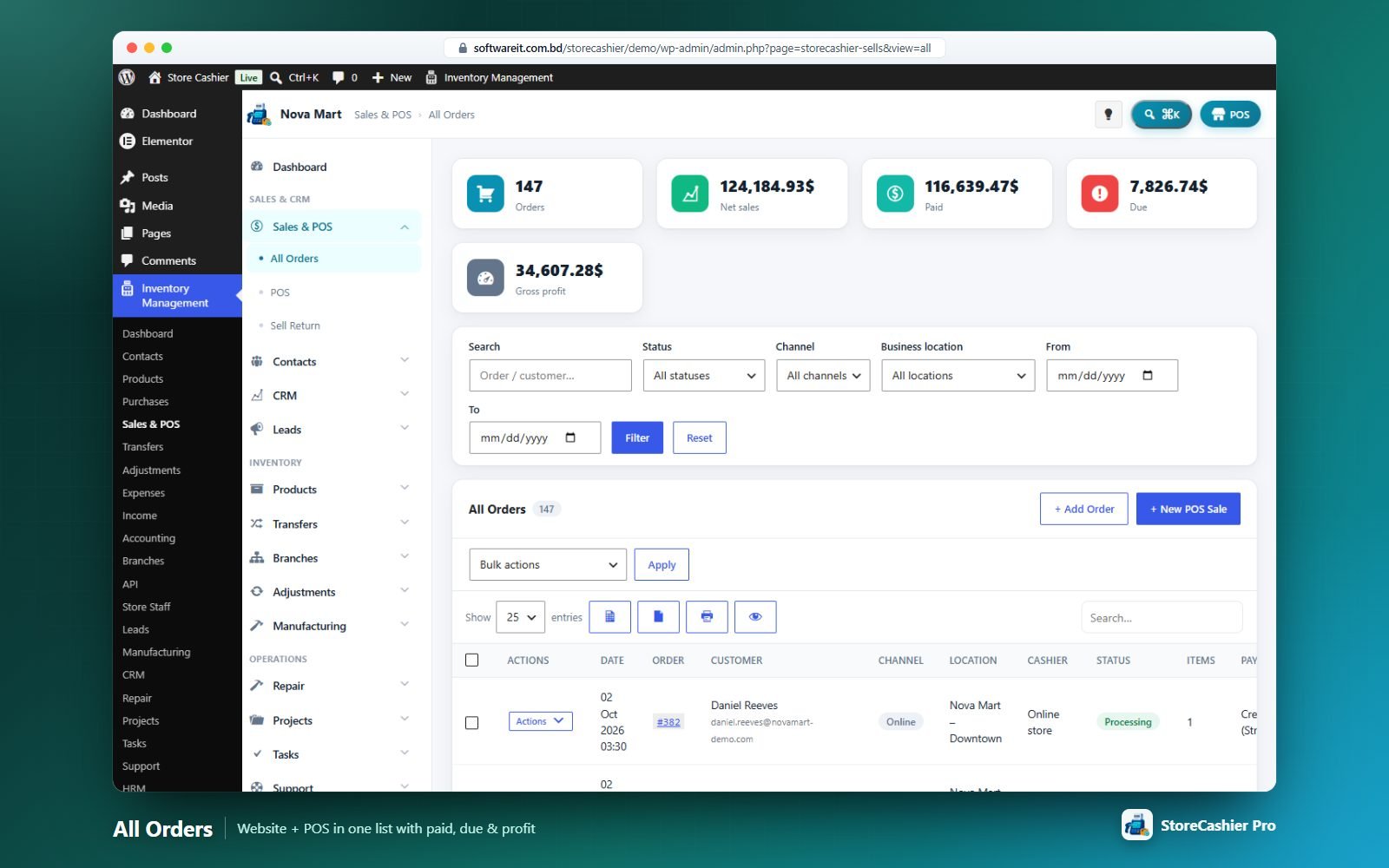
Summary cards & filters
Cards: Orders, Net sales, Paid, Due, Gross profit (cancelled, failed, pending and draft online orders are excluded). Filters: Search (order / customer), Status, Channel (Online / POS), Business location (including Not selected), From / To dates.
Columns
Actions, Date, Order, Customer (email or “Guest”), Channel, Location (or a Not selected pill), Cashier, Status, Items, Payment method, Total (refunds shown below), Paid, Due, Profit.
Row actions
View / Edit, Print Invoice, Print packing slip, View Payments, Add Payment, Sell Return, Open in WooCommerce, Delete (moves the order to Trash and reverses its inventory movements).
Bulk actions
| Action | Result |
|---|---|
| Change status | Sets a WooCommerce status on all selected orders (emails and stock logic run as usual). |
| Change business location | Moves the orders to a location (or Not selected); deducted stock is re-booked at the new location. |
| Print invoices / packing slips | One combined printable document, one order per page. |
| Export CSV | Order, Date, Customer, Email, Channel, Business location, Cashier, Status, Items, Payment method, Total, Refunded, Paid, Due, Profit (formula-safe). |
| Move to Trash | Trashes the orders and reverses their stock moves. |
Payments
View Payments lists every payment (date, amount, account, reference, note) with edit/delete; Add Payment records Amount, Paid On, Account, Reference and Note. Paid/Due are always calculated from the StoreCashier payment ledger.
+ Add Order creates a new order in the in-plugin order editor; + New POS Sale opens the register.
Order Editor
Create and edit WooCommerce orders without leaving StoreCashier. It uses the WooCommerce data API throughout, so it works with HPOS and legacy storage and fires the normal WooCommerce emails and hooks.
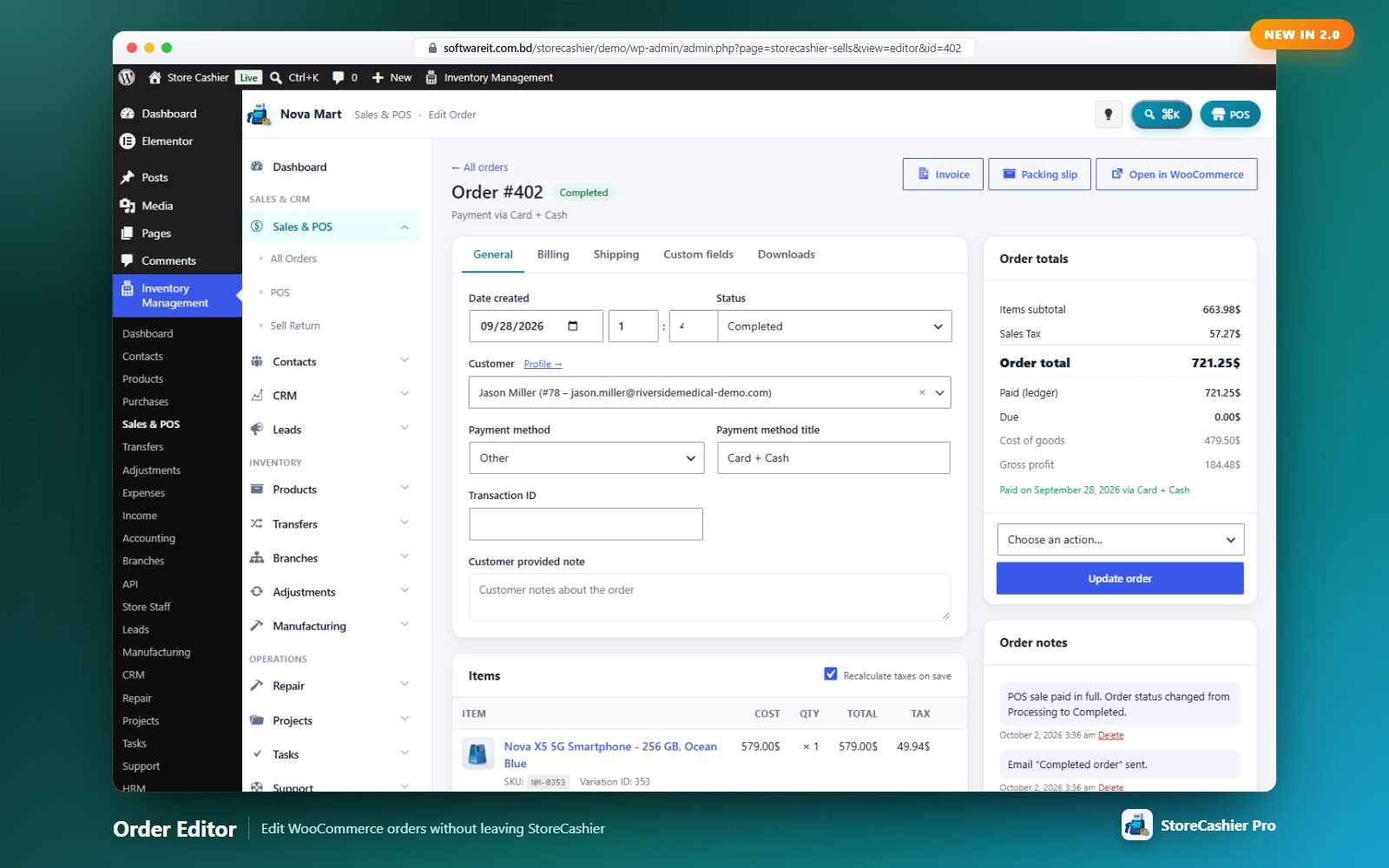
Tabs
- General — Date created (date, hour, minute), Status, Customer (search, Guest, “Profile →”), Payment method, Payment method title, Transaction ID, Customer provided note.
- Billing — full billing address with Load billing address.
- Shipping — shipping address with Load shipping address and Copy billing address.
- Custom fields — editable name/value meta (protected keys hidden).
- Downloads — grant/revoke downloadable product access, remaining downloads and expiry.
Items
Columns Item, Cost, Qty, Total, Tax and Refund. Add products by name/SKU/barcode search, Add fee (fixed or %, negative for a discount), Add shipping, Apply coupon, Recalculate and Refund. Items are locked unless the order is Pending payment or On hold.
Refunds
Restock refunded items (on by default), refund amount and reason, then Refund via gateway (when supported) or Refund manually. Each refund is listed and can be deleted. WooCommerce refunds are mirrored as StoreCashier sell returns automatically.
StoreCashier — Inventory & POS panel
- Business location — “Not selected” or a location the user may access. “Not selected” orders never change StoreCashier stock.
- Deduct from inventory at this location — explicit control of stock deduction.
- Channel, Cashier, Created via and ledger sale, plus shortcuts to Payments, Sell return and Customer ledger, and a per-location stock table for the ordered products.
Sidebar
Order totals (subtotal, coupons, fees, shipping, tax, total, refunded, net payment, paid (ledger), due, cost of goods, gross profit), Order action (send order details, resend new-order notification, regenerate download permissions), Create / Update order and Order notes (private or note to customer).
Sell Return (Credit Notes)
Return items from any sale with the correct stock, ledger and customer-due effects.
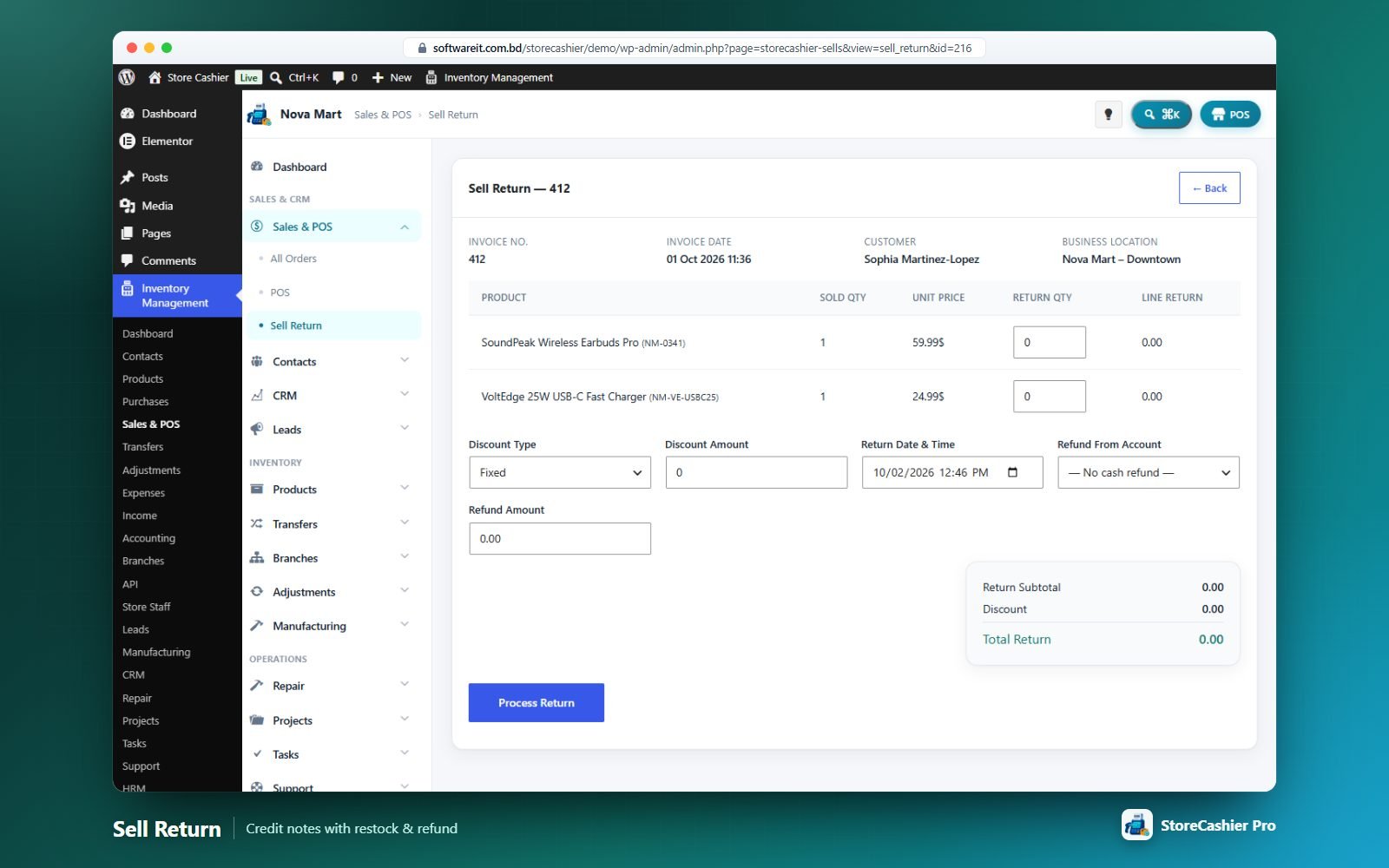
- Click Start from a sale → (or Sell Return in an order’s Actions menu).
- Enter a Return Qty per line. Optionally set a Discount Type/Amount, the Return Date & Time, a Refund From Account and Refund Amount.
- Click Process Return. A credit note
CN{year}/####is created and the quantities are restocked at the sale’s location.
The list (search by credit note / invoice) offers View, Edit, Print, Add Payment, View Payments and Delete (which reverses restored stock and refunds).
WooCommerce Integration
StoreCashier never keeps a second order database. WooCommerce orders are the source of truth; StoreCashier mirrors them into its sales ledger for payments, profit and reports.
Order → sale mirror
Orders in Completed, Processing, On hold or Refunded count as sales (POS orders count in every status except cancelled/failed/trash/draft). Each line stores the cost price at the time of sale, so profit reports stay correct when purchase prices change later.
Business location per order
- New online orders are stamped with the Default Business Location (Settings → Orders & POS).
- Orders created before StoreCashier was installed stay Not selected and never change stock.
- Changing an order to Not selected reverses its stock moves; changing location re-books the deduction at the new location.
Automatic stock deduction
When an order enters one of the selected Deduct inventory when order status is statuses (default Processing and Completed) and has a location, stock is deducted once. Cancelled or failed orders give the stock back. Trashing an order reverses its stock moves.
On the native WooCommerce order screen
A StoreCashier — Inventory & POS box adds Business Location, Deduct from inventory, Open in StoreCashier, Print Invoice, Packing Slip, Add Return, Customer Ledger, payment history with an inline Add Payment form, and stock by location. The WooCommerce orders list gets bulk actions Set location: … (HPOS and legacy).
HPOS & blocks
StoreCashier declares compatibility with WooCommerce High-Performance Order Storage and the Cart & Checkout blocks, and only accesses orders through the WooCommerce CRUD API.
Contacts — Customers & Suppliers
Everyone you sell to and buy from, with full profiles, ledgers, dues, statements and two-way sync with WordPress users and WooCommerce customers.
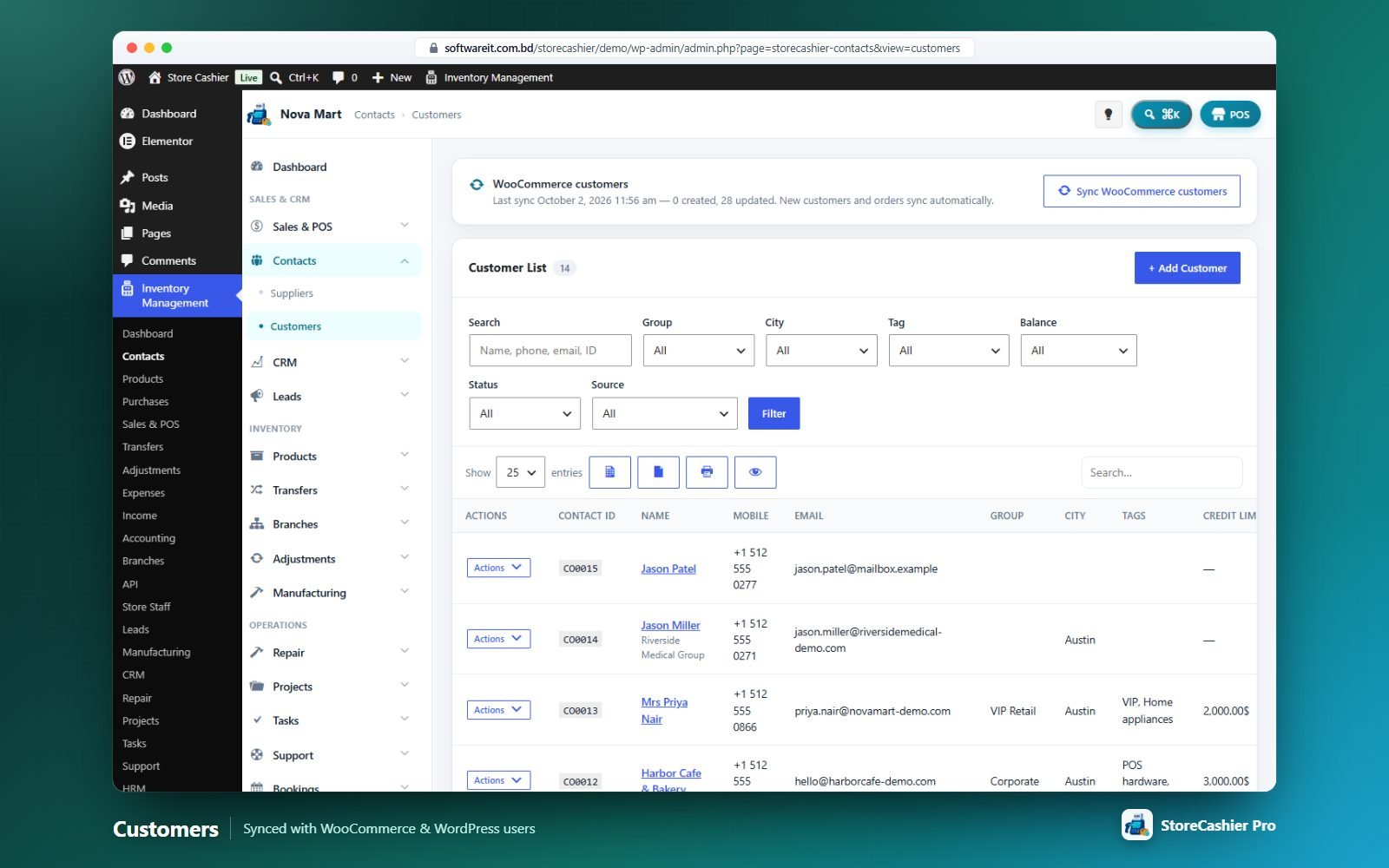
Lists
- Filters: search (name, phone, e-mail, ID), group, city, tag, balance (has due / has advance / settled), status (active/inactive) and source (WooCommerce / added in StoreCashier).
- Columns: Contact ID, Name, Mobile, Email, Group, City, Tags, Credit Limit, Total Sales/Purchases, Web Orders & Web Spent (customers), Last Order, Balance Due and the linked WordPress user — with a totals footer.
- Row actions: View, Pay, Statement (PDF/Print), Edit, Delete (the linked WordPress user and all orders/transactions are kept).
Contact form
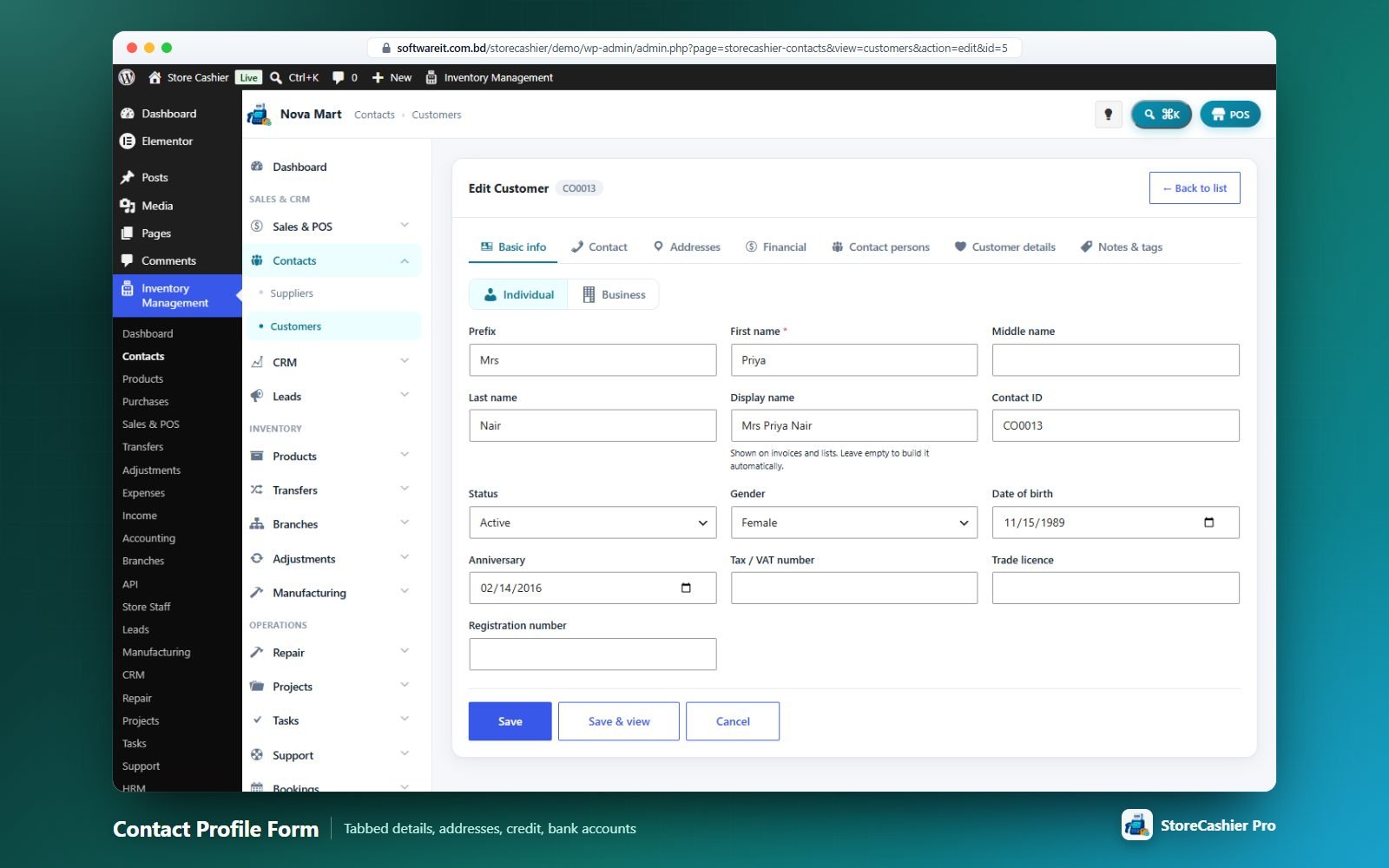
| Tab | Fields |
|---|---|
| Basic info | Individual / Business, business name, prefix, first/middle/last name, display name, Contact ID (auto), status, gender, date of birth, anniversary, tax/VAT number, trade licence, registration number. |
| Contact | Mobile, alternate phone, landline, WhatsApp, e-mail (also used for the WordPress user), additional e-mails, website, social profiles (Facebook, Instagram, LinkedIn, X, TikTok, YouTube). A live duplicate warning appears. |
| Addresses | Billing address, shipping address (or “Same as billing”) and unlimited additional addresses. |
| Financial | Customer/supplier group, price group, payment terms, credit limit, opening balance (negative = advance), preferred payment method, currency note and bank accounts. |
| Contact persons | Name, designation, phone, e-mail (repeatable). |
| Supplier details | Supplier category, lead time, minimum order value, rating, products/services supplied. |
| Customer details | Membership number, loyalty points, marketing consent (with date), do not contact. |
| Notes & tags | Assigned staff / sales rep, source, tags, notes — plus your custom fields. |
Profile, ledger, pay & statement
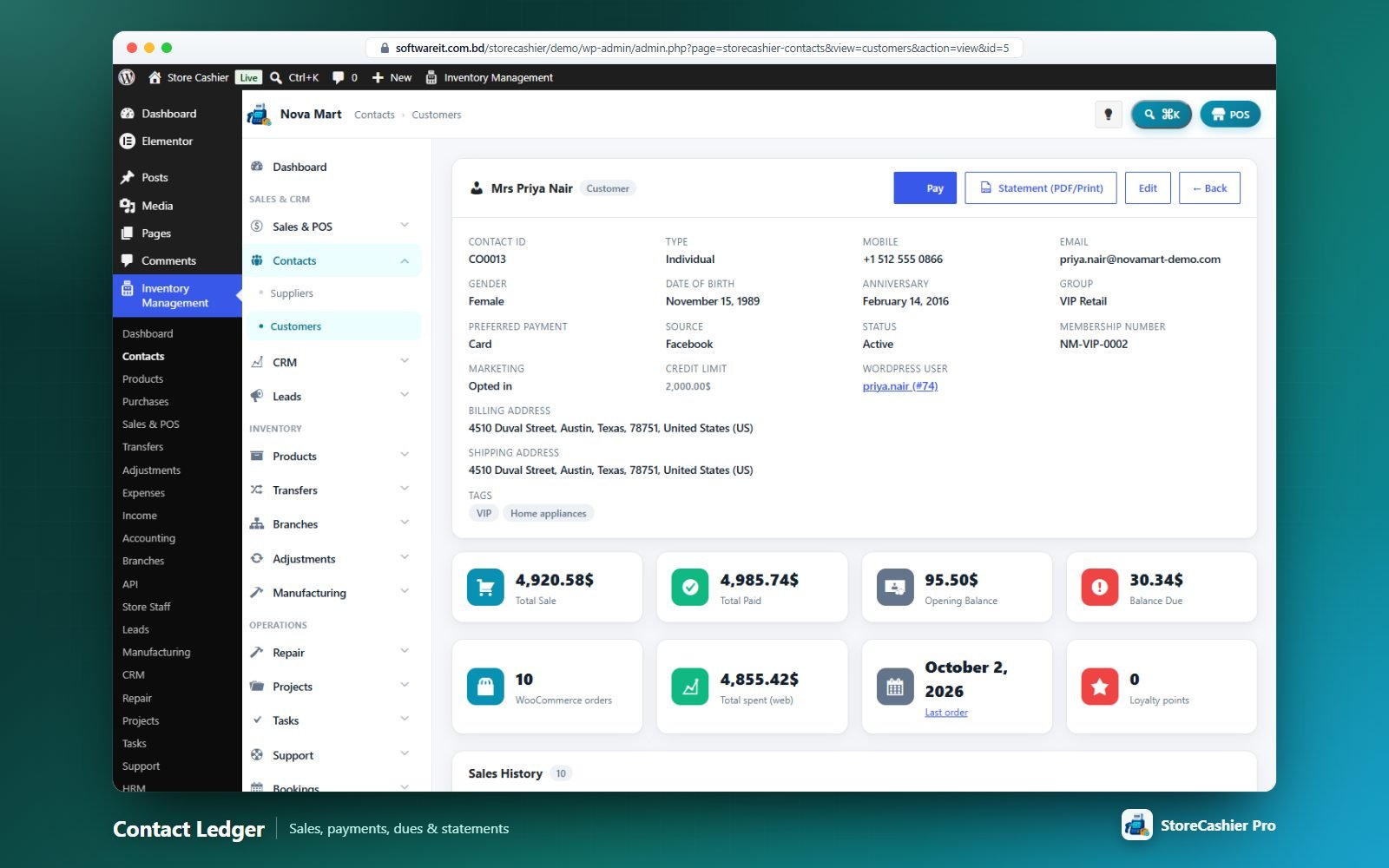
- Profile — all details plus Total Sale/Purchase, Total Paid, Opening Balance, Balance Due and (customers) WooCommerce orders, total spent, last order and loyalty points; sales/purchase history and payment history.
- Pay — records a payment into an account. It is applied to the oldest due invoices first; anything left over becomes an advance.
- Statement — a printable customer/supplier statement (Print / Save as PDF).
Customer Sync with WooCommerce & WordPress Users
Contacts, WordPress users and WooCommerce customers stay one and the same person.
Contact → WordPress user
With Settings → Contacts → Link every contact to a WordPress user (on by default), saving a contact creates or links a WordPress user — customers get the WooCommerce Customer role, suppliers a Supplier role. Users are created silently (no e-mails); names, e-mail, website and WooCommerce billing/shipping addresses are kept in sync. Staff and administrator roles are never changed.
WordPress / WooCommerce → contact
- New registrations create a contact; profile and My Account address edits update it.
- New WooCommerce orders create or update the customer — matched by linked contact, registered user, billing e-mail or (for guests) mobile. Anonymous walk-in orders create nothing; existing data is only filled in, never blanked.
- With Also create WordPress users for guest customers, guest buyers get an account they can later claim via “Lost your password”.
- Each customer caches order count, total spent and last order.
One-off import
Runs automatically once after installation, or manually with Sync WooCommerce customers on the Customers screen. It imports in resumable background batches and shows progress (“Last sync … — N created, N updated”).
All Products
Your WooCommerce catalogue enriched with stock per location, cost, value and sales.
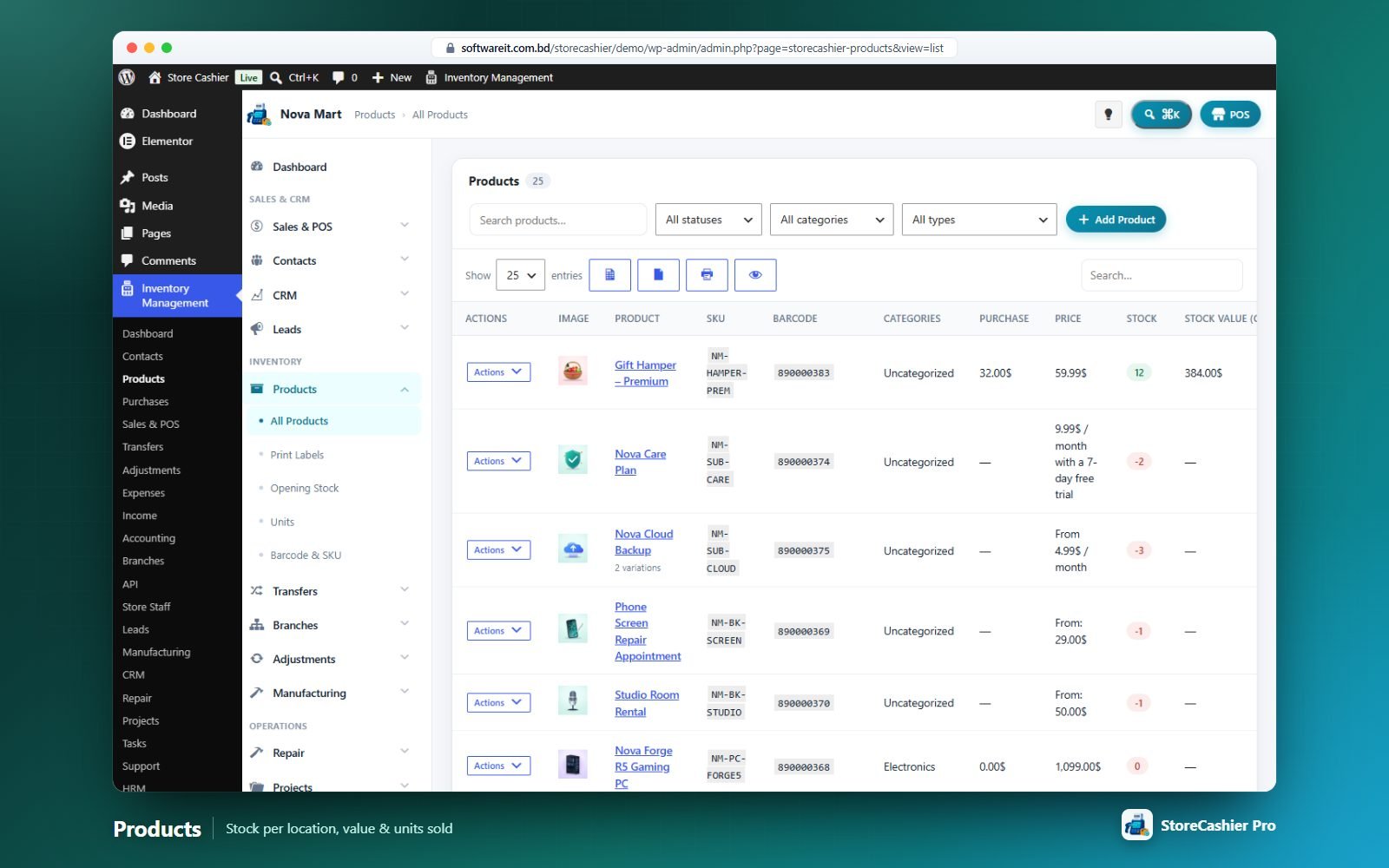
Filters: search, status, category and type. Columns: Image, Product, SKU, Barcode, Categories, Purchase price, Price, Stock (total across variations and locations), Stock value (cost), Sold, Type and Status, with page totals. Row actions: Edit, View, Labels, Add or edit opening stock, Product stock history, Open in WooCommerce editor, Delete.
Product stock history
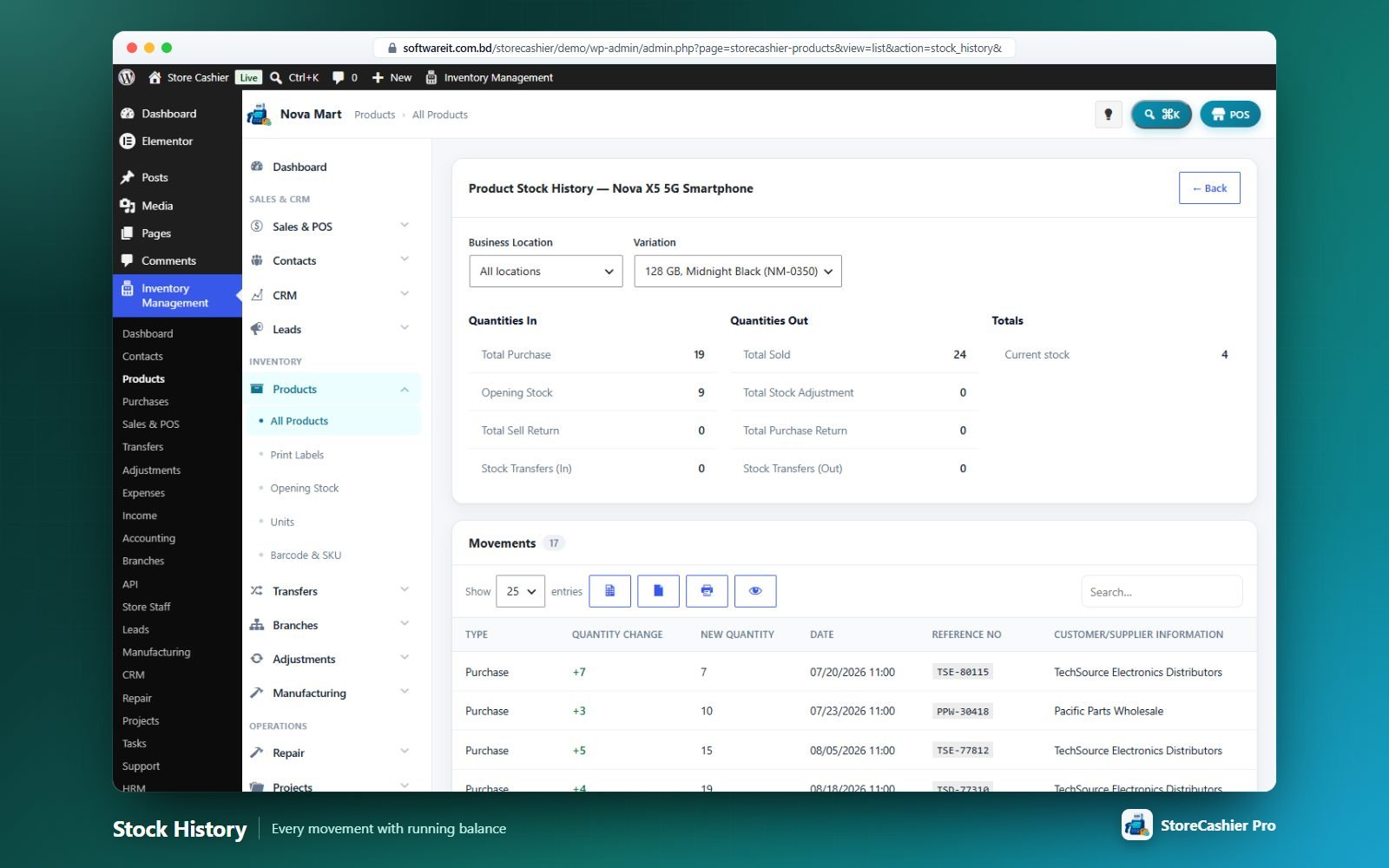
Filter by location and variation. Shows quantities in (purchases, opening stock, sell returns, transfers in), quantities out (sold, adjustments, purchase returns, transfers out), current stock and every movement with the new quantity, date, reference and contact.
Product Editor
Create and edit WooCommerce products without leaving StoreCashier — every product type, attributes and variations, plus the StoreCashier inventory fields.
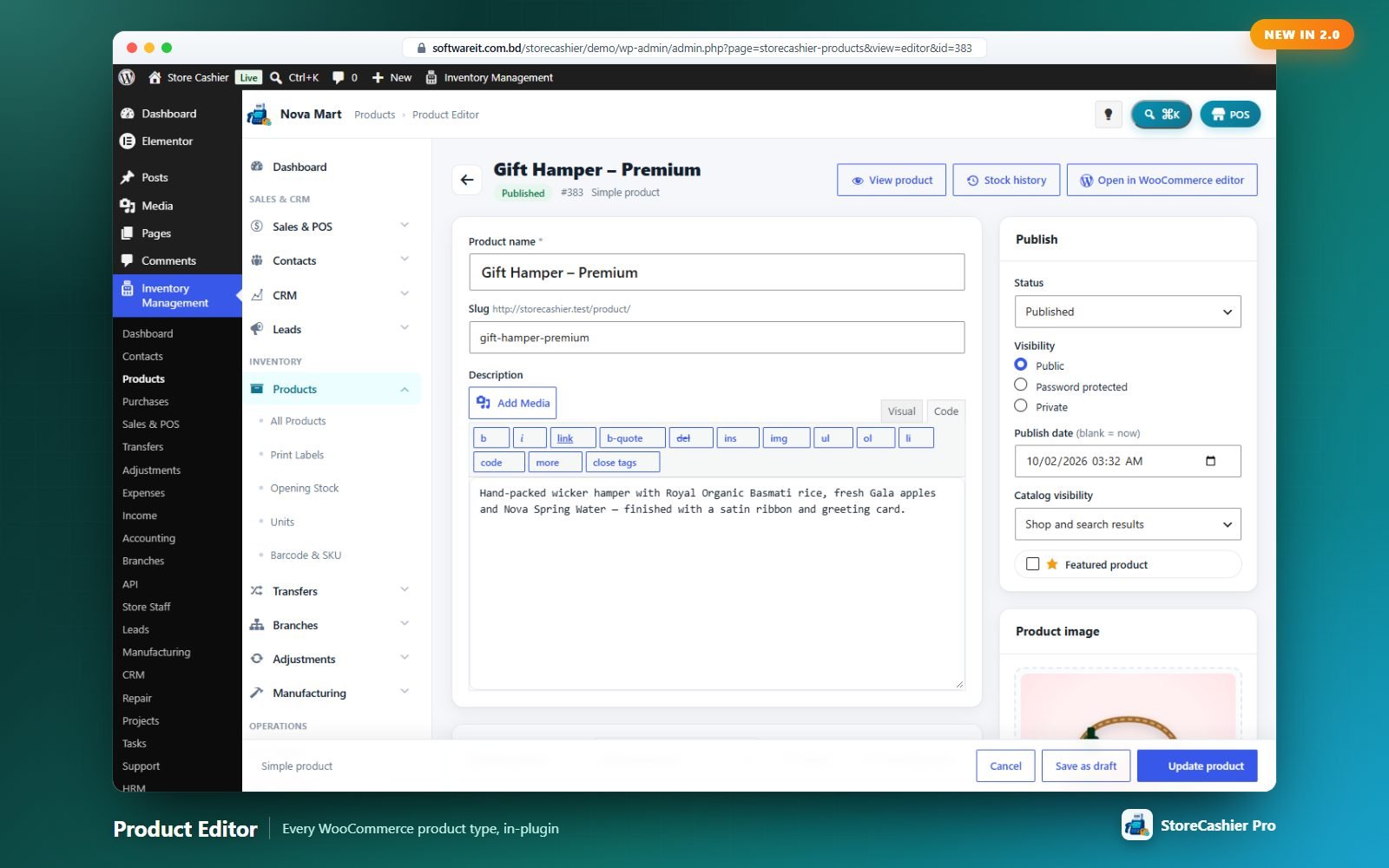
Main fields & side cards
Product name, slug, description, product type (all WooCommerce types plus Bookable and Subscription when those modules are on), Virtual, Downloadable; side cards for short description, Publish (status, visibility, password, publish date, catalog visibility, featured), product image, gallery, categories (with “+ Add new category”), tags and brands.
Tabs
| Tab | Fields |
|---|---|
| General | Regular price, sale price, purchase price, sale schedule; product URL & button text (external); tax status and class; downloadable files, limit and expiry. |
| Inventory | SKU (auto-generated when blank), GTIN/UPC/EAN/ISBN, Barcode (auto-generated when blank), track stock, quantity (changes are booked as a stock adjustment so history stays exact), backorders, low-stock threshold, stock status, sold individually. |
| Shipping | Weight, dimensions, shipping class. |
| Linked Products | Grouped products, upsells, cross-sells. |
| Attributes | Global or custom attributes with values, “Visible on the product page”, “Used for variations”, create values inline. |
| Variations | Generate variations, add manually and bulk actions (see below). |
| Advanced | Purchase note, menu order, enable reviews. |
| StoreCashier | Unit (with “+ Add”), barcode type, business locations where the product is stocked and sold, and opening stock per location for new products (recorded as Opening Stock at the purchase price). |
Variations
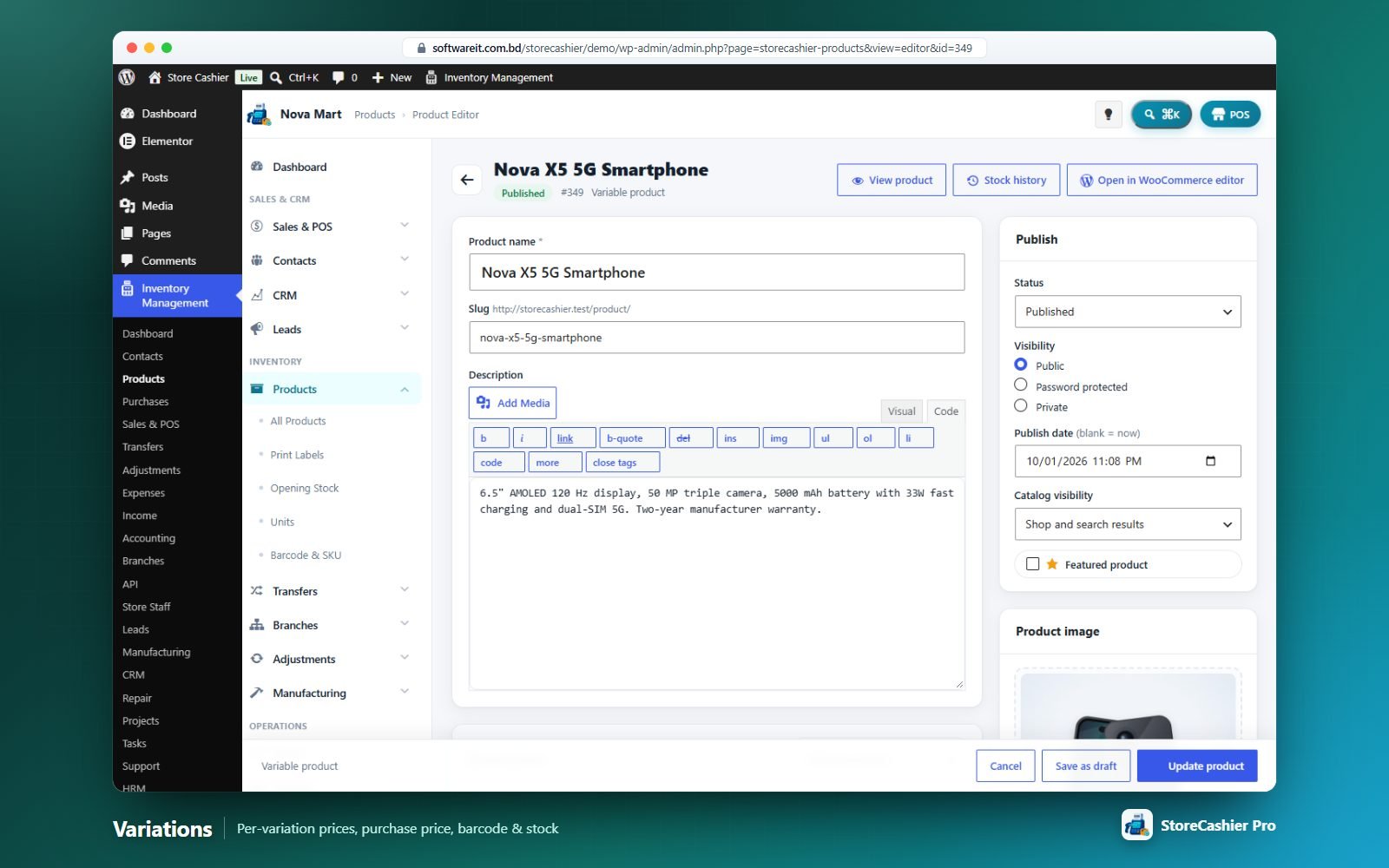
Each variation has enabled/downloadable/virtual flags, manage stock, SKU, GTIN, barcode, regular/sale/purchase price, sale schedule, stock, backorders, low-stock threshold, stock status, weight, dimensions, shipping class, tax class, description, files and image. Bulk actions: set/increase/decrease regular prices (fixed or %), set/remove sale prices, set purchase prices, toggle manage stock, set stock quantity/low-stock threshold/status, toggle enabled/virtual/downloadable, set weight, delete all variations.
Opening Stock & Import
Set starting quantities per location — per product, by CSV, or by syncing from WooCommerce.
Per product
From a product’s Add or edit opening stock action, enter the quantity per location and per variation plus the unit cost (before tax), then Save Opening Stock. The total across locations is synced to WooCommerce automatically.
CSV import
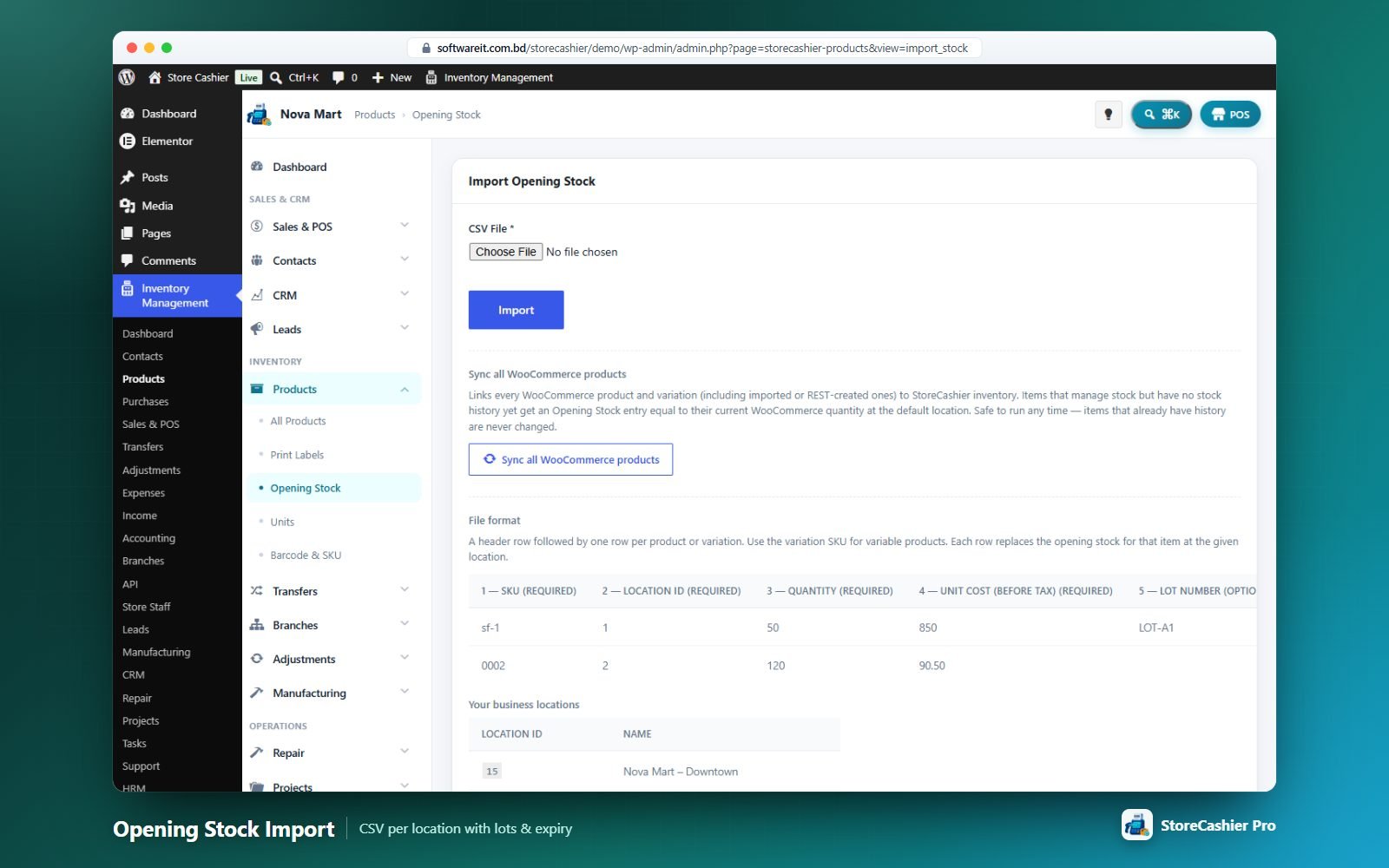
| Column | Notes |
|---|---|
| 1. SKU | Required. Use the variation SKU for variable products. |
| 2. Location id | Required. The screen lists your locations and their IDs. |
| 3. Quantity | Required. Decimals only if the unit allows them. |
| 4. Unit Cost (Before Tax) | Cost per unit. |
| 5. Lot Number | Optional. |
| 6. Expiry Date | Optional, YYYY-MM-DD. |
Each row replaces the opening stock for that item at that location. Row errors (unknown SKU or location, negative values, parent SKU for a variable product…) are listed after the import.
Sync all WooCommerce products
Links every WooCommerce product and variation to the inventory and creates opening stock from the WooCommerce quantity for items without history.
Units, Barcode & SKU, Print Labels
Units
Name (e.g. Pieces), short name (e.g. Pc(s)), Allow decimal quantities, and optional multiples of a base unit (e.g. 1 Box = 12 × Pieces).
Barcode & SKU
A grid of products and variations with inline-editable Barcode and SKU (saved on blur). Auto bulk Barcode generate and Auto bulk SKU generate fill only empty values.
Print labels
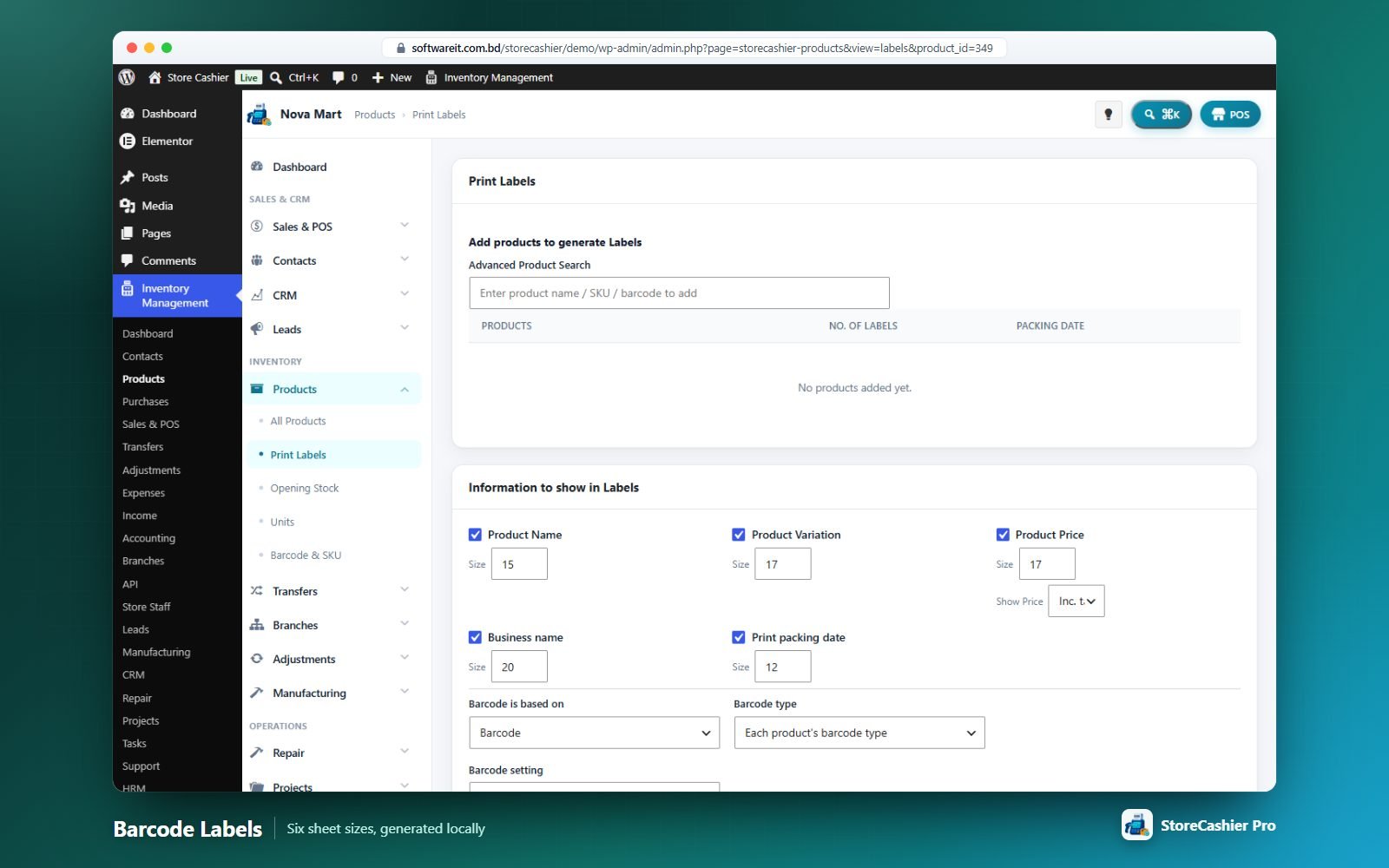
- Add products with the advanced search (or start from a product or a purchase — every purchased line is pre-filled).
- Set the No. of labels and Packing Date per line.
- Choose what to show — product name, variation, price (incl./excl. tax), business name, packing date — each with a font size, and whether the barcode is based on Barcode, SKU or Product ID.
- Pick a sheet (20, 30, 32, 40 or 50 per sheet, or a 31.75 × 25.4 mm continuous roll) and click Preview & Print.
Barcodes are drawn locally as Code 128 SVG — no external service.
Purchases
Supplier purchases with lots, landed costs, shipping tracking, part payments and returns — stock moves only when goods are received.
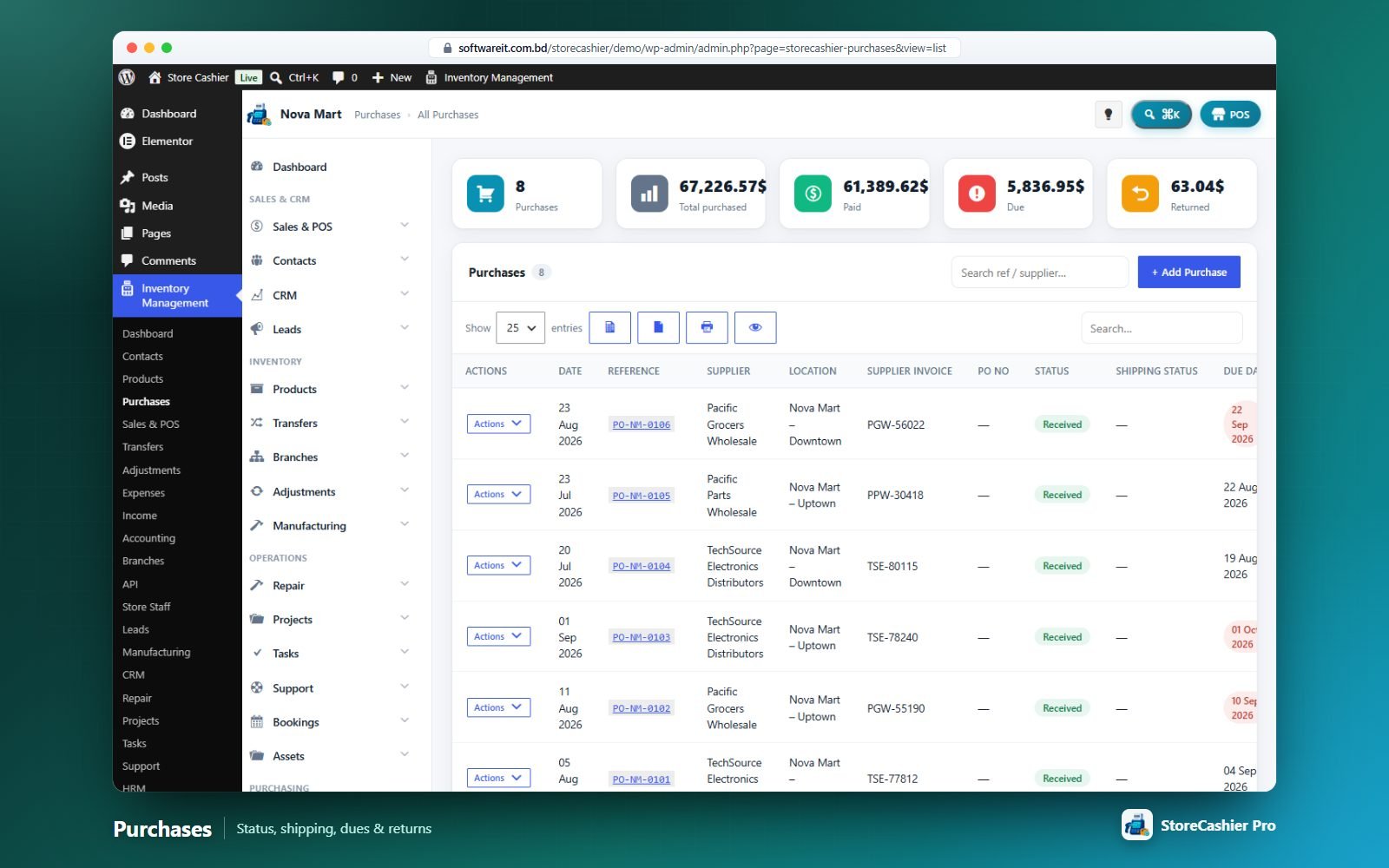
List
Cards: Purchases, Total purchased, Paid, Due, Returned. Columns include supplier invoice, PO no., status, shipping status, due date, items, quantity, tax, discount, shipping, grand total, paid, due and returned. Row actions: View, Print, Edit, Labels, Add payment, View Payments, Purchase Return, Mark as Pending/Received, Delete.
New purchase
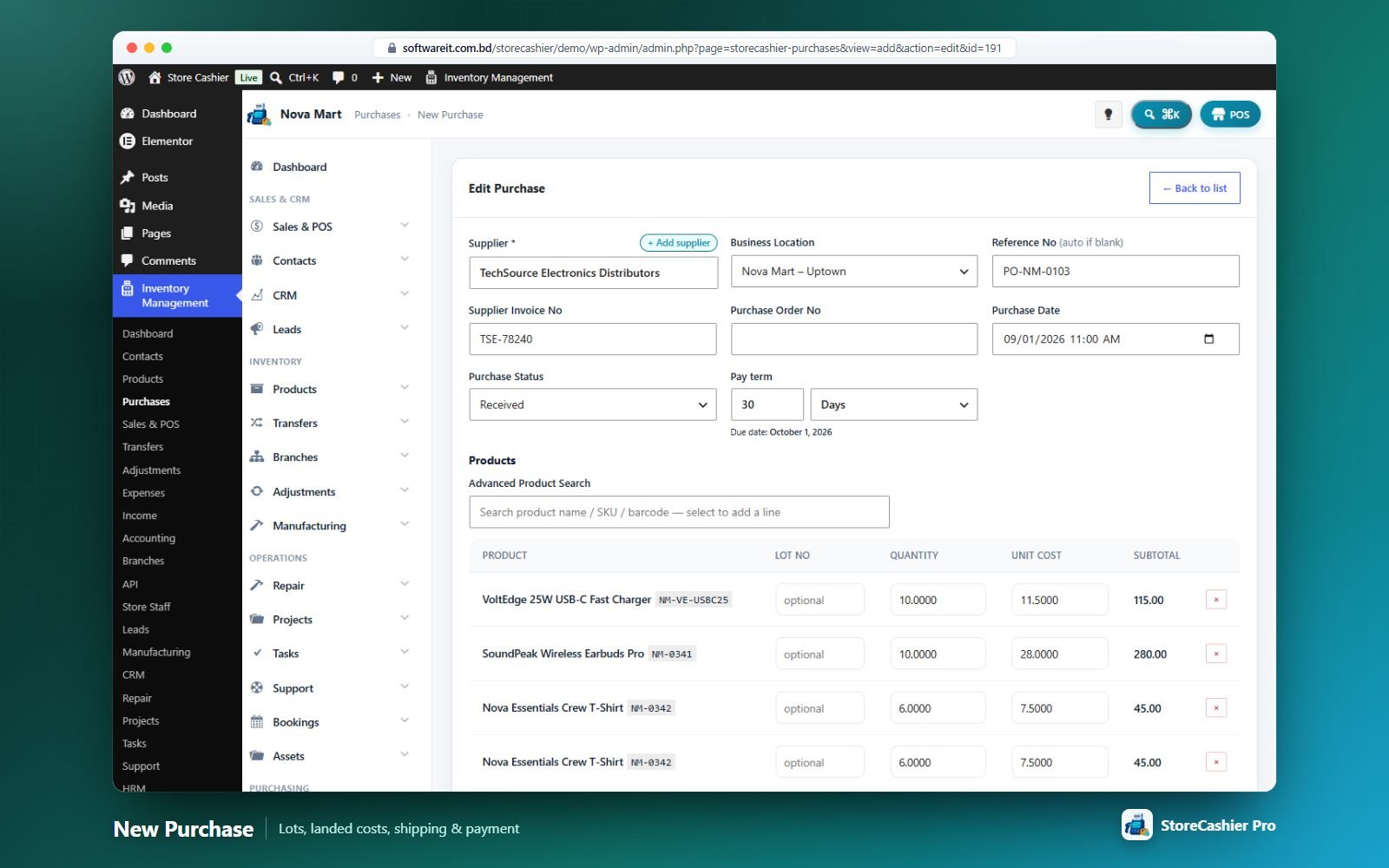
- Header — supplier (with “+ Add supplier”), business location, reference (auto if blank), supplier invoice no., purchase order no., date, status (Received / Pending / Ordered) and pay term.
- Products — search by name/SKU/barcode; per line lot no., quantity and unit cost (pre-filled from the purchase price).
- Totals — discount (fixed/%), purchase tax (with “+ Add”), shipping charges and additional expenses (landed cost lines added to the grand total).
- Shipping — status (Ordered, Packed, Shipped, Delivered, Cancelled), carrier, tracking no., details, delivery address.
- Payment — amount paid, payment account, method and reference. Add notes and attach documents.
Purchase returns (debit notes)
From a purchase choose Purchase Return, enter return quantities, discount, date & time, return reason (damaged, wrong item, quality issue, excess quantity, expired, late delivery, other), notes and attachments. Record supplier refunds into an account from the debit note.
Stock Transfers Module
Move stock between business locations with in-transit tracking and shipping costs.
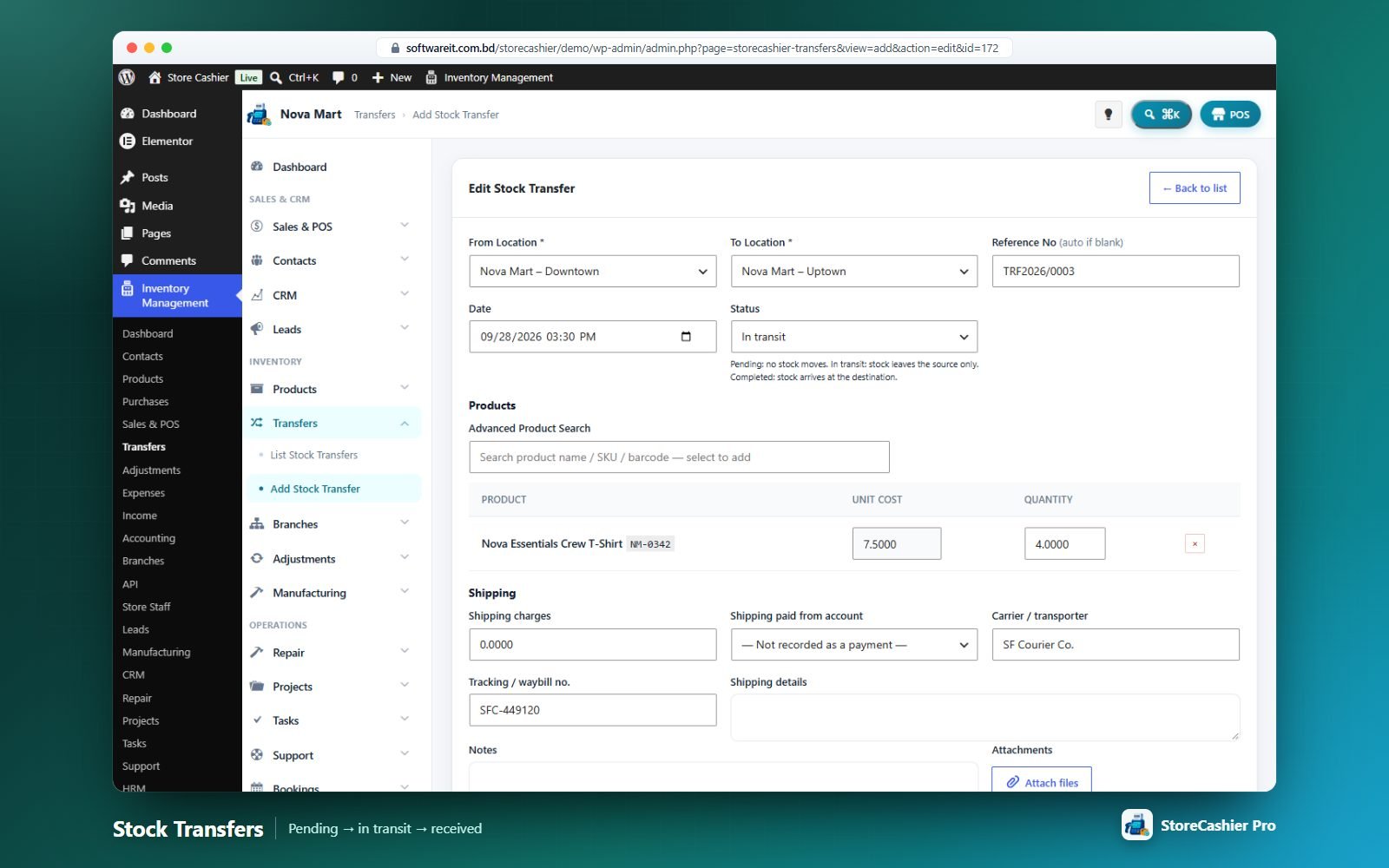
| Field | What it does |
|---|---|
| From / To Location | Source and destination. |
| Reference No / Date | Auto reference if blank. |
| Status | Pending: no stock moves. In transit: stock leaves the source only. Completed (received): stock arrives at the destination. |
| Products | Search simple products and variations; unit cost is read-only, quantity editable. |
| Shipping | Shipping charges, account the shipping was paid from, carrier, tracking/waybill no., details. |
| Notes / Attachments | Optional. |
The list shows from/to, status, tracking, shipping and total, with Mark as received. Editing or deleting reverses the stock movement cleanly.
Stock Adjustments
Correct stock for damage, expiry, loss, theft, counts, internal use or found stock — fully audited.
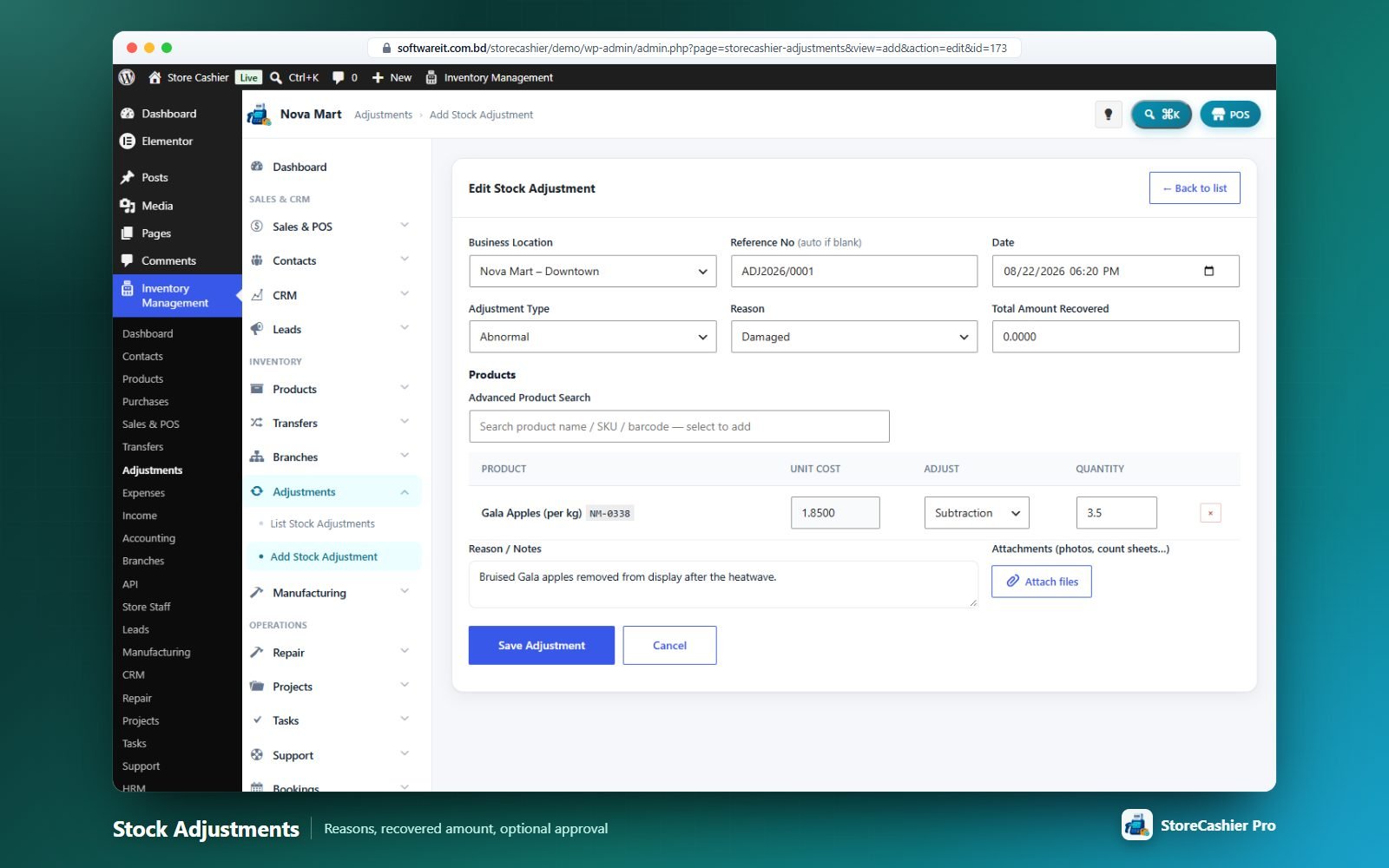
Fields: business location, reference, date, type (Normal / Abnormal), reason (damaged, expired, lost/missing, theft, stock count correction, internal use, samples/promotion, found/recovered, opening stock, other), total amount recovered, product lines with Subtraction / Addition and quantity, notes and attachments (photos, count sheets).
Payment Accounts & Account Book
Cash drawers, bank accounts, cards, wallets and gateways — every sale, purchase, expense, income, payroll and refund posts to the right account automatically.
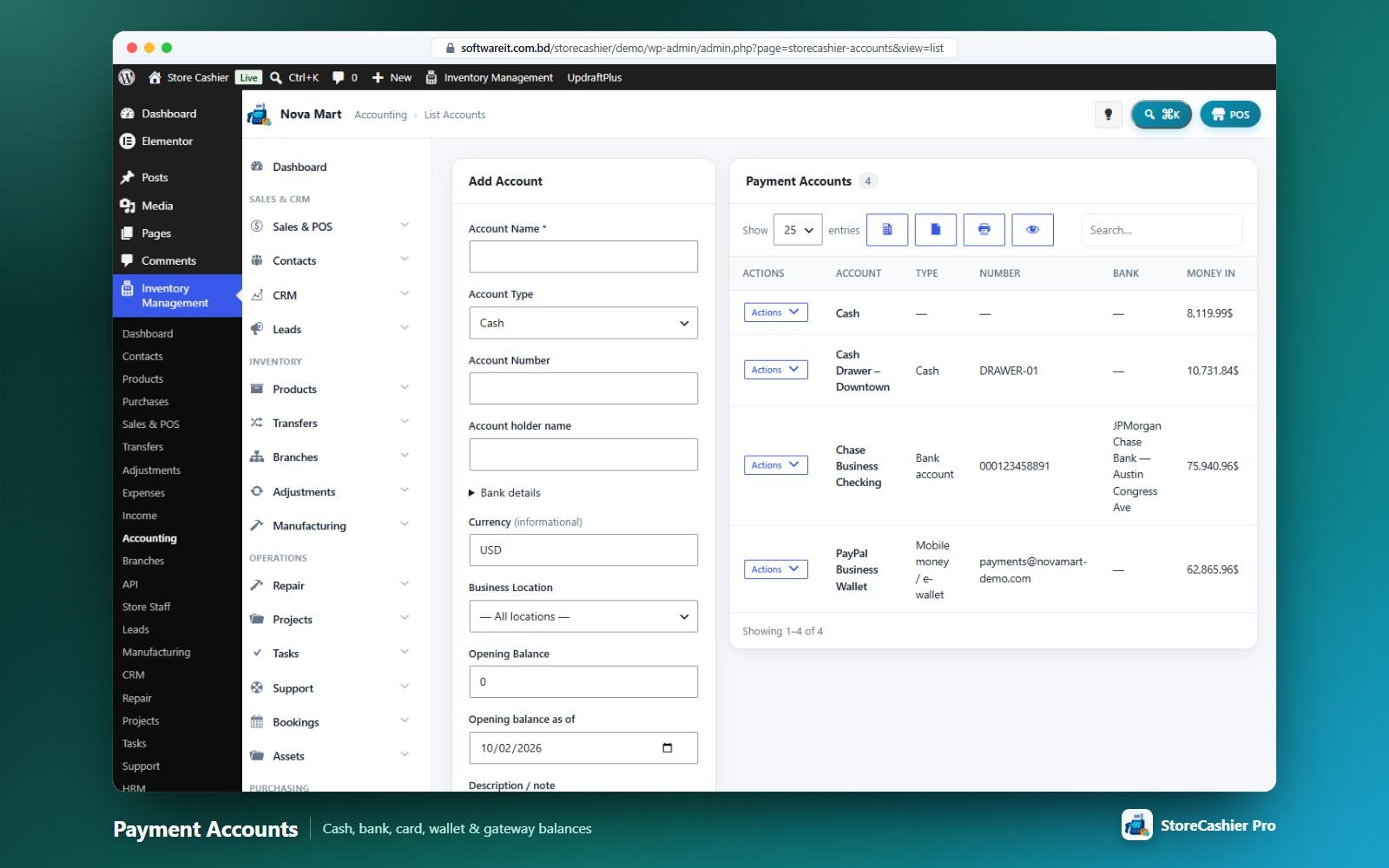
Accounts
Add an account with name, type (Cash, Bank account, Savings account, Credit/debit card, Mobile money / e-wallet, Payment gateway / merchant, Loan / credit line, Other), account number, holder, bank details (bank, branch, IBAN, SWIFT/BIC, routing/IFSC), currency note, business location, opening balance, description and “Account closed”. Row actions: Account Book, Fund Transfer, Deposit, Withdraw, Edit, Close/Re-open and Delete (only without movements).
Default accounts
Choose default accounts for: fallback, online (WooCommerce) order payments, POS cash in/out, repair payments, asset purchases/maintenance/disposals, stock transfer shipping and project expenses. Lookup order: context default → location default → fallback → first open account.
Account book
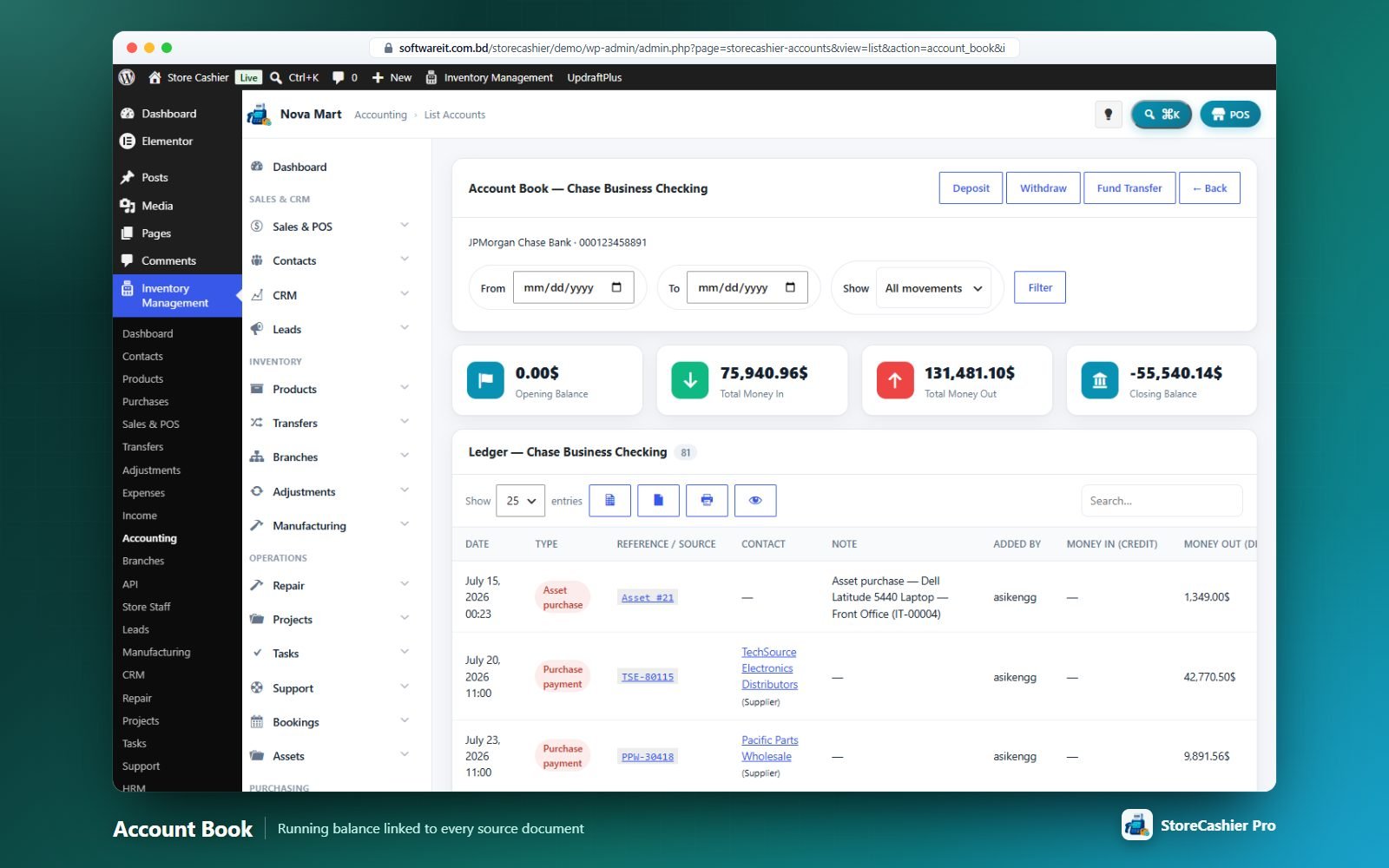
Filter by date and direction. Cards show opening balance, total in, total out and closing balance; the ledger lists date, type (sale payment, POS payment, refund, purchase payment, expense, income, contact payment, fund transfer, deposit, withdraw, payroll, loan, expense claim, repair payment…), reference (linked to the source), contact, note, user, money in, money out and running balance.
Deposit, withdraw, fund transfer & link
- Deposit / Withdraw — account, amount, date, note.
- Fund Transfer — from account, to account, amount, date, note (both sides are created and deleted together).
- Link Account — assign older payments that have no account to an account.
Balance Sheet, Trial Balance & Cash Flow
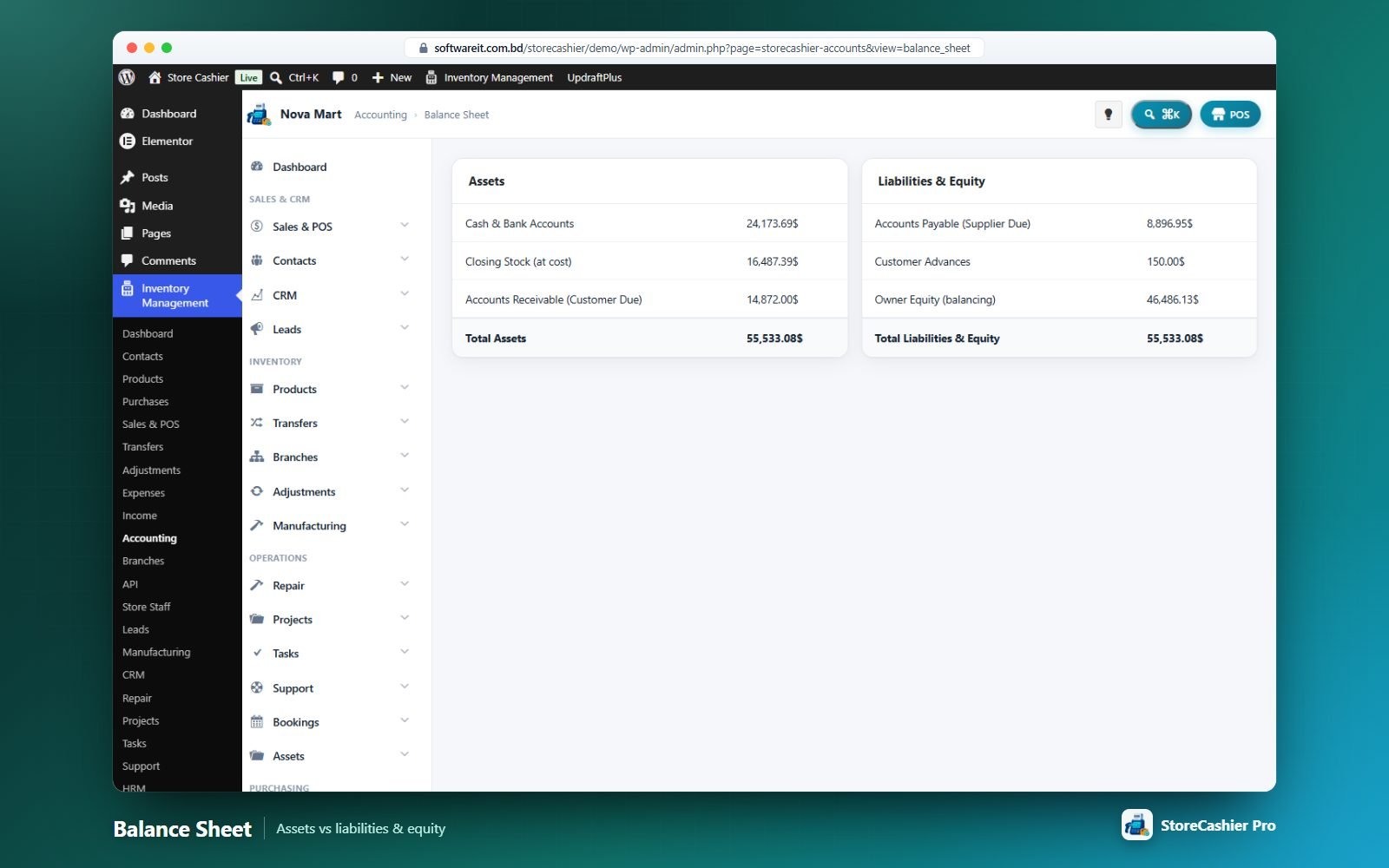
| Report | What it shows |
|---|---|
| Balance Sheet | Assets (cash & bank accounts, closing stock at cost, accounts receivable) vs liabilities & equity (accounts payable, owner equity). |
| Trial Balance | Money in, money out and debit/credit balance per account (linked to the account book). |
| Cash Flow | Cash in, cash out and net cash flow for a period, grouped into operating, investing (asset purchases/disposals) and financing (owner deposits/withdrawals); transfers and opening balances are excluded. |
| Payment Account Report | Ledger of a single account with balance. |
Expenses & Income Modules
Categorised expenses and other income — with payees, tax, attachments and recurring entries.
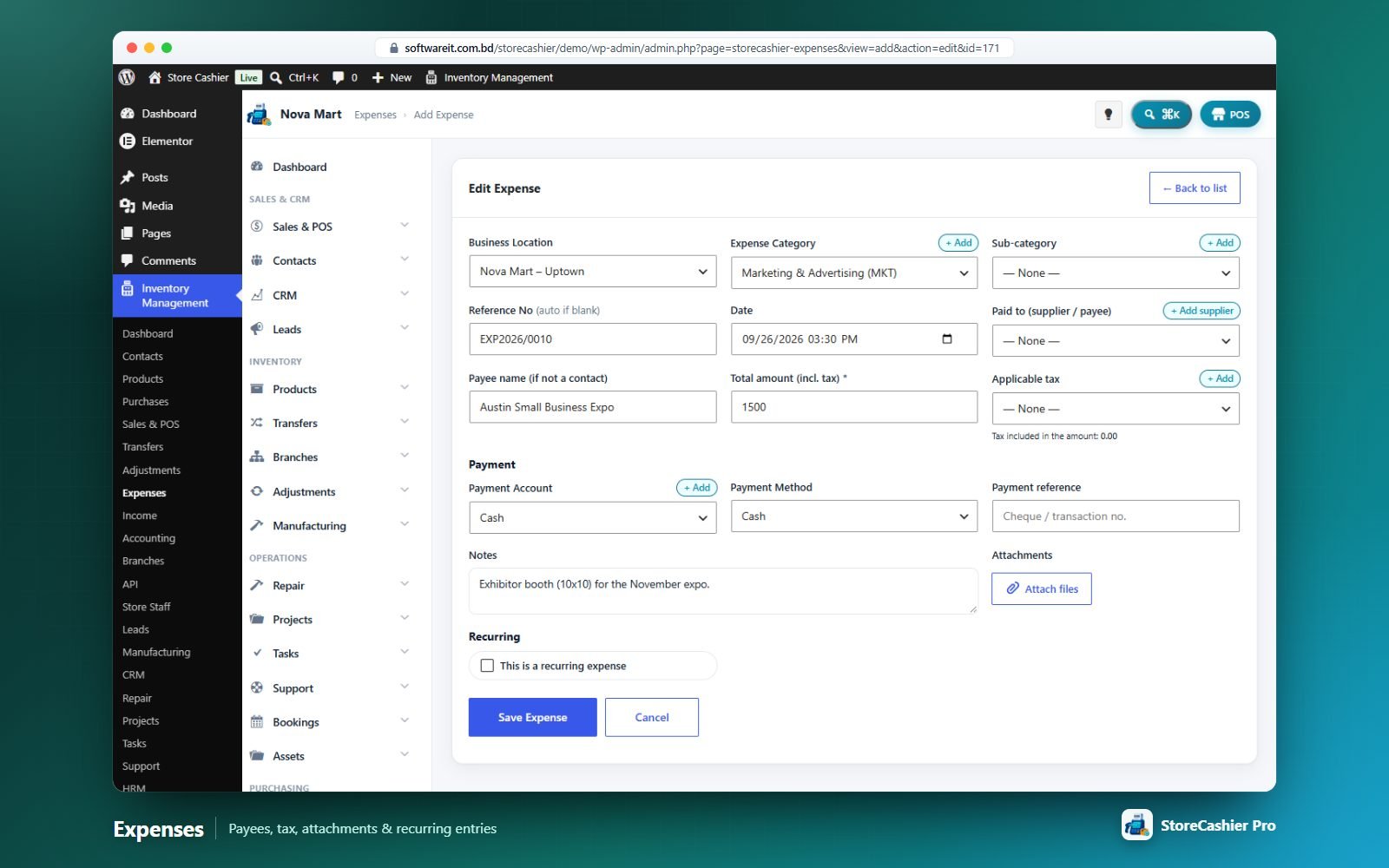
Form
- Business location, category and sub-category (with “+ Add”), reference (auto with the EXP/INC prefix), date.
- Paid to (supplier/payee) or Received from (customer) with “+ Add”, or a free-text name.
- Total amount (incl. tax) and applicable tax.
- Payment account, method (cash, card, cheque, bank transfer, mobile money, other), reference, notes, attachments.
- Recurring — repeat every N days/weeks/months/years for a number of repetitions (or until stopped). A daily task generates the entries (marked “Auto”).
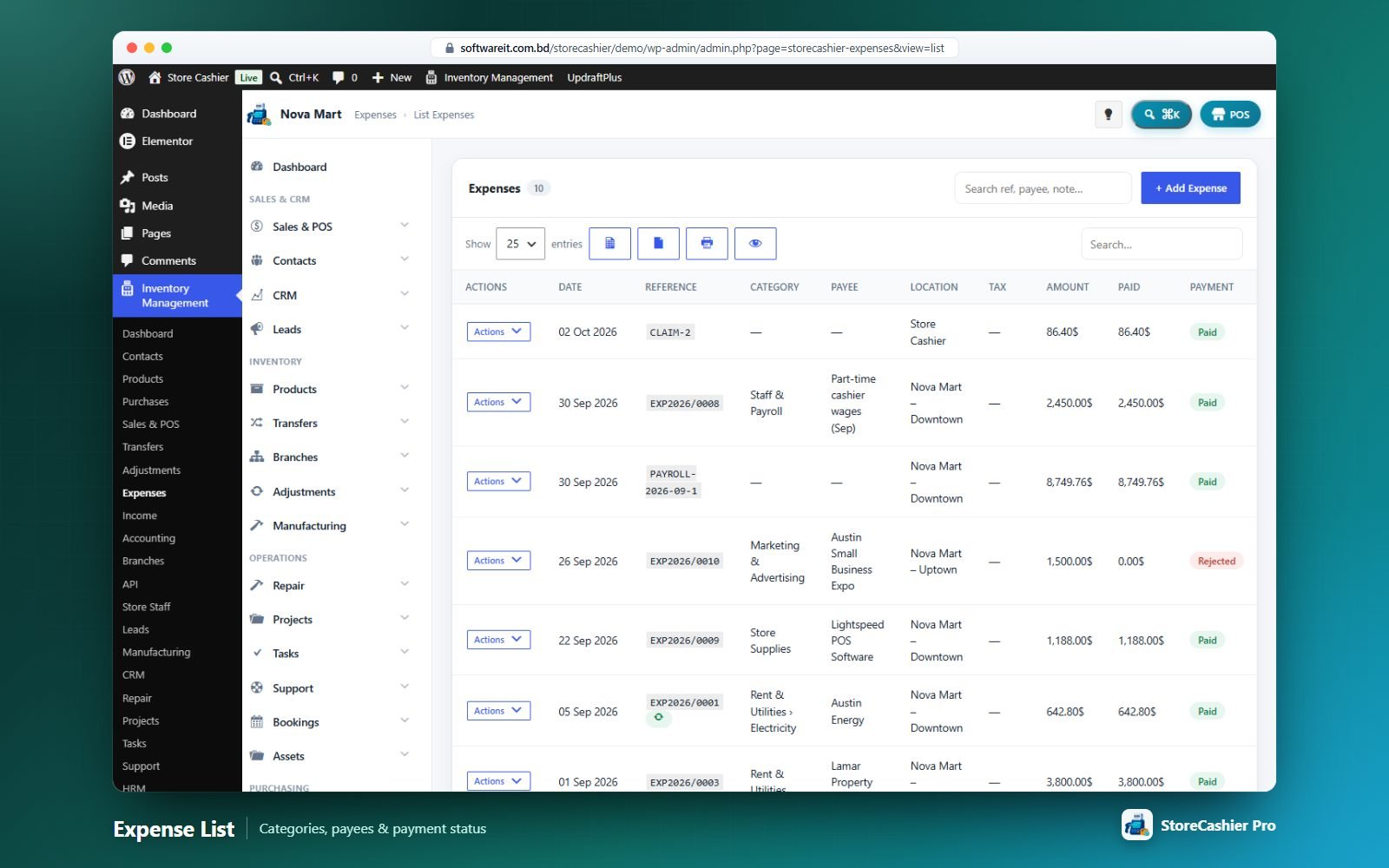
Lists & categories
Search by reference, payee or note; columns show category › sub-category, payee, location, tax, amount, paid and payment status. Categories have a name and code; sub-categories can be created from the form popup.
Subscriptions Module
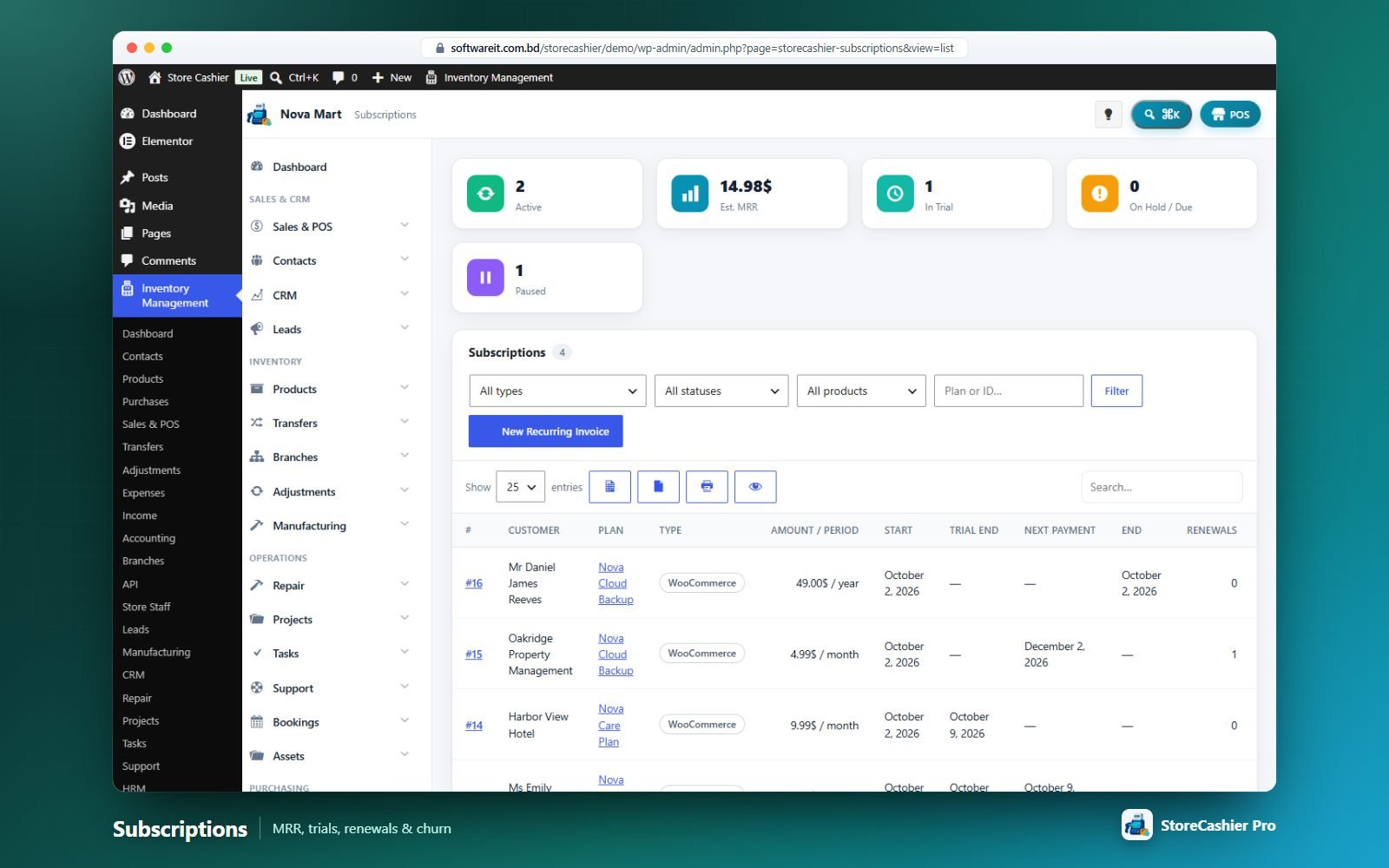
Sell WooCommerce subscription products with trials, sign-up fees, synchronised renewals, plan switching and customer self-service — plus internal recurring invoices that post income to your ledger.
Subscription products
Product types Simple subscription and Variable subscription (each variation can override terms and features) in both the WooCommerce and StoreCashier product editors.
| Setting | Options |
|---|---|
| Price / sale price | Charged every billing period. |
| Billing interval & period | Every 1–6 day(s) / week(s) / month(s) / year(s). |
| Expire after | Number of billing cycles (0 = renews until cancelled). |
| Free trial | Length and period. |
| Sign-up fee | One-off fee added to the first payment. |
| Synchronise renewals | Bill everyone on the same weekday / day of month / date of year; first payment can be full, prorated or free until the renewal day. |
| Purchase limit | Any number or one active subscription per customer. |
| Switching | Between variations and/or grouped packages, with prorated upgrades. |
| Grace period, pause, cancel | Grace days, customer may pause/resume (with max pauses), customer may cancel. |
| Plan features | One per line — shown in pricing tables; “Highlight in pricing tables”. |
Lifecycle & renewals
Statuses: Pending, Active, On hold, Paused, Pending cancellation, Cancelled, Expired. Renewals are scheduled with Action Scheduler. Gateways that support automatic subscription payments are charged automatically (failed payments are retried on the configured days — default 1, 3, 5 — then the subscription goes On hold); otherwise the customer receives a renewal invoice e-mail with a pay link and an optional grace period. Pausing pushes the next payment and end dates forward.
Admin detail
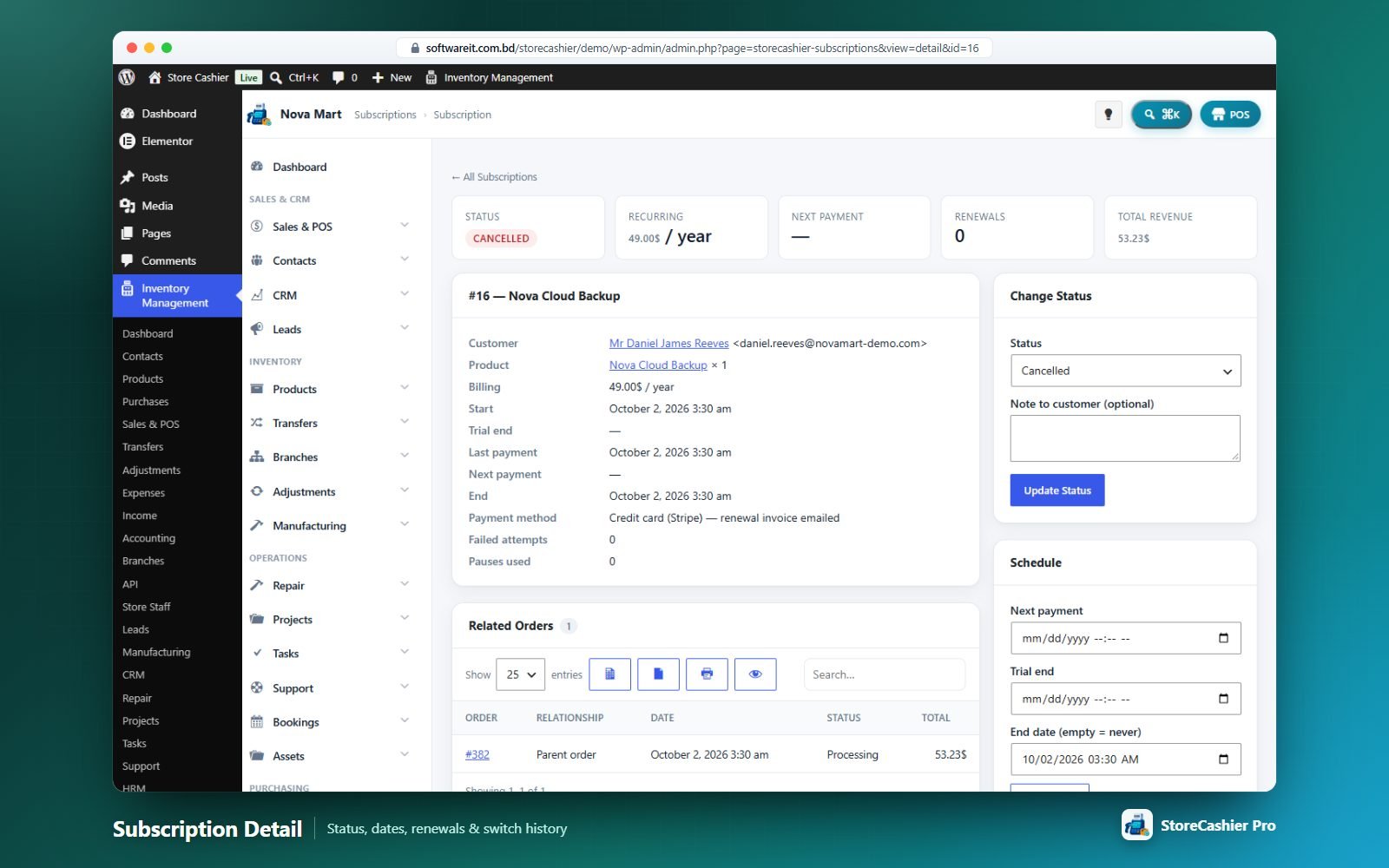
Change status (with a note to the customer), edit next payment / trial end / end dates, Process Renewal Now, related orders (parent, renewal, early renewal, switch), switch history, addresses and notes.
Customers
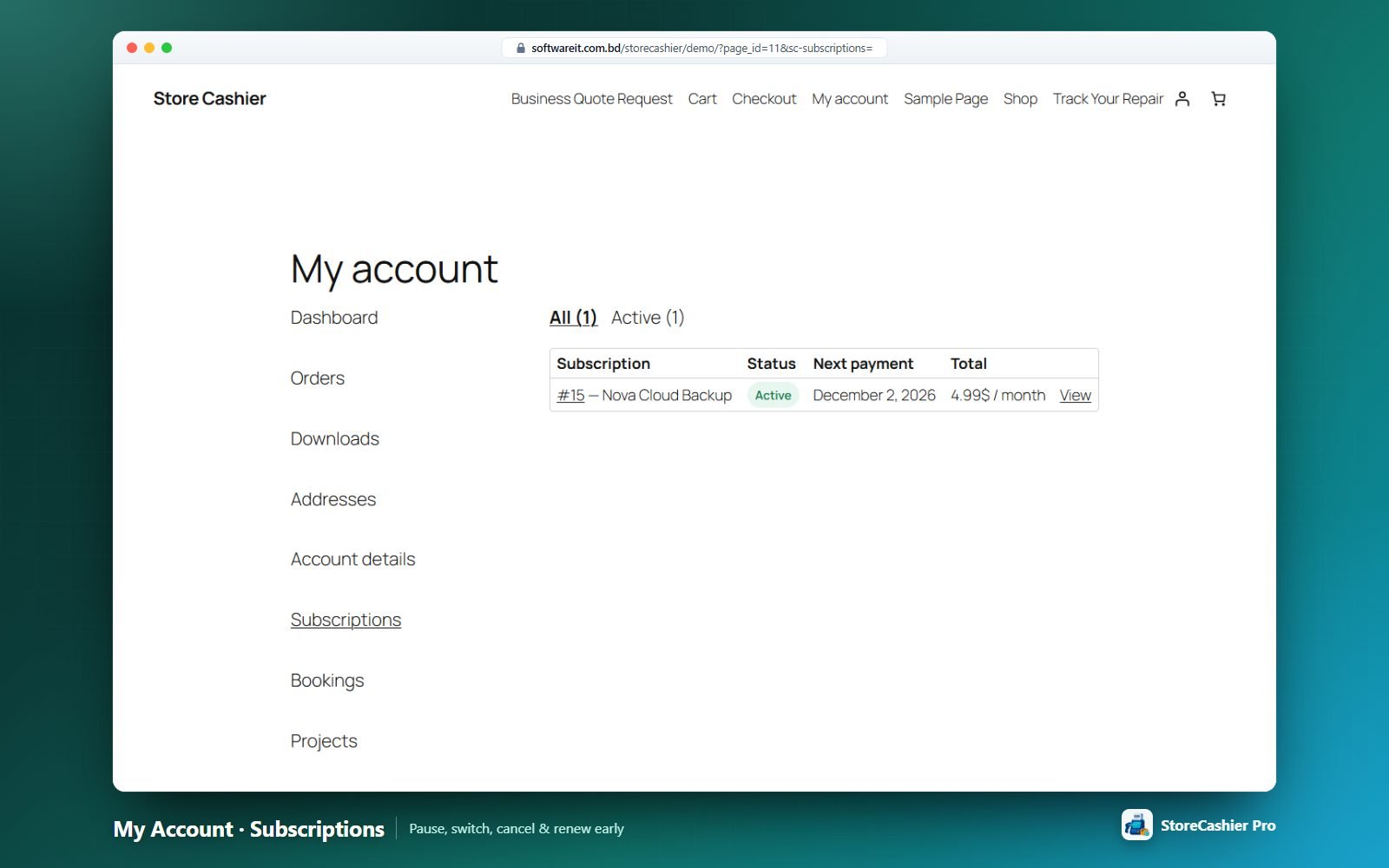
My Account → Subscriptions lists and filters subscriptions. Customers can pause/resume, cancel now or at period end, reactivate, switch plan, renew early, pay a pending renewal and choose a saved card or manual invoices for renewals. Six WooCommerce e-mails are included: new subscription, renewal invoice, payment failed, cancelled, expired and trial ending reminder.
Pricing table
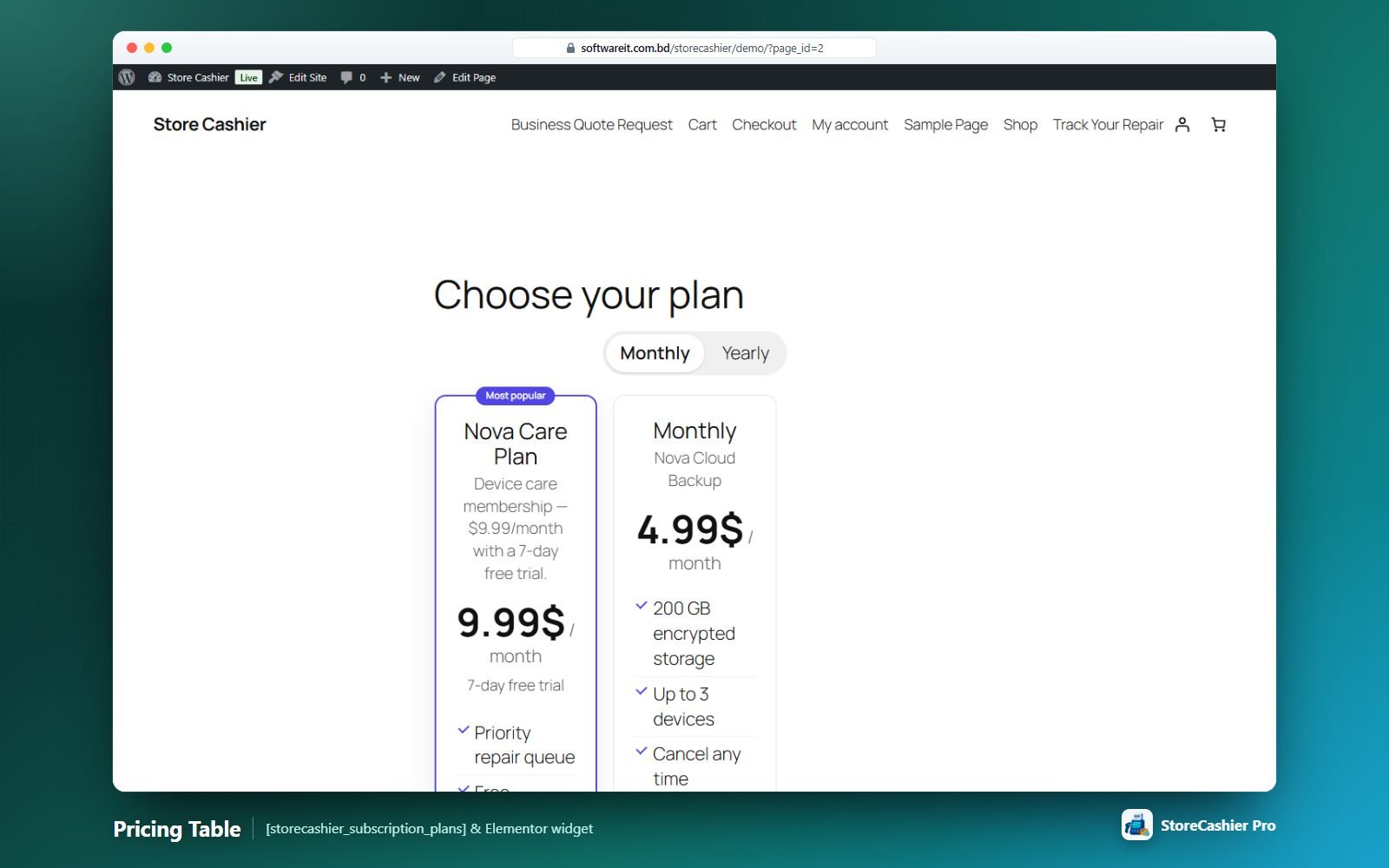
Use [storecashier_subscription_plans] or the Subscription Pricing Table Elementor widget: plan cards with price, trial/sign-up details, features, “Most popular” badge, “Your current plan” for subscribers and a billing-period toggle.
Recurring invoices
Subscriptions → New Subscription creates an internal recurring invoice (name, customer, amount, bill every N days/weeks/months/years, next billing date). A daily task issues the invoices and posts the income to the account set in Settings → Recurring Billing; you can also Generate Invoice Now, pause and resume.
Bookings & Appointments Module
Sell appointments, rentals, classes and stays as WooCommerce bookable products — with availability rules, dynamic pricing, persons, resources, deposits, a calendar and customer self-service.
Bookable product settings
| Tab | Options |
|---|---|
| Booking | Fixed or customer-defined blocks of minutes, hours, days or nights (hotel-style check-in/out times), min/max duration, first slot start, calendar display, max bookings per block (capacity), minimum and maximum advance booking, buffer period (optionally before and after), requires admin confirmation, customer cancellation window, deposit (% or fixed). |
| Availability | Available or unavailable by default, apply global rules, and prioritised rules by date range, specific dates, days of the week, months, time ranges (daily, per weekday or per date). |
| Booking costs | Base cost, block cost, display “From” cost and cost rules by date, month, weekday, time, duration or person count (+ − × ÷). |
| Persons | Min/max persons, multiply costs by persons, count persons as bookings, and person types (e.g. Adult/Child) with their own costs and limits. |
| Resources | Rooms, staff or equipment — customer-selected or auto-assigned — with quantity and extra costs; each resource has its own availability. |
Front-end booking form
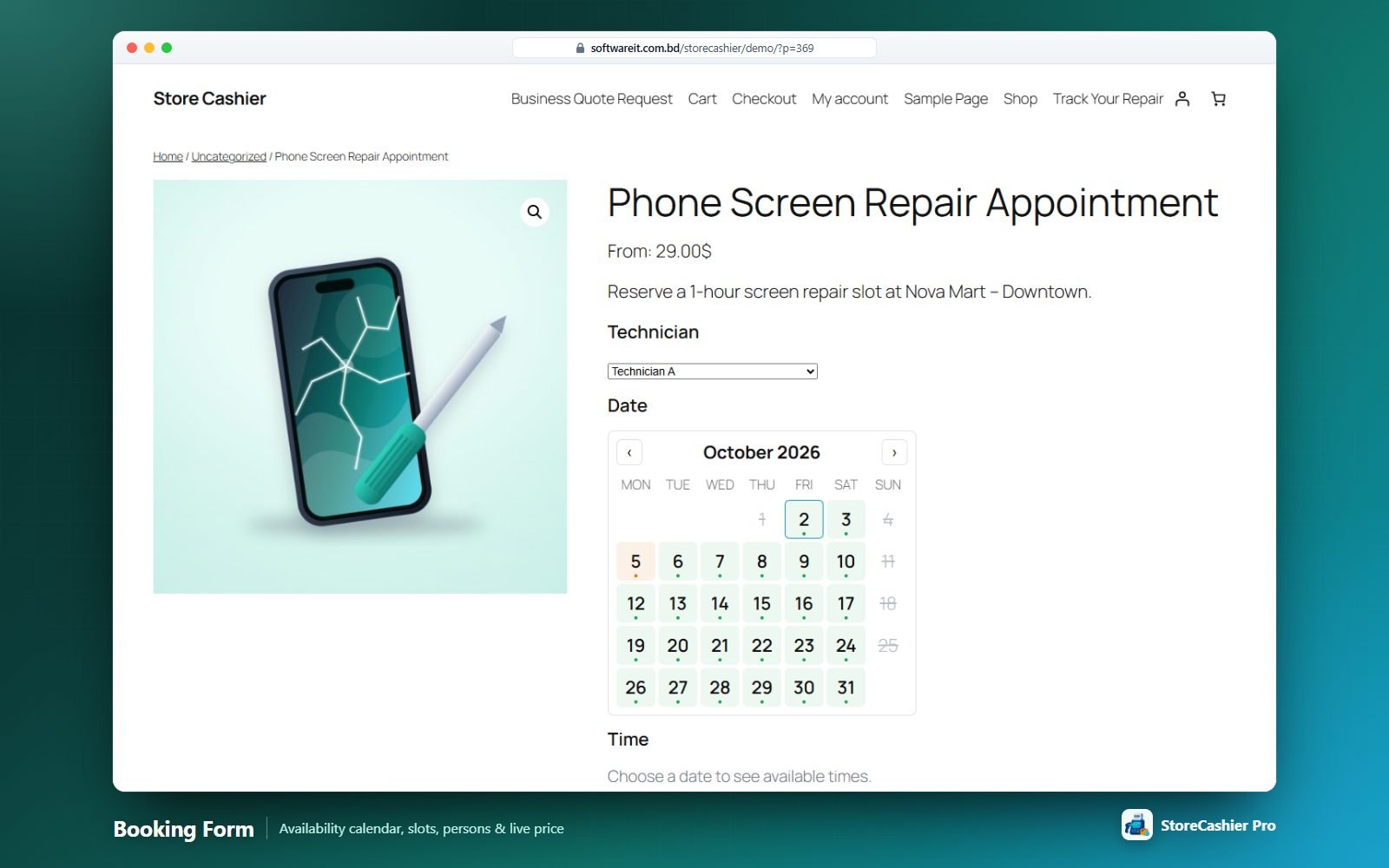
The form replaces Add to cart on bookable products: resource, persons or person types, duration, a calendar showing available / partially booked / unavailable days, time slots and a live quote (with deposit). Slots are held in the cart for a configurable time and re-checked at checkout; it works with classic and block checkout.
Managing bookings
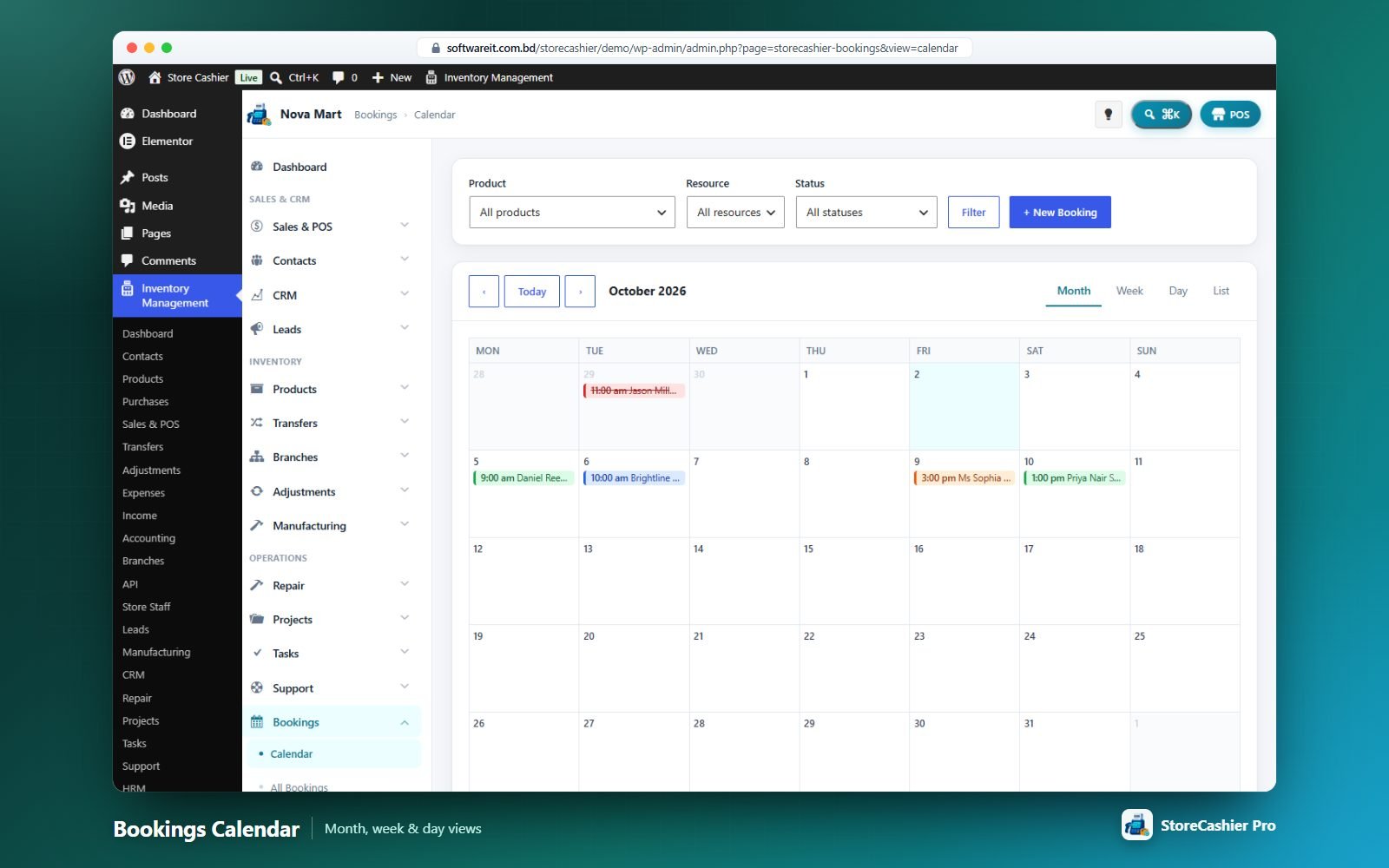
- Calendar — month, week and day views with product, resource and status filters.
- All Bookings — upcoming/past/all with filters and actions: View, Edit, Confirm, Cancel, Download .ics, Delete.
- New Booking — for a product or a manual resource booking; “Show free times”, customer/contact, status, cost override, overbook option, link or create a WooCommerce order.
- Detail — change status, reschedule (notifies the customer), notes (optionally visible in My Account), .ics and Google Calendar links.
- Resources — name, quantity, default costs and availability rules.
Statuses: Unpaid, Pending confirmation, Confirmed, Paid, Complete, Cancelled, No-show. Order status changes update bookings automatically; paid/confirmed bookings can be completed automatically after they end.
Customers & e-mails
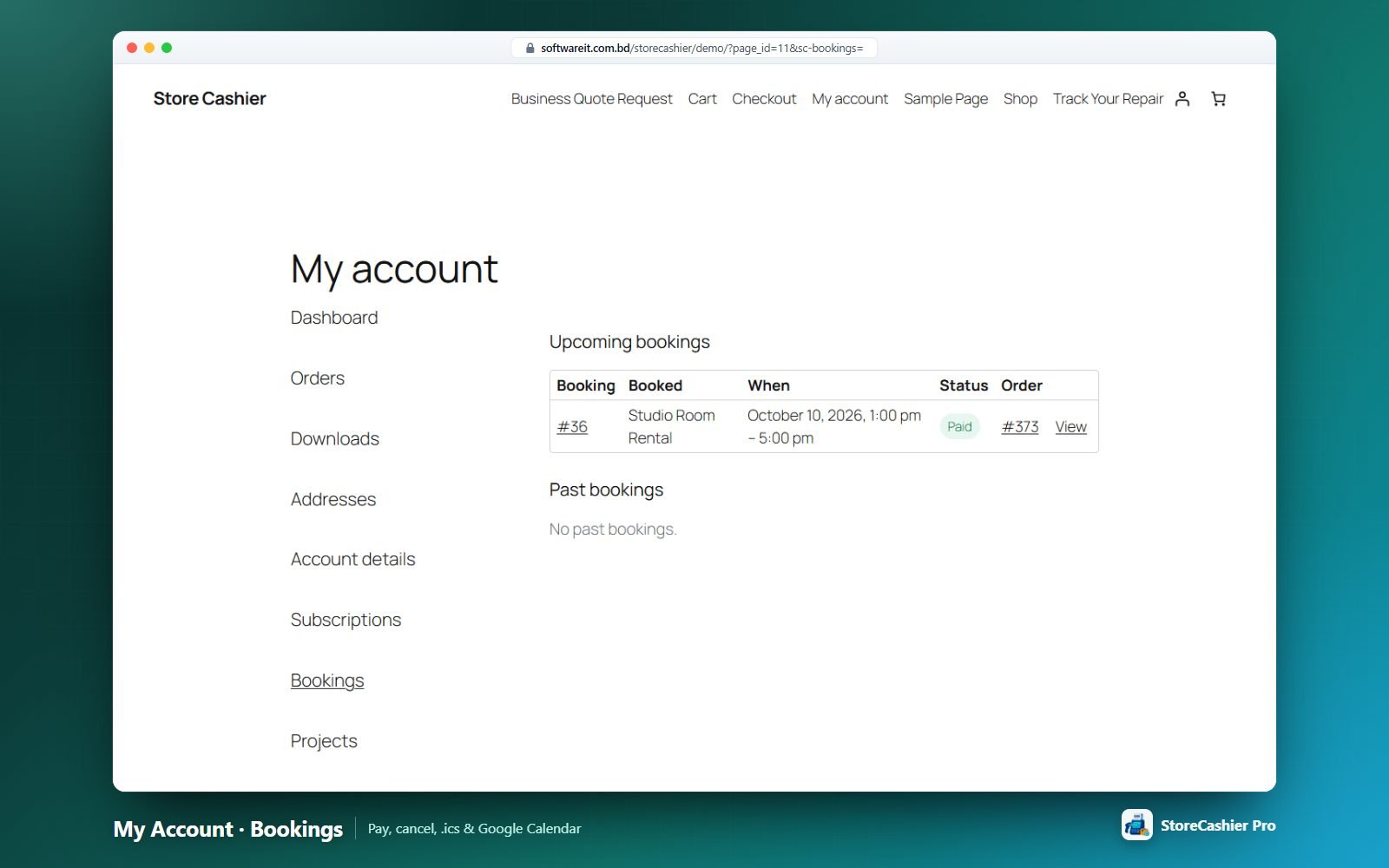
My Account → Bookings shows upcoming and past bookings with Pay, Cancel (within the product’s rules), .ics download and Add to Google Calendar. E-mails: new booking (admin), booking confirmed, booking cancelled and booking reminder (hours before start), each with an optional .ics attachment.
Shortcodes & widgets
[storecashier_booking_form], [storecashier_bookable_products] and [storecashier_booking_availability] — and their Elementor widgets (Booking Form, Bookable Products Grid, Booking Availability Calendar). See Shortcodes & Widgets.
CRM — Deals Pipeline Module
A visual sales pipeline with weighted forecasting, products on deals, activities, proposals, estimates and e-signed contracts — connected to your customers, leads and WooCommerce orders.
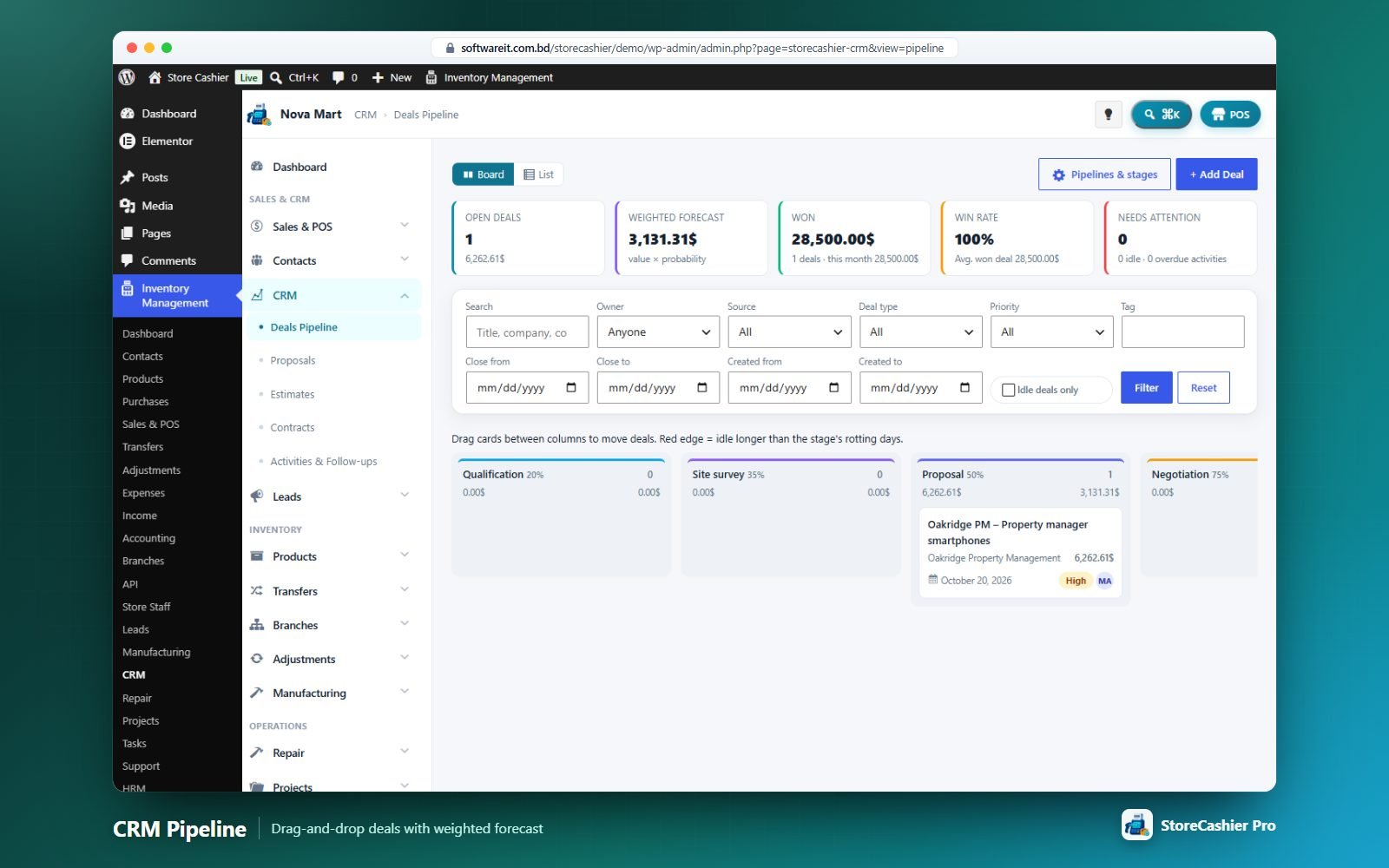
Board & list
- Board / List toggle and pipeline chips (multiple pipelines are supported). Pipelines & stages opens Settings › CRM.
- Stat cards — Open deals, Weighted forecast (value × probability), Won (this month), Win rate & average won deal, Needs attention (idle deals and overdue activities).
- Filters — Search, Status, Stage, Owner, Source, Deal type, Priority, Tag, Close and Created date ranges, “Idle deals only”.
- Kanban — one column per stage with probability, count, total and weighted total; drag a card to move the deal. Cards show customer, value, expected close, next activity (red when overdue), priority badge and owner.
- List — 23 columns (value, probability, weighted, days in stage, age, lost reason, order…) with a totals footer. Bulk actions: Assign owner, Move to stage, Add tag, Export CSV, Delete.
Deal form
Deal: title, pipeline, stage, lost reason, value, currency, probability (blank = stage default), expected close, owner, priority, deal type, source, campaign, tags, next step, competitors. Customer & contact: customer, linked lead, company, contact person, e-mail, phone. Products & services: line items with qty, unit, price, discount %, tax %, plus order discount, tax and adjustment. Custom fields are supported.
Deal workspace
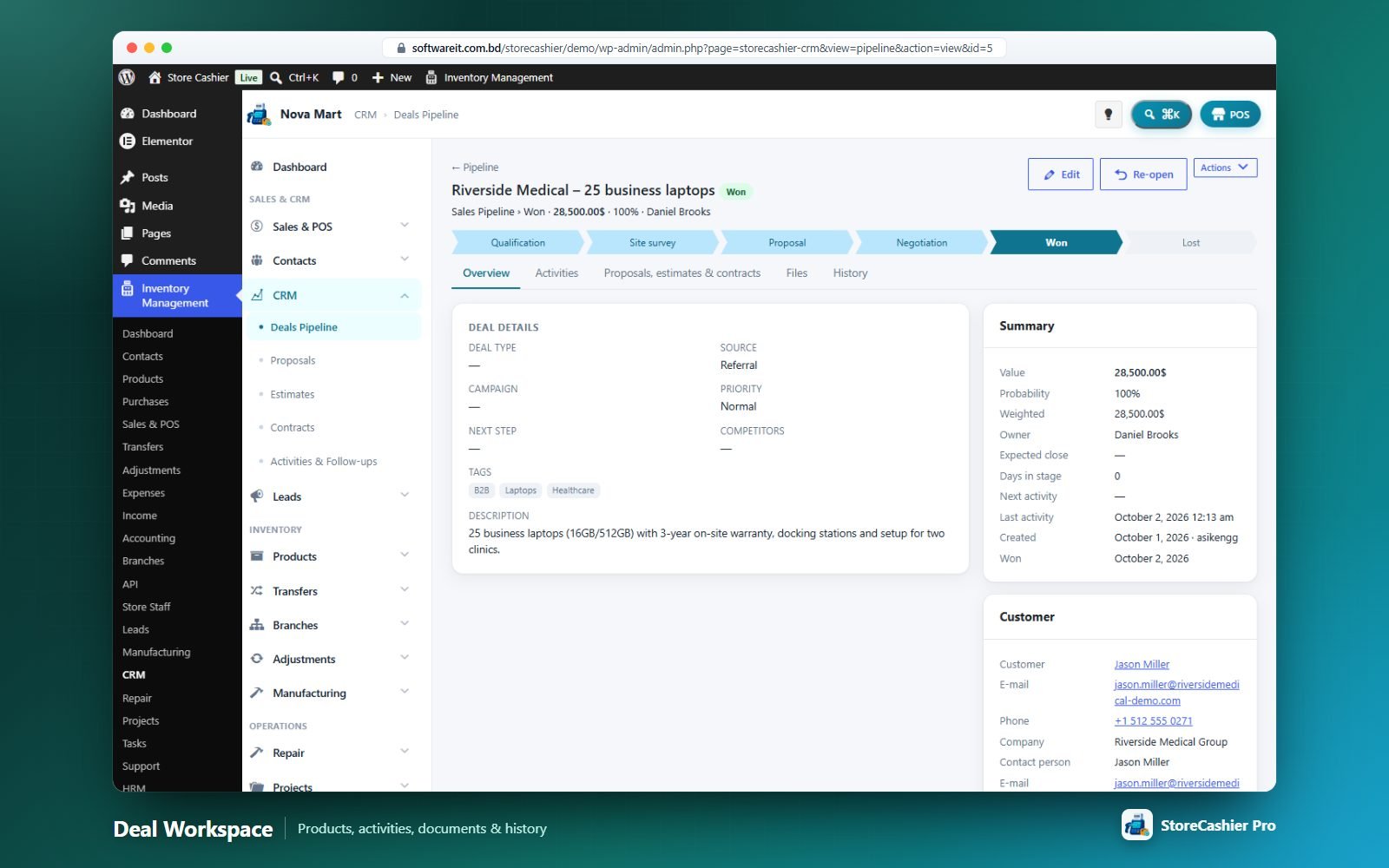
Tabs Overview · Activities · Proposals, estimates & contracts · Files · History. Move the deal with “Move to …” buttons, mark it Won/Lost (with a lost reason) or re-open it. The More menu creates a proposal, estimate or contract, a WooCommerce order from the deal’s line items (optionally marking the deal Won) or opens a new POS sale.
Activities
Type (Call, Meeting, E-mail, Task, Follow-up, Demo, Site visit, SMS, WhatsApp, Deadline, Note), subject, status, due date/time, assignee, priority, direction, duration, location/link, outcome and notes — with “Schedule next follow-up”. Assignees get an e-mail reminder one hour before an activity is due. CRM → Activities & Follow-ups shows Overdue / Today / Next 7 days / All open / Completed across deals, documents, contracts and leads.
Proposals & Estimates
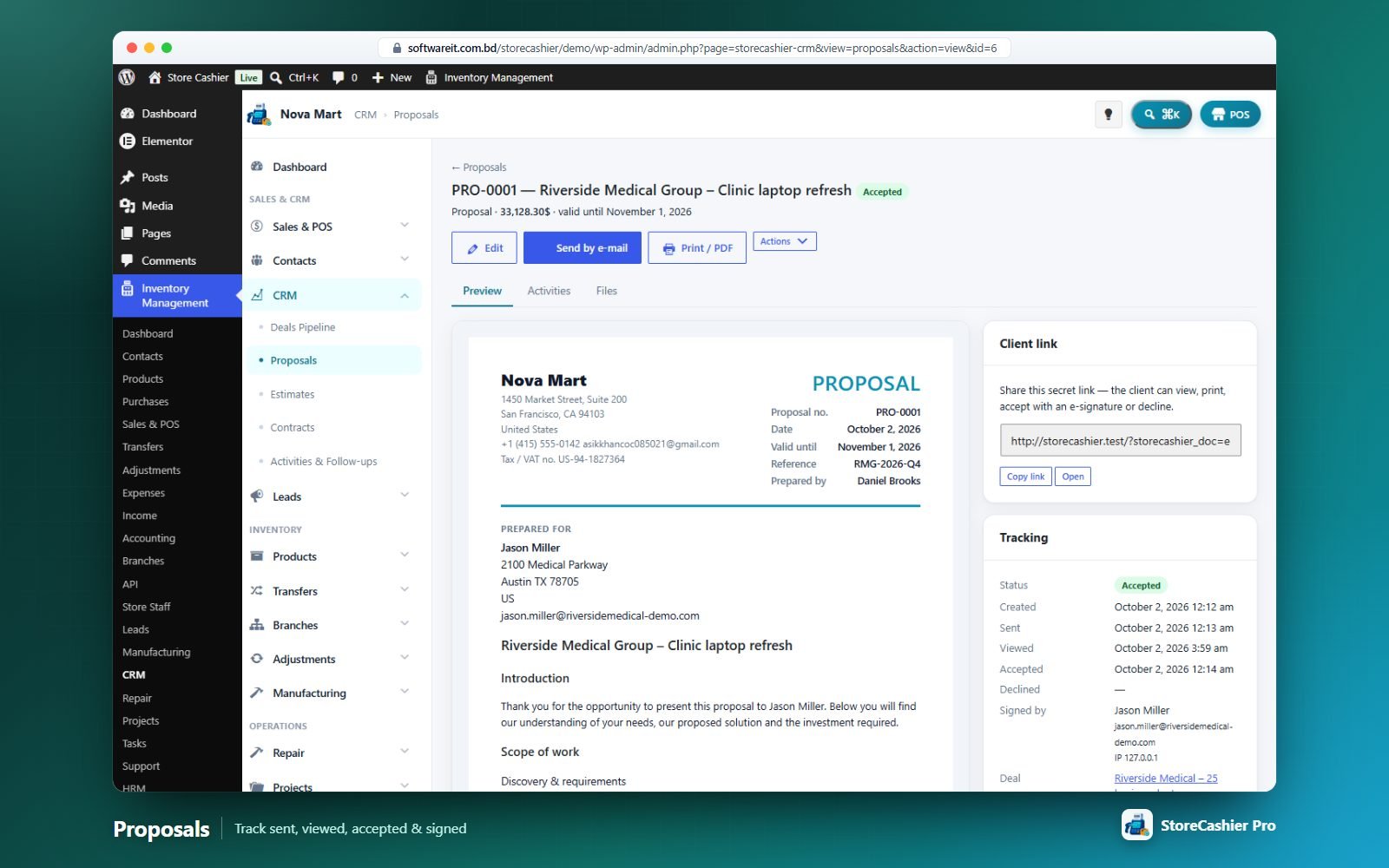
Two document types, each with its own number sequence, status workflow, client link and e-signature acceptance.
Creating a document
- Go to CRM → Proposals (or Estimates) → Add, or use Create Proposal on a deal. Optionally Load template.
- Fill Document (title, status, reference/PO, issue date, valid until, currency, owner) and Client (customer, lead, deal, recipient name/e-mail, billing address).
- Write the introduction, add line items (or a manual total), terms & conditions and a note to the client.
- Save or Save & send by e-mail.
Tracking & actions
Statuses: Draft, Sent, Viewed, Accepted, Declined, Expired, Invoiced / Ordered. The detail page shows when the document was sent, viewed, accepted or declined and by whom. Actions: Edit, Send by e-mail, Print / PDF, Open client page, Mark as…, Convert to WooCommerce order, Duplicate, Copy as proposal/estimate, Create contract, Delete.
The client page
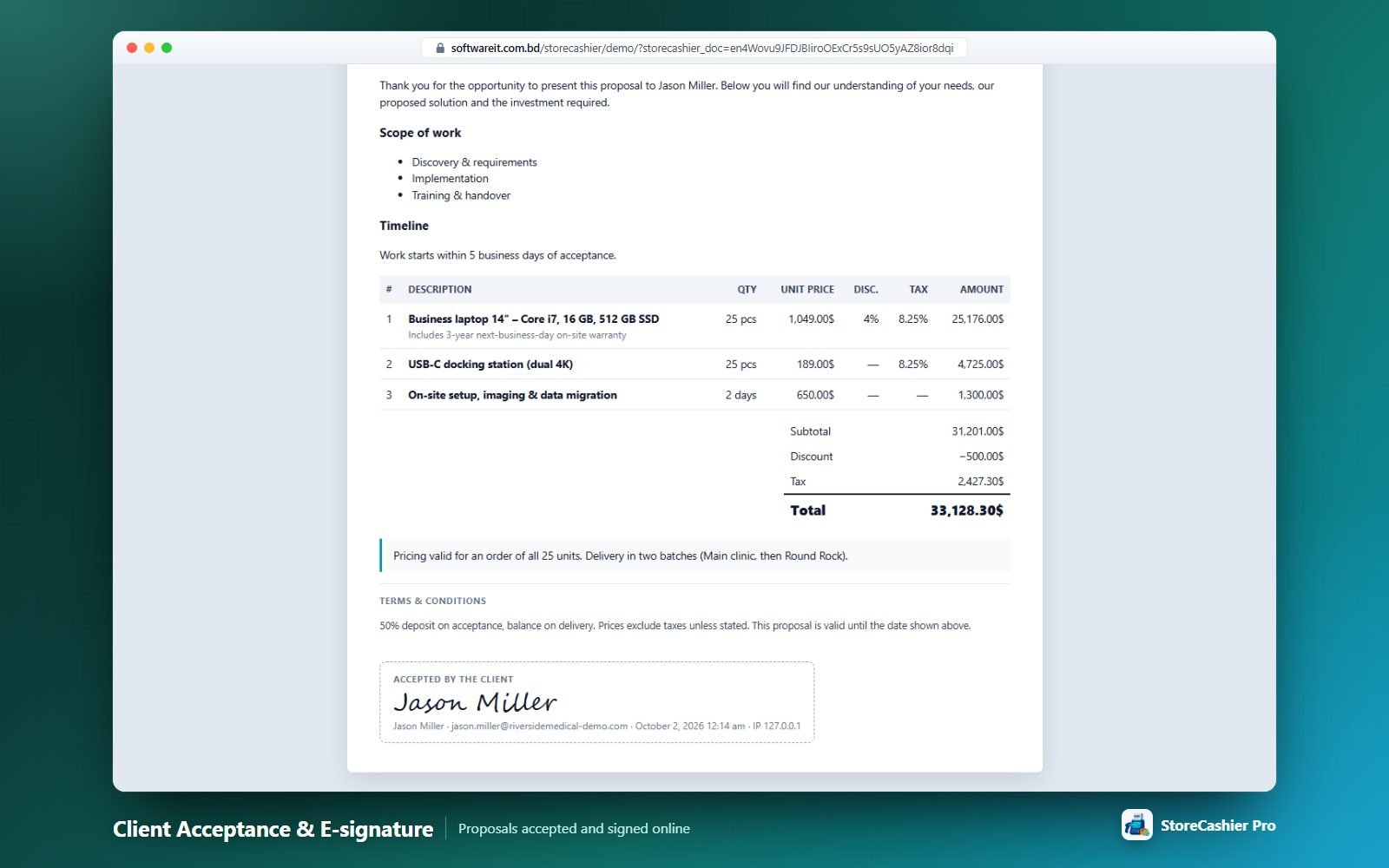
Each document has a secret link. The client can view, print, accept with an e-signature (type or draw) or decline with an optional reason — no login needed. The owner is e-mailed on view/accept/decline. Accepted documents can automatically mark the deal Won; declined ones can mark it Lost (Settings › CRM).
Contracts
Customer contracts with value and billing cycle, renewal terms, reminders and online signing.
- List — stats for Active contracts, Recurring / month, Renewal due (60 days), Awaiting signature and Expired; filters by status, type, customer, owner and “Ending within N days”.
- Form — title, type, status, customer, signer e-mail, deal, owner; value, currency, billing cycle (one-time to yearly), payment terms; start/end, renewal term, reminder days, notice period, auto-renew; contract text with placeholders
{client_name} {business_name} {start_date} {end_date} {value} {billing_cycle} {payment_terms} {notice_days} {contract_number}; internal notes. - Signing — Send for signature e-mails a signing link; a signed contract becomes Active.
- Automation — a daily job expires documents past validity, auto-renews or expires ended contracts and sends renewal reminders.
Statuses: Draft, Awaiting signature, Active, Expired, Terminated.
Leads Module
Capture, score, assign, nurture and convert leads — from web forms, CSV imports or manual entry.
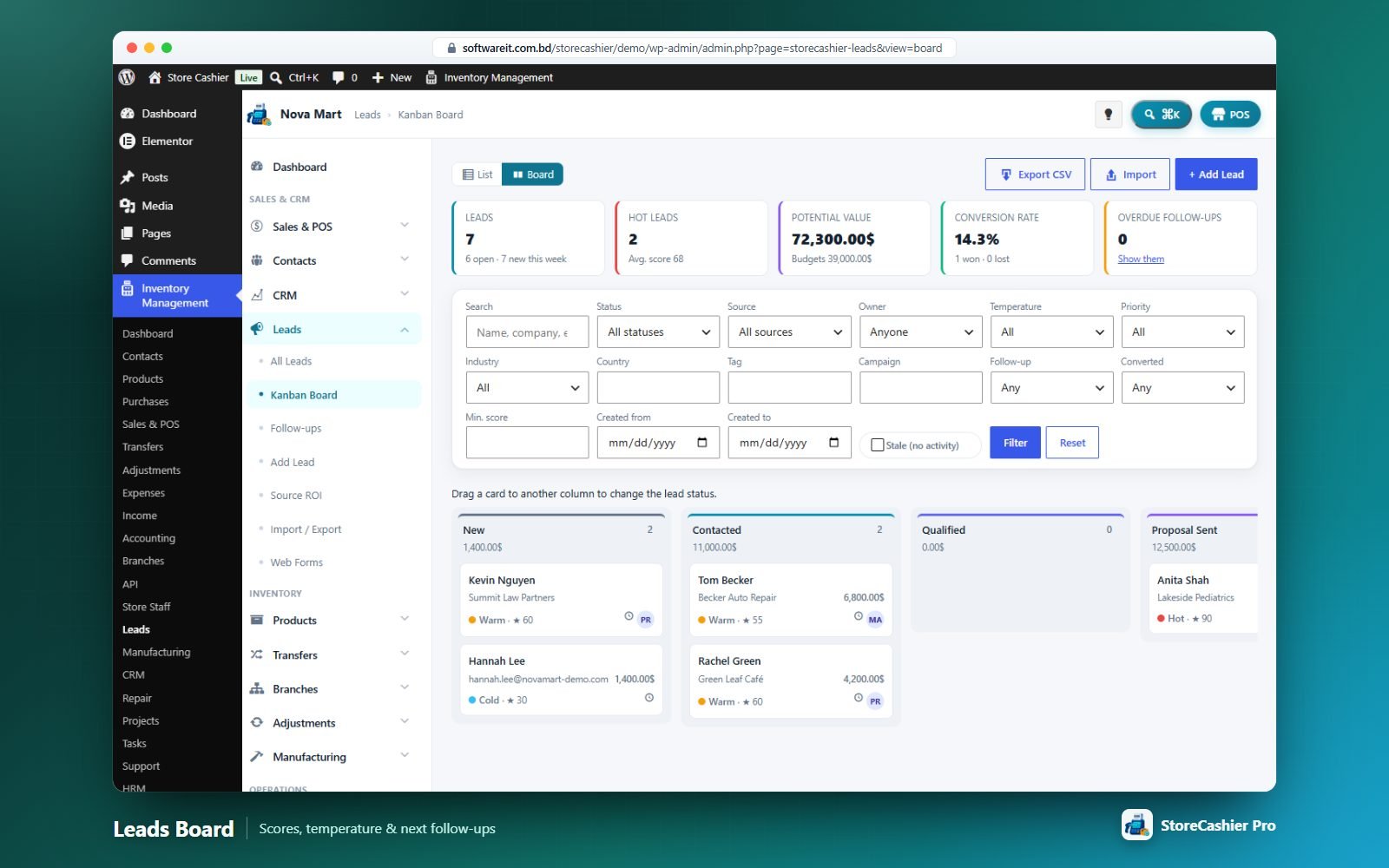
List & board
- Stat cards: Leads (open / new this week), Hot leads & average score, Potential value, Conversion rate, Overdue follow-ups.
- Saved views — save any filter combination as a named chip.
- Filters: status, source, owner, temperature, priority, industry, country, tag, campaign, follow-up state, converted, minimum score, created dates, stale.
- Bulk actions: assign owner, change status, set temperature/source, add/remove tag, schedule follow-up, set visibility, recalculate score, export CSV, delete.
Lead form
Sections: Contact person (salutation, names, job title, department, e-mail, phones, WhatsApp, preferred contact method, language, birthday) · Company (website, industry, size, revenue, VAT) · Address · Qualification (status, lost reason, source, temperature, priority, estimated value, budget, timeline, decision maker, needs) · Owner & follow-up (owner or auto-assign, next follow-up, tags, public/private) · Marketing attribution (UTM fields, acquisition cost, referrer, landing page) · Social profiles · Consent & privacy (GDPR consent, marketing opt-in, do not contact). A live duplicate check warns about existing leads.
Lead workspace
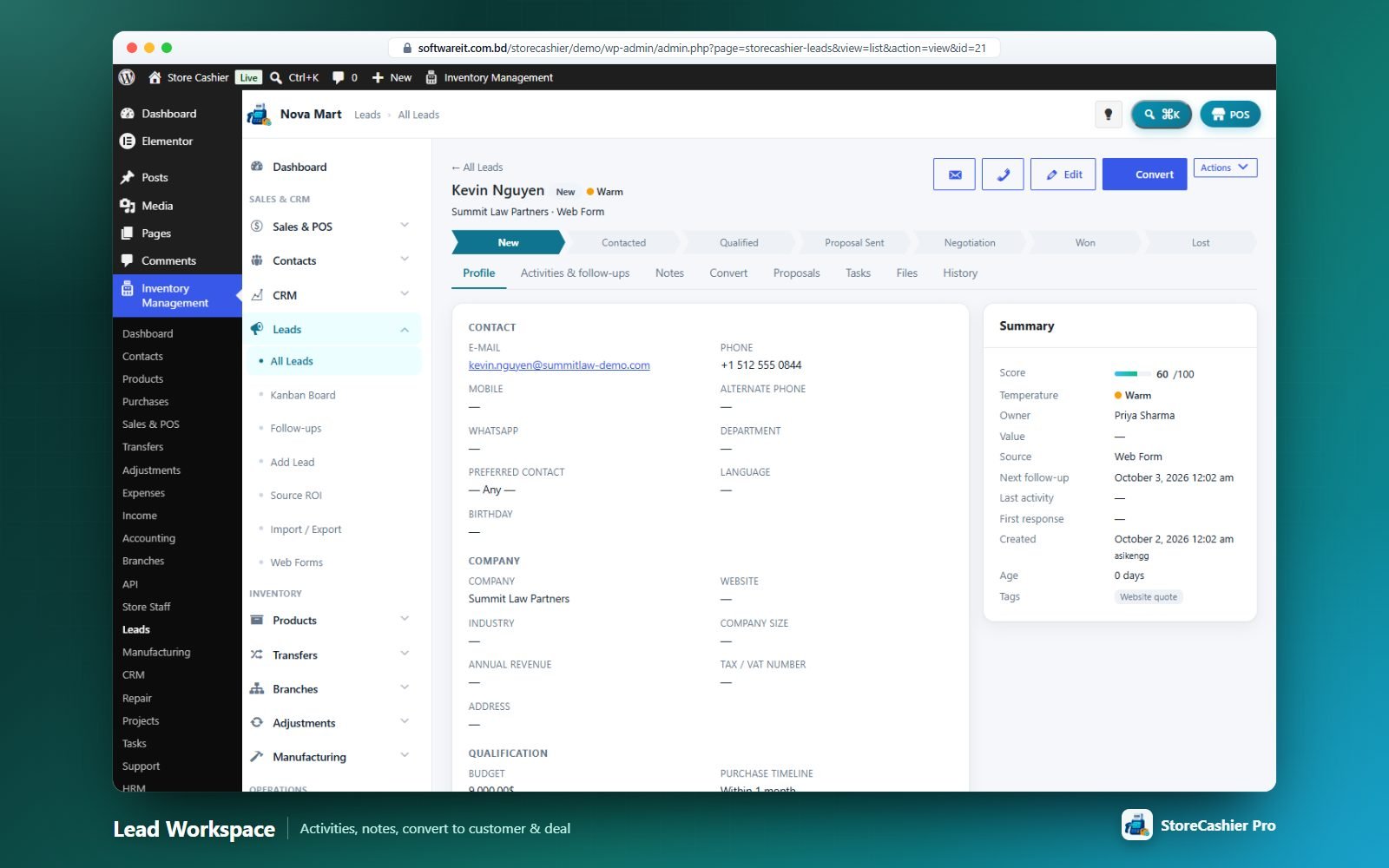
Tabs: Profile · Activities & follow-ups · Notes (with reminders) · Convert · Proposals · Tasks · Files · History. Convert can create a new customer (synced to WordPress/WooCommerce), link an existing customer, and optionally create a CRM deal.
Scoring & assignment
- Score 0–100 = status points + attribute points (e-mail, phone, company, website, job title, decision maker, budget, buying timeline, temperature, completed activities) + source points. Won = 100, Lost = 0. All points are configurable.
- Temperature manual or automatic from score (Hot ≥ 70, Warm ≥ 40 by default).
- Assignment: default assignee, round robin or least open leads across a team pool.
Source ROI, import & export
Source ROI shows leads, won, lost, win rate, average score, pipeline and won value, cost per lead/win and ROI per source and per UTM campaign. Import / Export accepts CSV (comma, semicolon or tab; up to 5,000 rows) with column mapping, default values and duplicate handling (skip, fill empty fields, create anyway).
Web-to-lead forms
![A web-to-lead form embedded on the website with the [storecashier_lead_form] shortcode.](screenshots/lead-form.jpg)
Build a form in Leads → Web Forms (choose fields, required fields, title, button, source, status, owner/assignment rule, tags, redirect) and click Generate shortcode. The signed shortcode [storecashier_lead_form] is spam-protected (honeypot, time trap, rate limit, nonce), captures UTM values, can show a consent checkbox and sends a “New lead” e-mail plus an optional visitor confirmation.
Projects Module
Plan, staff, track and invoice client or internal projects — tasks, milestones, timesheets, budgets, expenses, discussions and a customer portal. Requires the Tasks module.
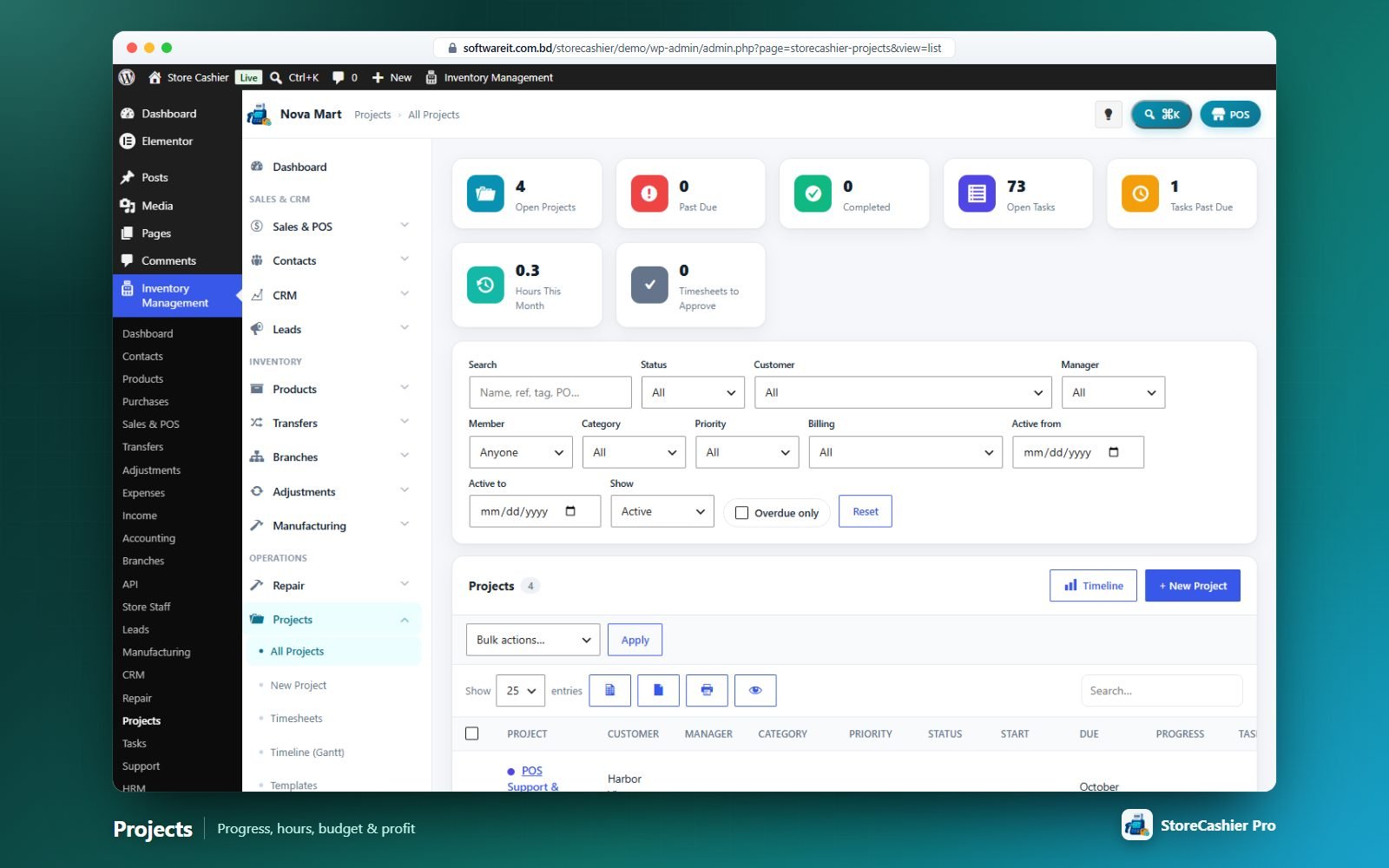
Project list
Stat cards: Open, Past Due, Completed, Open Tasks, Tasks Past Due, Hours This Month, Timesheets to Approve. Columns include progress, hours logged/billable/budget, budget, cost, revenue, profit, invoiced and unbilled. Bulk actions: set status, set manager, archive, restore, delete. Row actions: Open, Edit, Log time, Invoice, Archive, Duplicate, Save as template, Delete.
Creating a project
- Basics — name, reference, category, status, priority, tags, colour; optionally Start from template (copies members, milestones and tasks with dates shifted).
- Customer — customer, contact, PO / contract no., site address.
- Team — project manager, department, business location and members with role, bill rate and cost rate.
- Schedule — planned start/due and actual start/finish.
- Billing & budget — Fixed price, Hourly (per task / per staff member / single project rate) or Non-billable; cost budget, budget hours and a budget alert %.
- Progress — automatic from completed tasks, logged vs estimated hours or completed milestones, or manual.
- Customer portal visibility — show the project in My Account and pick which sections the customer sees.
Project workspace
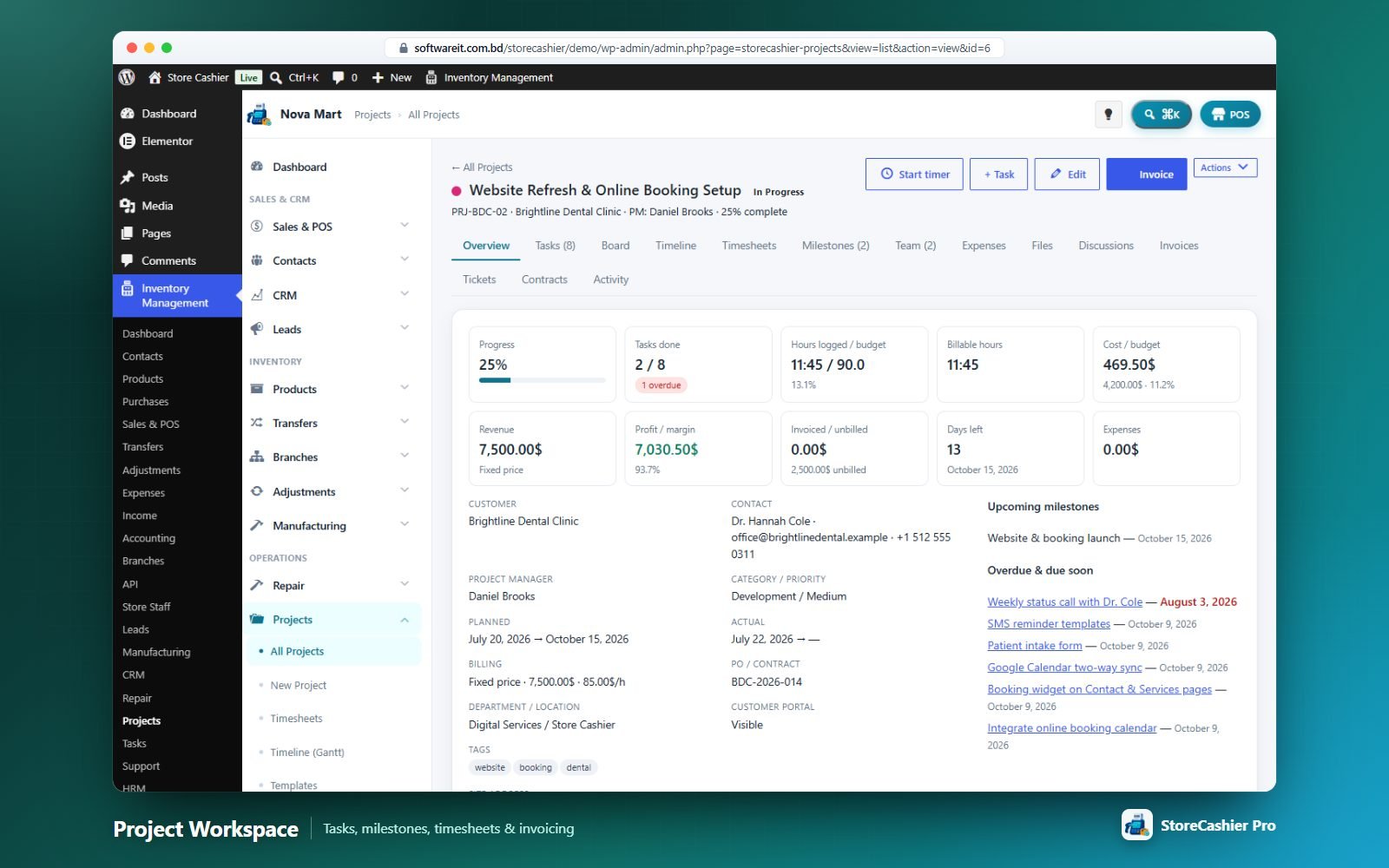
Tabs: Overview · Tasks · Board · Timeline · Timesheets · Milestones · Team · Expenses · Files · Discussions · Invoices · Tickets · Contracts · Activity. Start/stop a timer from the header. Overview KPIs: progress, tasks done/overdue, hours vs budget, billable hours, cost vs budget, revenue, profit/margin, invoiced/unbilled, days left and expenses.
- Milestones with dates, billing amount, colour, deliverables, customer visibility and invoiced flag.
- Expenses with category, markup %, receipt, paid-from account and “Re-bill to customer”.
- Discussions with @mentions, attachments, pinning and optional customer visibility.
- Invoices — create an invoice from unbilled work (fixed price, approved billable time, milestones, billable expenses, extra lines) grouped by task, staff, entry or single line, as a StoreCashier sale or a WooCommerce order.
Timesheets
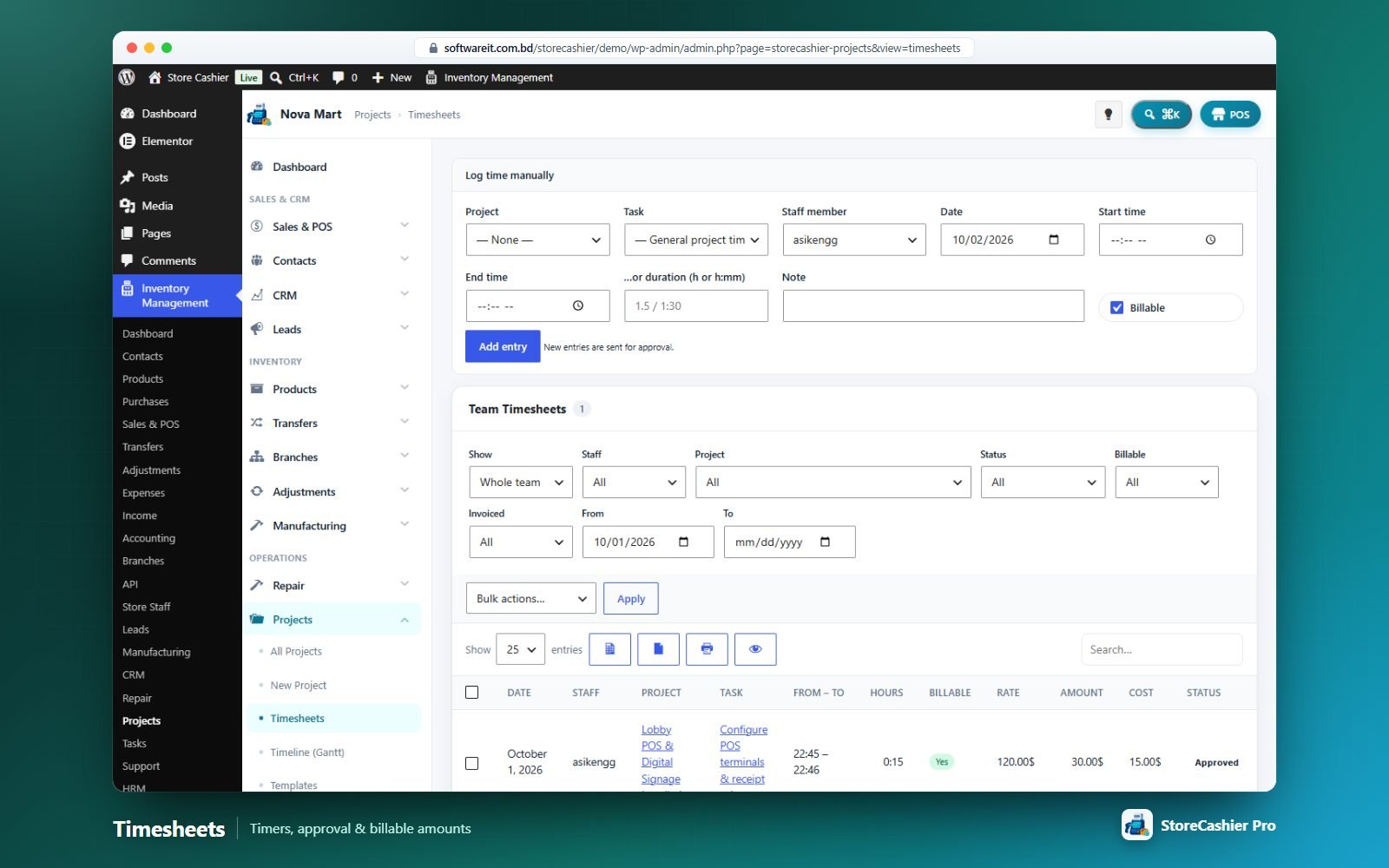
Running timers, manual entries (project, task, staff, date, start/end or duration, note, billable) and an approval workflow (Draft → Awaiting approval → Approved / Rejected). Bulk approve, reject with reason, submit, mark billable/non-billable. Settings control approval, rounding, locking old entries and one timer per person.
Timeline (Gantt) & templates
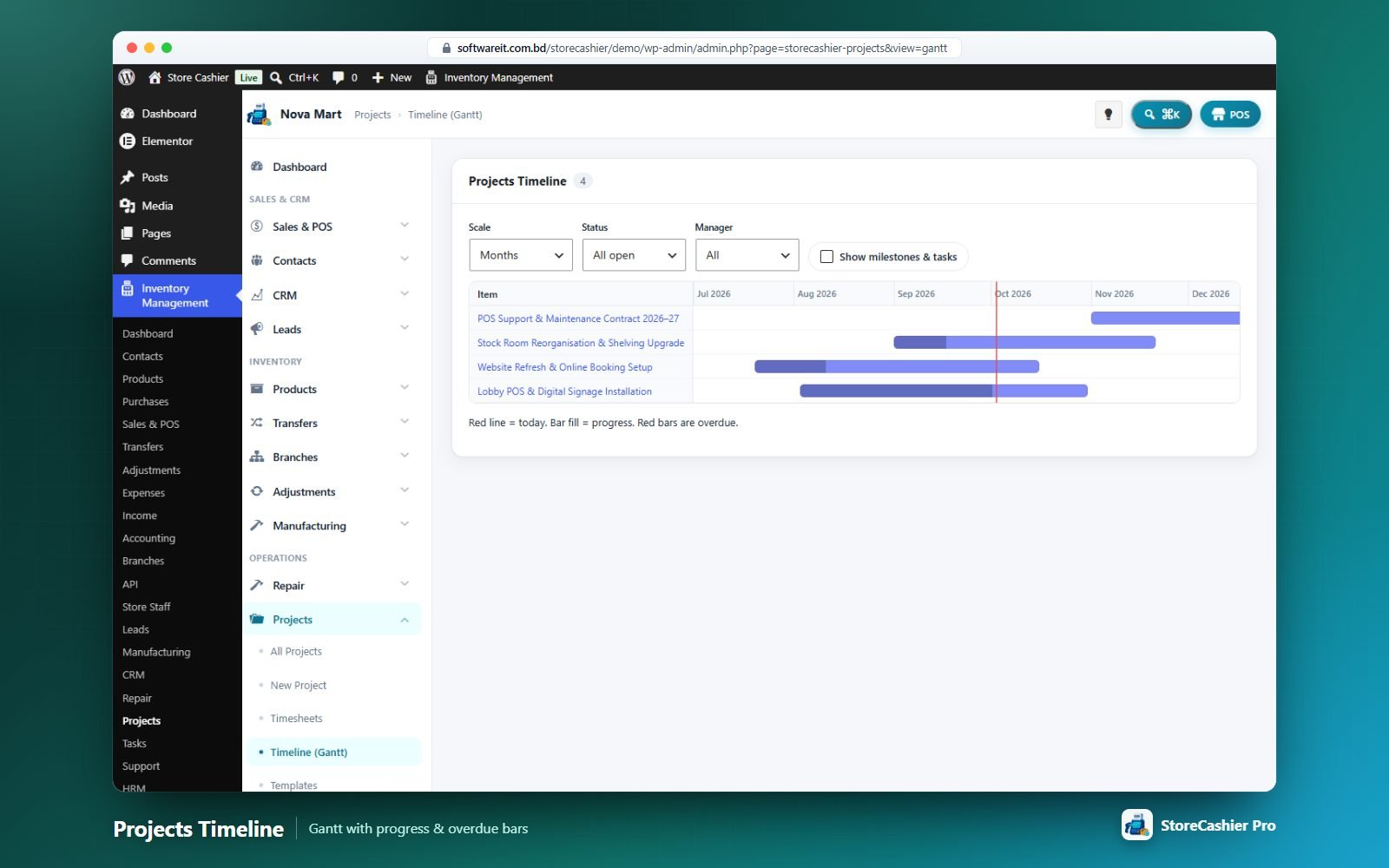
The Gantt shows all projects by Days / Weeks / Months with optional milestones and tasks. Templates store reusable projects; ready-made starter templates can be installed in one click.
Customer portal
Customers see their projects under My Account → Projects (status, progress, scope, billing, milestones, tasks, time log, files and messages — each section switchable) and can post messages to the team.
Tasks Module
A full task manager — standalone or inside projects — with Kanban, calendar, timers, checklists, subtasks, dependencies and recurring tasks.
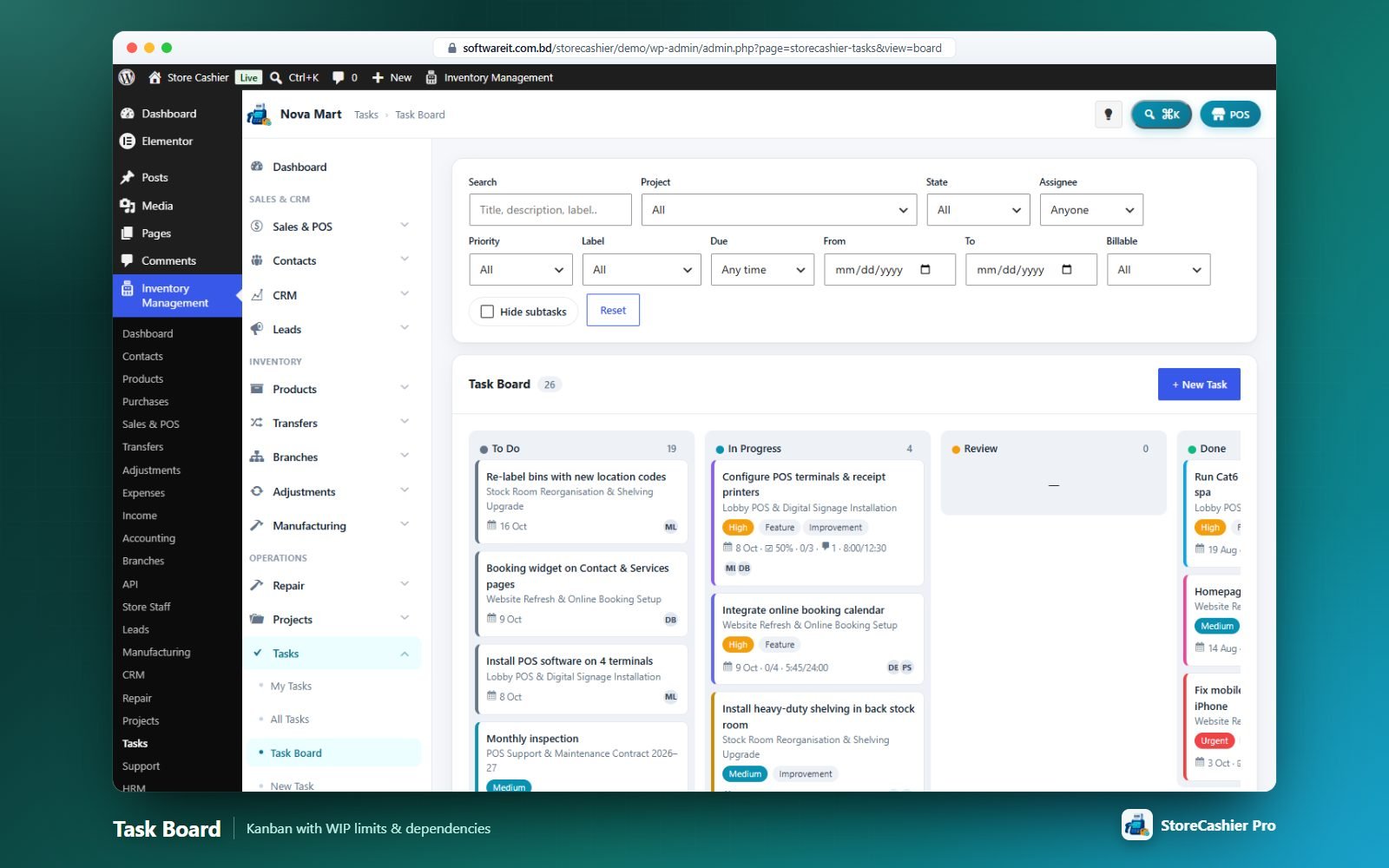
- My Tasks — Overdue, Today, Next 7 days, All open, Following, Created by me, Completed; banner for a running timer.
- All Tasks — stat cards (Open, Overdue, Due today, Completed, Unassigned), rich filters and bulk actions (status, assignee, priority, due date, label, move to project, billable, duplicate, delete).
- Task Board — Kanban with WIP limits; tasks blocked by dependencies can’t be moved.
- Calendar — month view of tasks and project milestones.
Task form
Title, description, checklist (one item per line), subtasks; start/due date and time, estimate, reminder, repeat (daily, weekly, monthly, yearly or custom interval, until date), billable and hourly rate; project, milestone, parent task, status, priority, labels, colour; owner, additional assignees, followers; blocked by dependencies and a link to a related record (contact, lead, deal, ticket, repair job, sale, purchase, asset, employee, booking).
Task view
Checklist toggles, subtasks, dependencies, comments with @mentions, attachments, a time log, details and activity. Completing a recurring task creates the next occurrence. Assignees and followers get reminder, assignment, comment, completion and @mention e-mails, plus an optional daily overdue digest.
Support Tickets Module
A helpdesk with departments, categories, priorities, SLA targets, canned replies, a knowledge base and a customer portal in WooCommerce My Account.
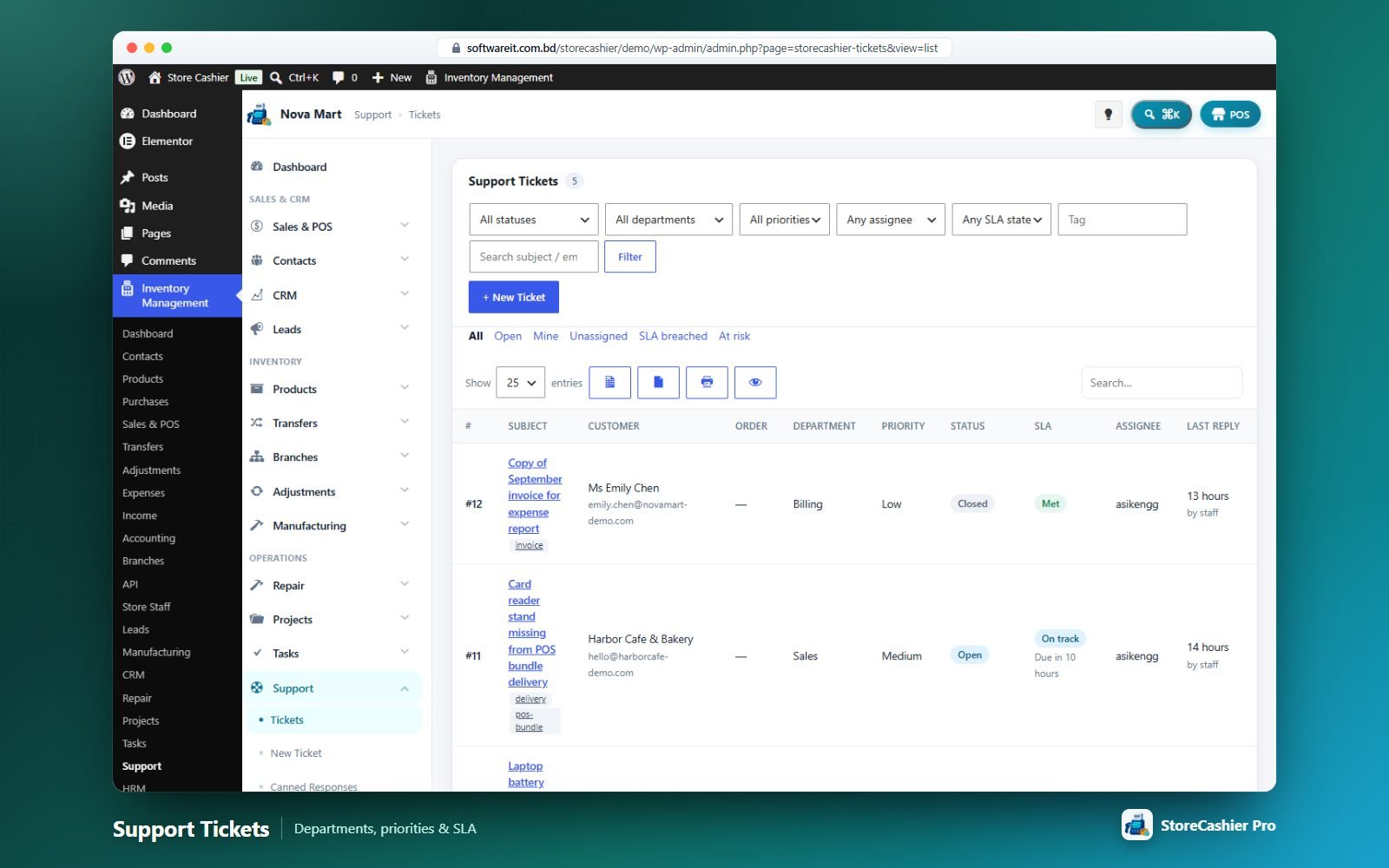
Queue
Quick tabs: All, Open, Mine, Unassigned, SLA breached, At risk. Filters: status, department, priority, assignee, SLA state, tag, search. Columns show customer, order, department, priority, status, SLA, assignee, last reply (“Awaiting reply”), age and reply count.
Ticket workspace
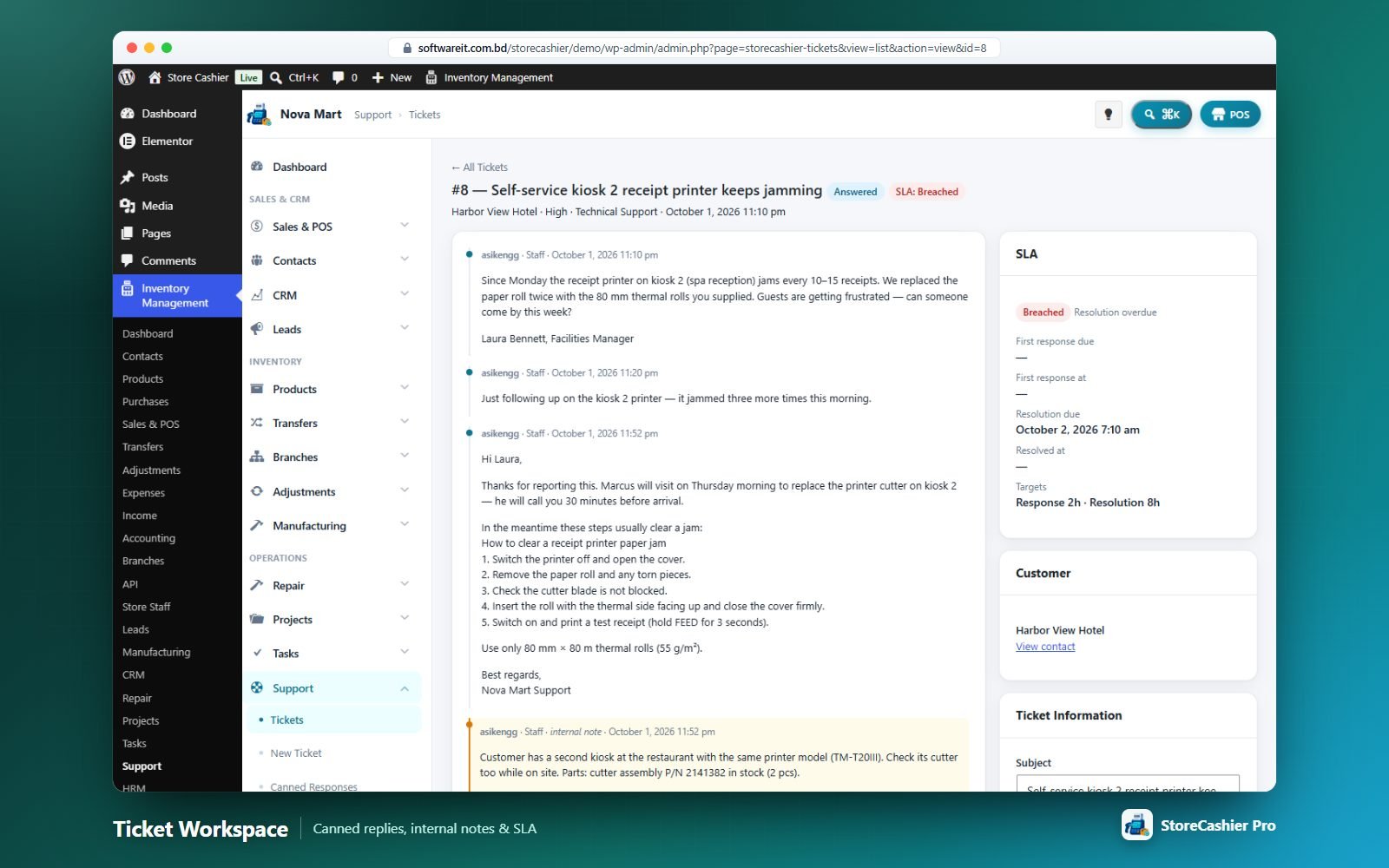
- Reply composer — insert a canned response or knowledge-base link, attach files, change status, assign to me, then Send Reply (e-mailed to the customer) or Add Internal Note (staff only).
- SLA panel — first response and resolution due times; states On track, At risk, Breached, Met, Missed.
- Ticket information — subject, department, category, priority, status, assignee, related order, project link, tags and merge another ticket into this one.
- Convert to Task and a list of the customer’s other tickets.
SLA, departments & statuses
Default SLA targets (resolution / first response hours): Low 48/8, Medium 24/4, High 8/2, Urgent 4/1. Departments can have a default agent and e-mail — new tickets are auto-assigned. Statuses: Open, Answered (set automatically when staff reply), On Hold, Closed.
Customer side
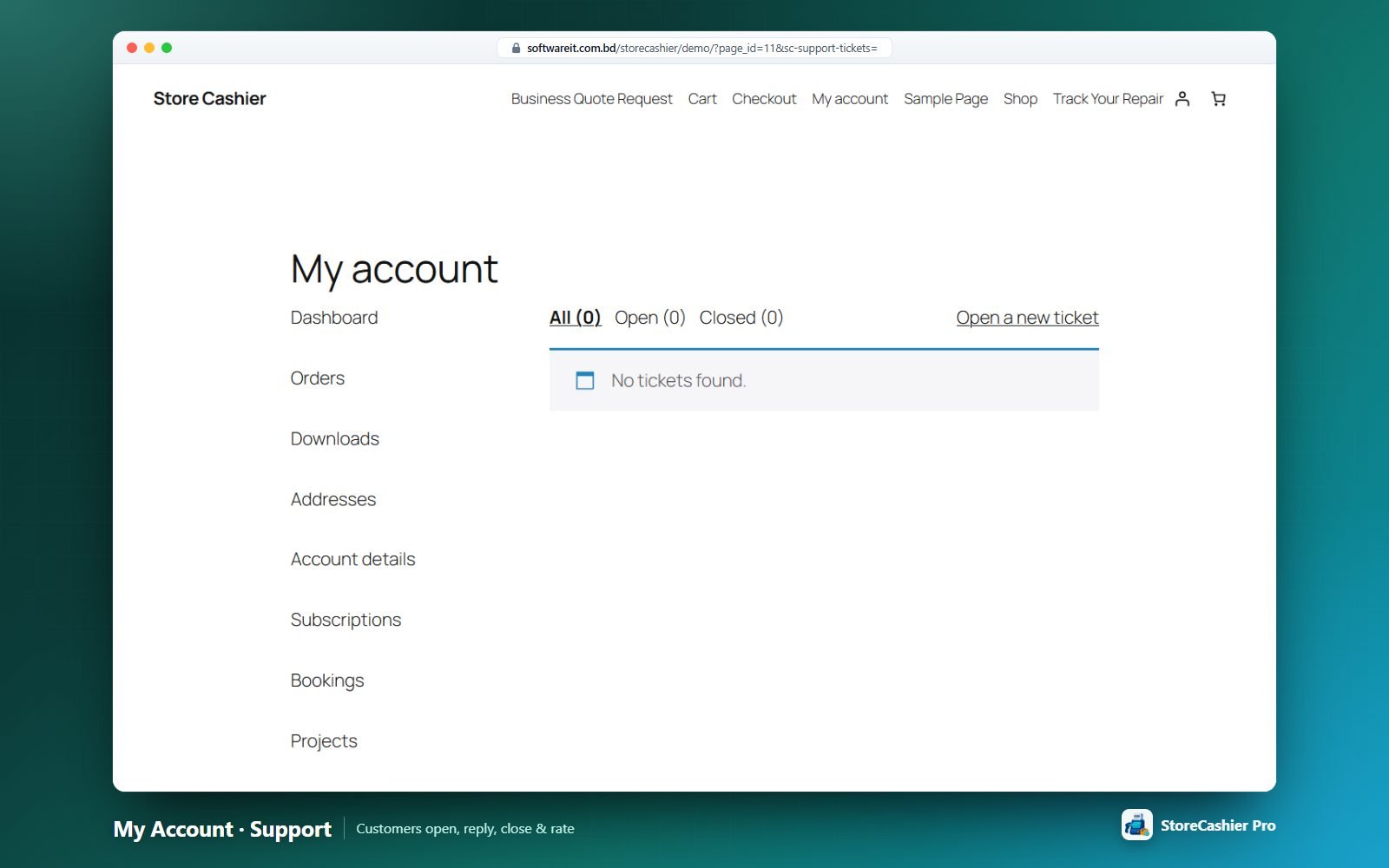
My Account → Support Tickets lets customers list tickets (All / Open / Closed), open a new ticket (subject, department, category, priority if allowed, related order, message, attachments), reply, close with a satisfaction rating (1–5) and reopen. The [storecashier_support] shortcode offers the same portal on any page. Attachments are stored in a protected folder.
E-mails
Ticket received (customer), new ticket (agents), ticket opened for you, new reply (customer), customer replied (agents) and ticket closed.
Repair Management Module
Job sheets for phone, computer and device repair shops — intake checklist, pattern lock, estimates with customer approval, parts from stock, payments, invoicing, warranty claims, printing and public status tracking.
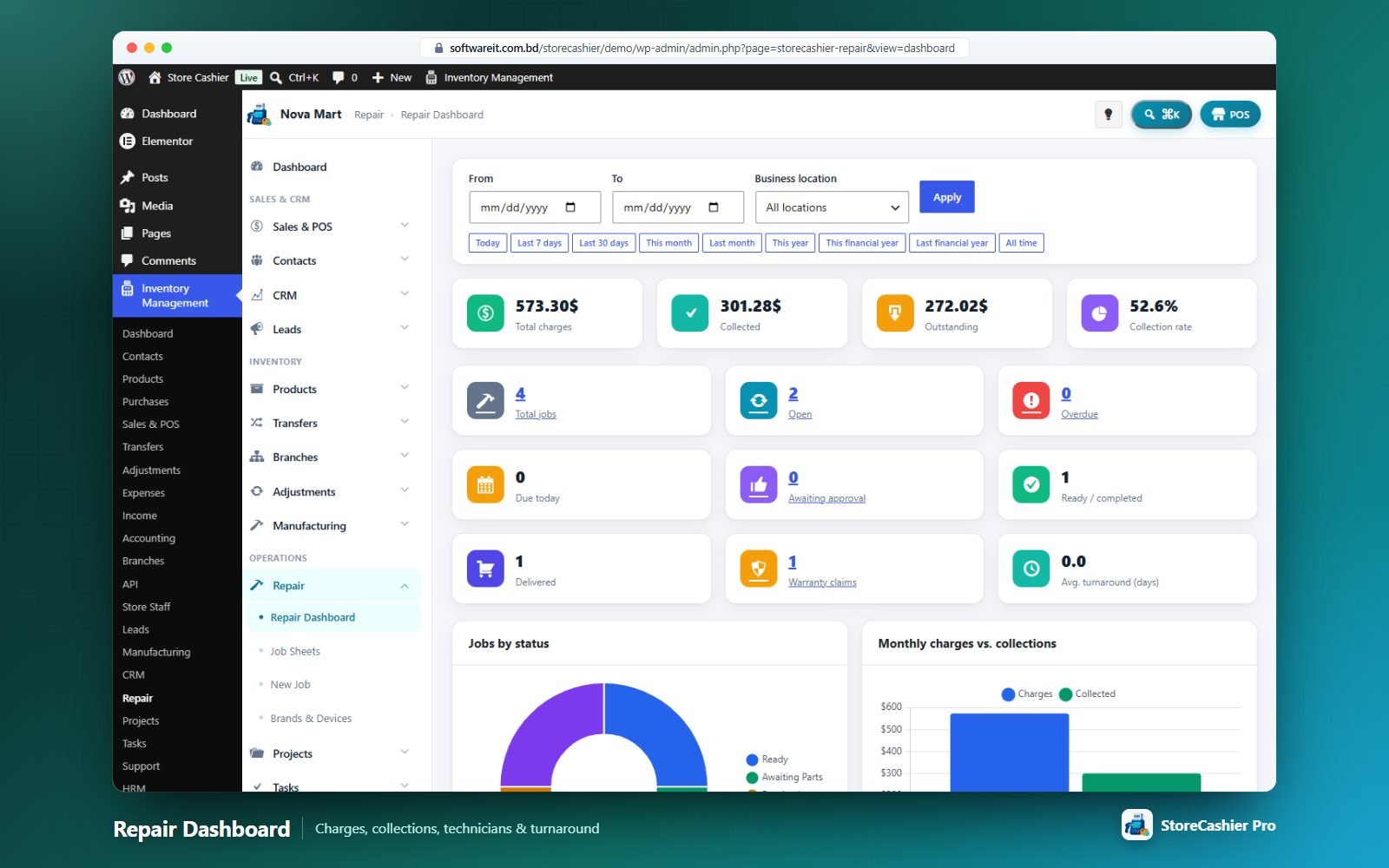
Dashboard & job sheets
The dashboard shows total charges, collected, outstanding and collection rate; job counts (open, overdue, due today, awaiting approval, ready, delivered, warranty claims, average turnaround) and tables by status, month, technician, payment method and service type. The Job Sheets list filters by status, technician, priority, service type, location, warranty, approval and payment, with totals per column.
New job
- Customer — existing customer, new customer (saved to Contacts) or walk-in.
- Service — location, service type (carry-in, pick-up, on-site, mail-in, remote), source and address.
- Device — device type, Brand → Device → Model (new values are added to the tree automatically), serial, IMEI ×2, colour, storage, specs and password / PIN / pattern (with a draw-pattern pad).
- Pre-repair check — OK / Not OK / N/A per item (powers on, display, buttons, charging port, cameras…), condition tags and accessories received.
- Problem & diagnosis, technician, status, priority, expected delivery, quick estimate and warranty settings.
- Save — or Save & Print Job Sheet / Add Estimate / Add Charges / Take Deposit / Upload Photos / New.
Job workspace
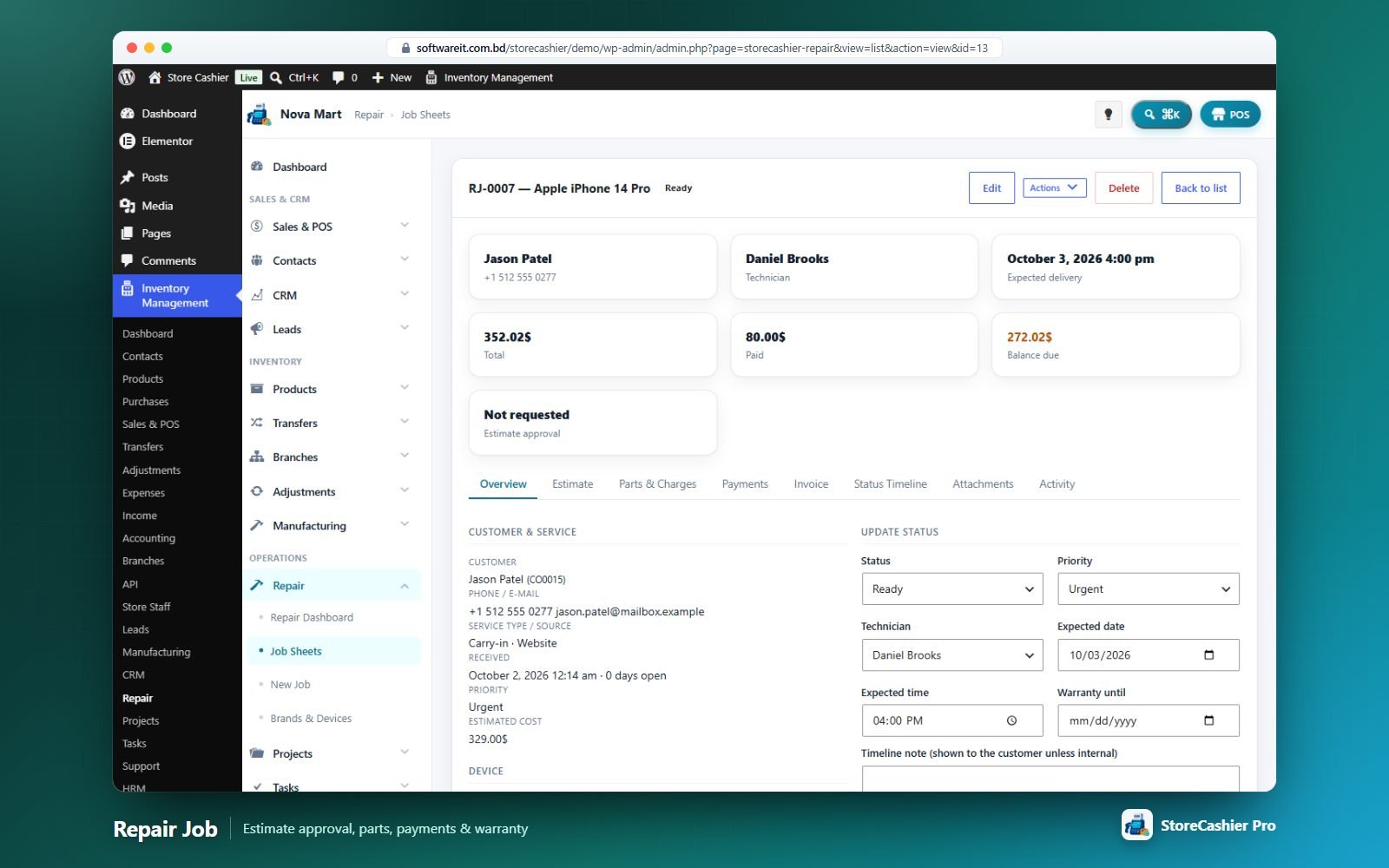
Tabs: Overview · Estimate · Parts & Charges · Payments · Invoice · Status Timeline · Attachments · Activity.
- Estimate — part/labour/service lines; send for approval by e-mail link or record the decision manually; copy the approved estimate to charges.
- Parts & Charges — parts can be deducted from stock at a chosen location; gross margin is shown. Deleting a job returns its parts to stock.
- Payments — deposits, payments and refunds to a payment account with optional receipt printing.
- Invoice — create a WooCommerce order from the job’s charges (stock is not deducted twice) or link an existing order.
- Warranty — period and terms; create a warranty claim job linked to the original.
Printing
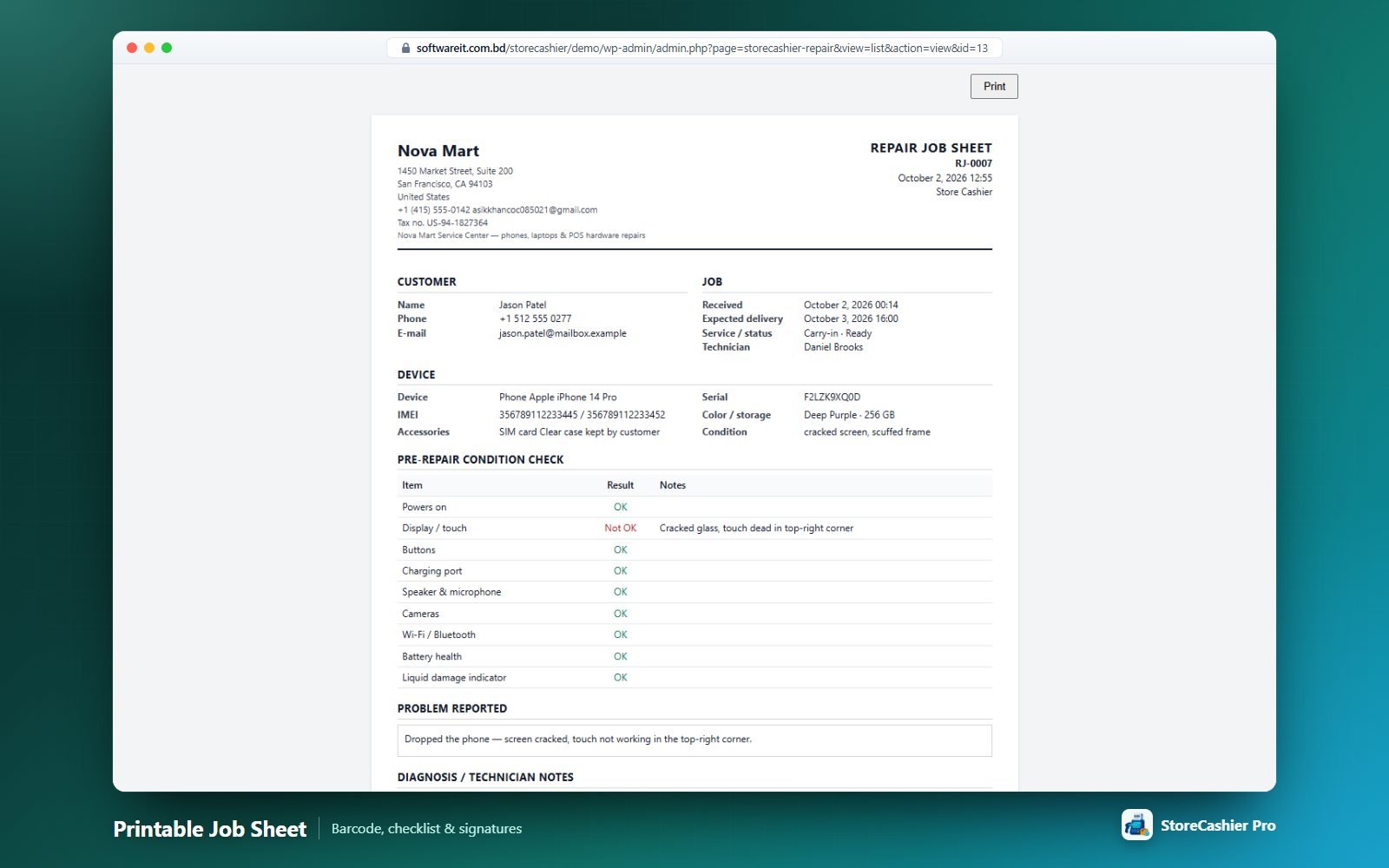
Job sheet, estimate, device label and receipt — all with a Code 128 barcode. Templates can be overridden in yourtheme/storecashier/repair/.
Customer tracking
Each job has a private tracking/approval link where the customer can see the status and approve or reject the estimate (name, time and IP are recorded). The [storecashier_repair_status] shortcode adds a public lookup by job number + phone or e-mail. Status e-mails are configurable per status with placeholders such as {job_no} {status} {device} {total} {balance} {tracking_url}.
Six repair reports are included: Jobs, Technician, Turnaround, Revenue, Parts Usage and Warranty.
Manufacturing Module
Multi-level bills of materials, work centers, routings, production orders with job cards and quality checks, material planning (MRP) and actual-cost posting into the stock ledger.
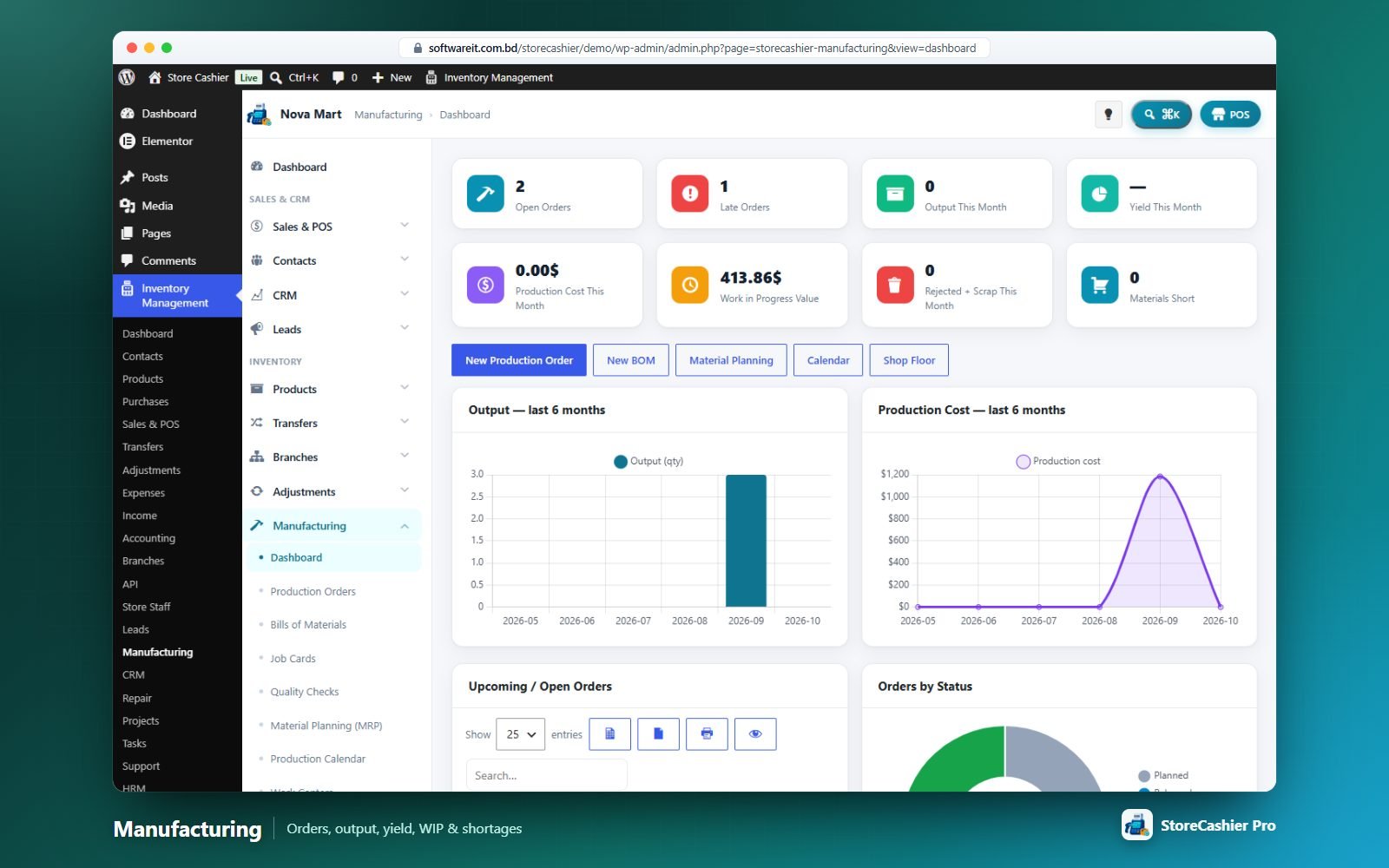
Screens: Dashboard · Production Orders · Bills of Materials · Job Cards · Quality Checks · Material Planning (MRP) · Production Calendar · Work Centers · Routings · Report, plus five reports (Production Volume, Yield, Scrap & Wastage, Cost Variance, Work in Progress).
Bills of Materials (multi-level)
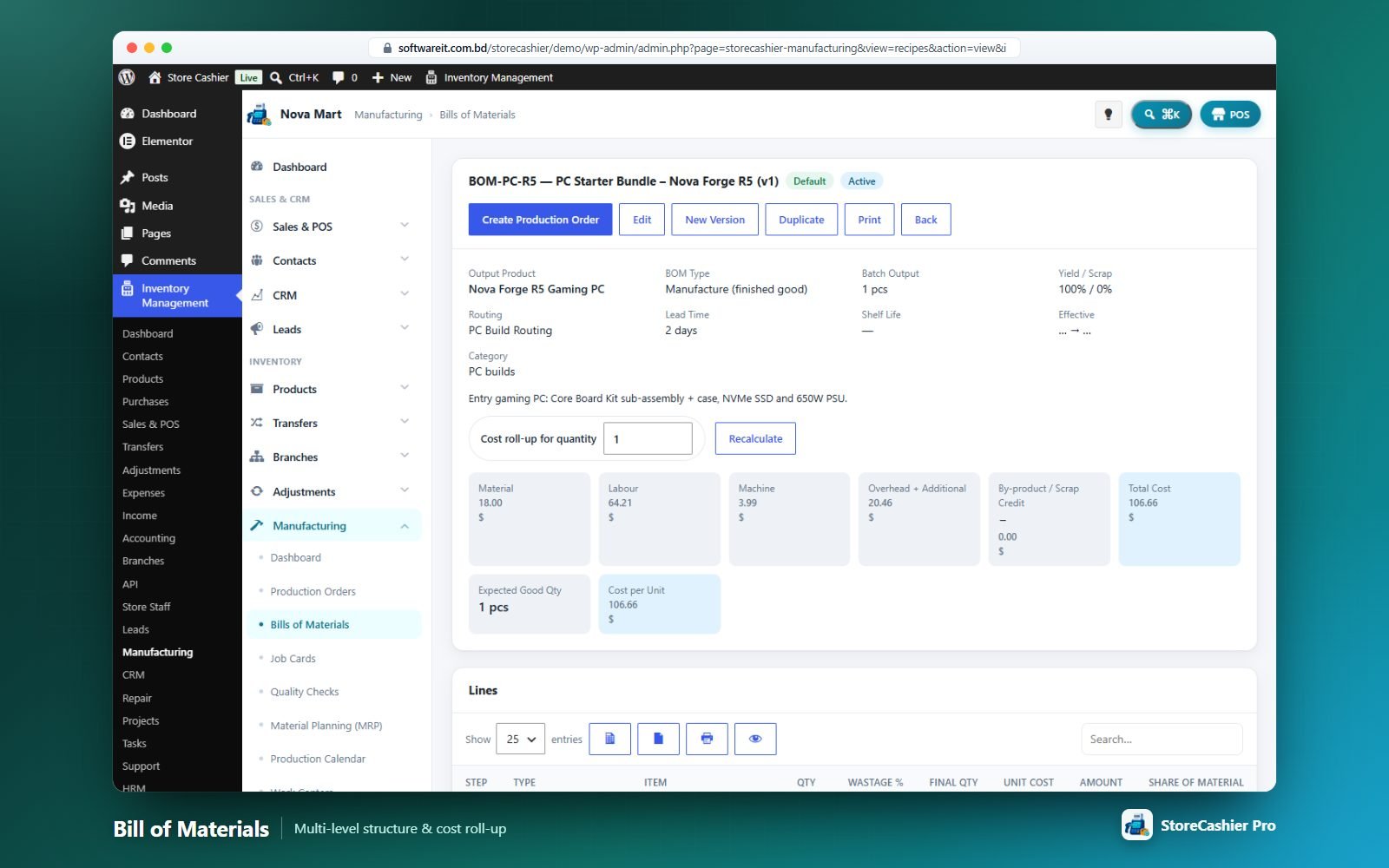
- General — name, code, output product, BOM type (Manufacture, Sub-assembly, Kit / bundle, Repack / relabel, Process / formula), category, version, status, default version and effective dates.
- Output & planning — output quantity per batch, unit, expected yield %, process scrap %, batch sizes, lead time, shelf life (sets expiry), default location and routing.
- Lines — raw materials, sub-assemblies (linked to their own BOM), consumables / packaging, by-products and recoverable scrap outputs, each with quantity, wastage %, unit cost, cost share % and optional flag.
- Labour & overhead — fixed labour, additional cost (flat or %), overhead method (flat, per unit, % of material, % of prime cost, rate per production hour).
- BOM sheet — cost roll-up for any quantity (material, labour, machine, overhead, by-product credit, cost per unit), the multi-level structure & availability table (up to 8 levels), versions, where-used, work instructions and recent orders. New version, Duplicate and Make default manage revisions.
Production orders
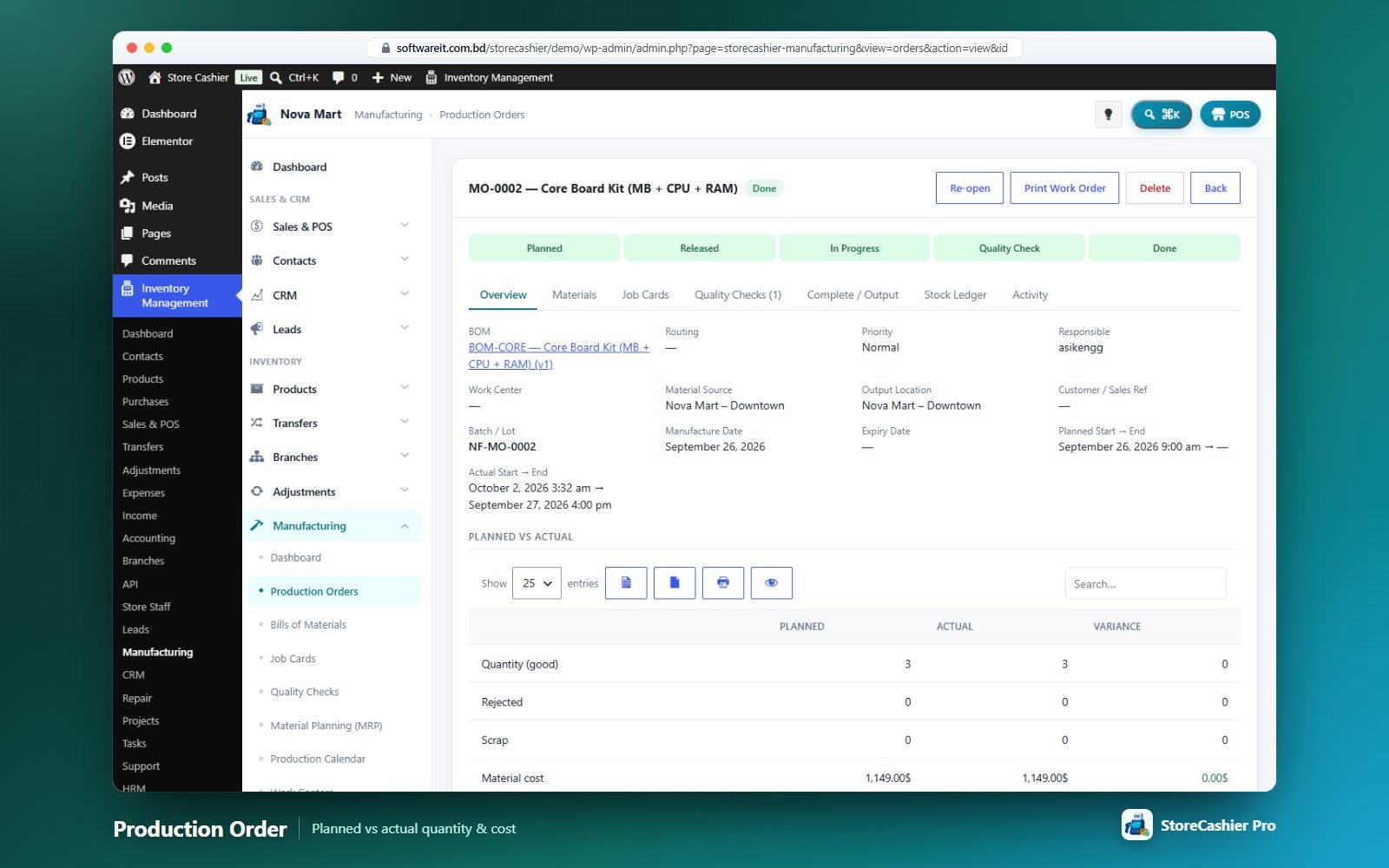
Status flow: Planned → Released → In Progress → Quality Check → (Awaiting Approval) → Done, or Cancelled; orders can be re-opened. The form loads lines from a BOM and sets product, quantity, priority, customer reference, responsible person, source and output locations, dates, routing, work center, machine/line, shift, batch/lot (auto-generated from a pattern) and expiry (from shelf life).
Detail tabs: Overview (planned vs actual quantity, rejected, scrap, material, labour + machine, overhead, total and unit cost, yield, first-pass quality, WIP value) · Materials · Job Cards · Quality Checks · Complete / Output · Stock Ledger · Activity. Print Work Order prints materials and operations with sign-off columns.
Stock posting
- Raw materials are deducted on completion (backflush, default) or on release (issue to WIP); shortages can block release/completion.
- On Complete & Post Stock: materials leave the source location (actual or planned quantity), by-products and recoverable scrap are received, and the finished good is received with its batch/lot and expiry at unit cost = (total cost − credits) ÷ good quantity. Optionally the product’s purchase price is updated with the actual unit cost.
- Completion can require a passed quality check, and can be routed through the Manufacturing Finalise approval gate.
- Cancelling or re-opening reverses every stock movement of the order.
Job cards, work centers & routings
Work centers hold type, location, status, capacity, hours/day, parallel stations, efficiency, machine / labour / overhead rates, setup cost and working days, plus live load in hours and days. Routings list operations (sequence, work center, setup and run minutes, operators, labour rate, QC flag, instructions). Releasing an order creates job cards from the routing; the Shop Floor (Job Cards) screen lets operators Start / Pause / Finish with actual minutes, quantities and efficiency %.
Quality checks
Record checks per order or job card: date, inspector, stage, sample size, passed / rejected quantity, result (Pass, Conditional pass, Fail, Rework), reject reason and a checkpoint checklist. The QC register shows pass rate and rejected quantity by reason.
Material Planning (MRP) & calendar
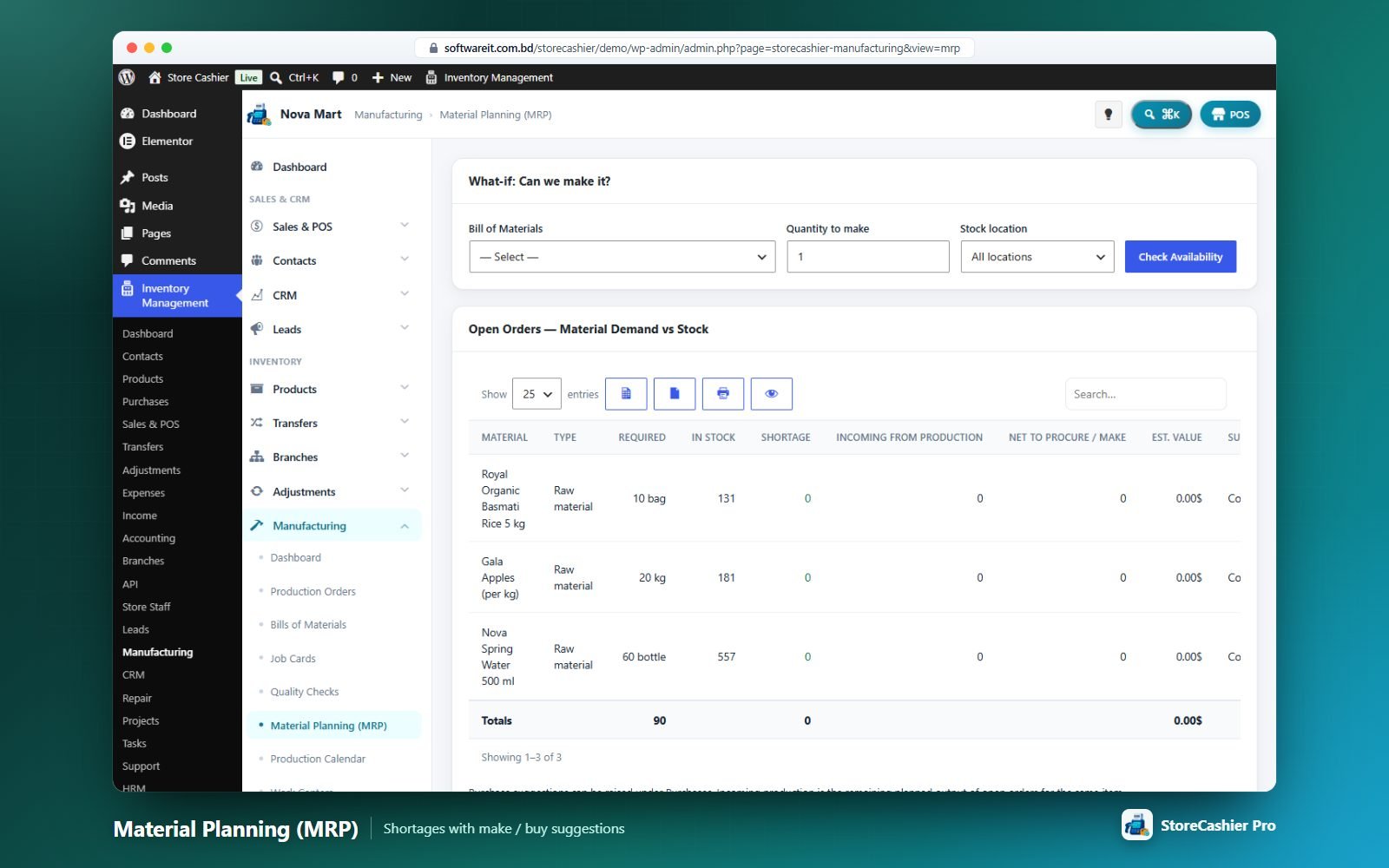
Run a what-if check for any BOM and quantity (components short, shortage value, estimated cost and time) or review open orders’ material demand vs stock including incoming production, with Make / Purchase / Covered suggestions. Create production orders for short sub-assemblies in one click. The Production Calendar shows orders by month, coloured by status.
Fixed Assets Module
A fixed-asset register with custody (check-out / check-in), transfers, maintenance schedules, depreciation, disposal, QR labels and CSV import/export.
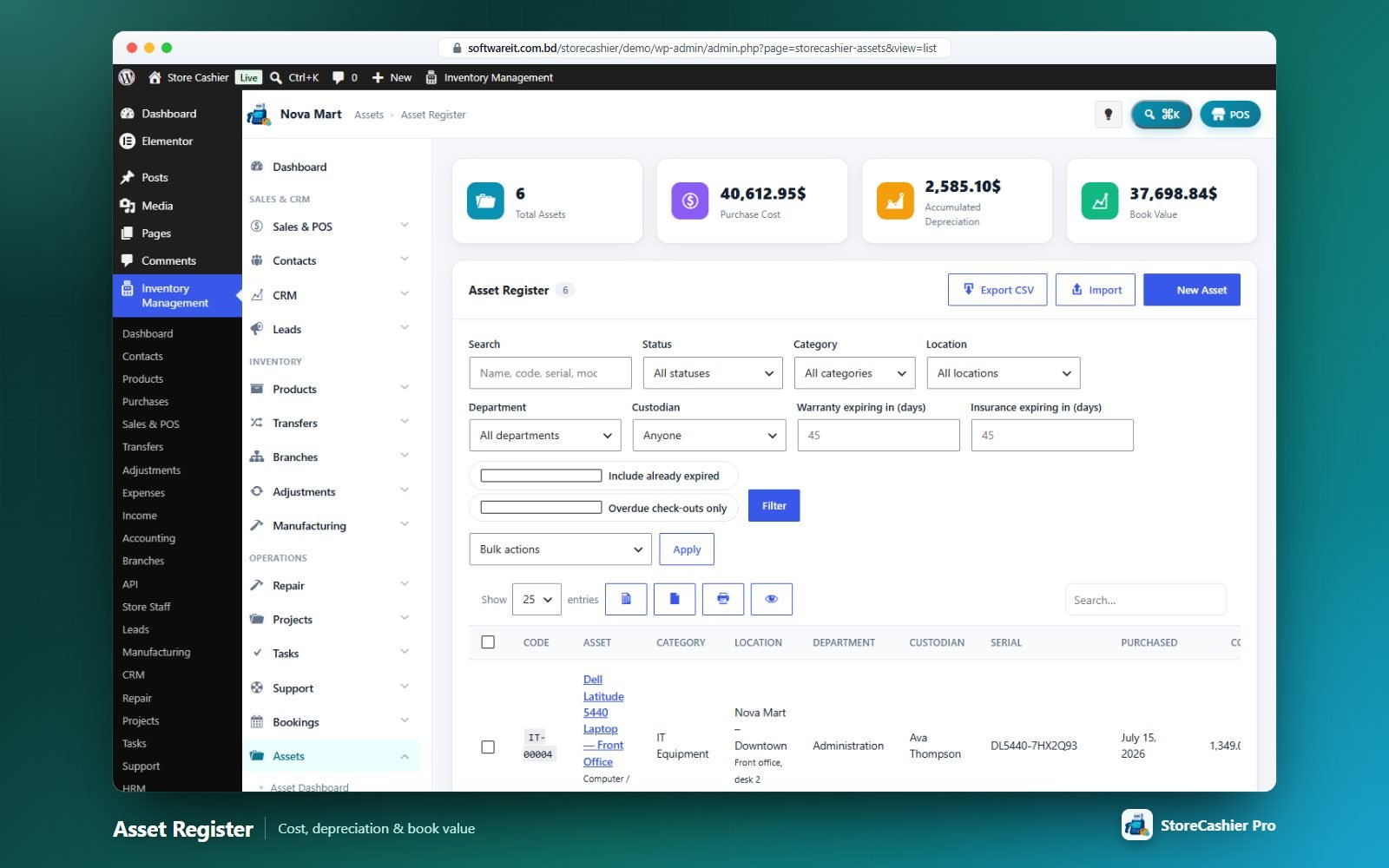
Dashboard & register
The dashboard shows active assets, cost, accumulated depreciation, book value, in use / in store / under maintenance, overdue check-outs, maintenance due/overdue and expiring warranties and insurance. The register filters by status, category, location, department, custodian, expiring warranty/insurance and overdue check-outs, with bulk Print labels, Export, Set status and Delete.
Adding an asset
Pick a quick template (computer, mobile, furniture, vehicle, machinery, heavy equipment, building, land, software licence), then fill Identification (name, auto-numbered code, category, sub-type, brand, model, serial, condition, status), Location & custody (location, room, department, custodian — employee, staff user, location or customer — and expected return), Purchase (supplier, date, cost, paid from account, invoice and PO no.), Warranty & insurance, Depreciation (method, life, rate, salvage, start date, lifetime units) and photo/notes/custom fields.
Asset detail
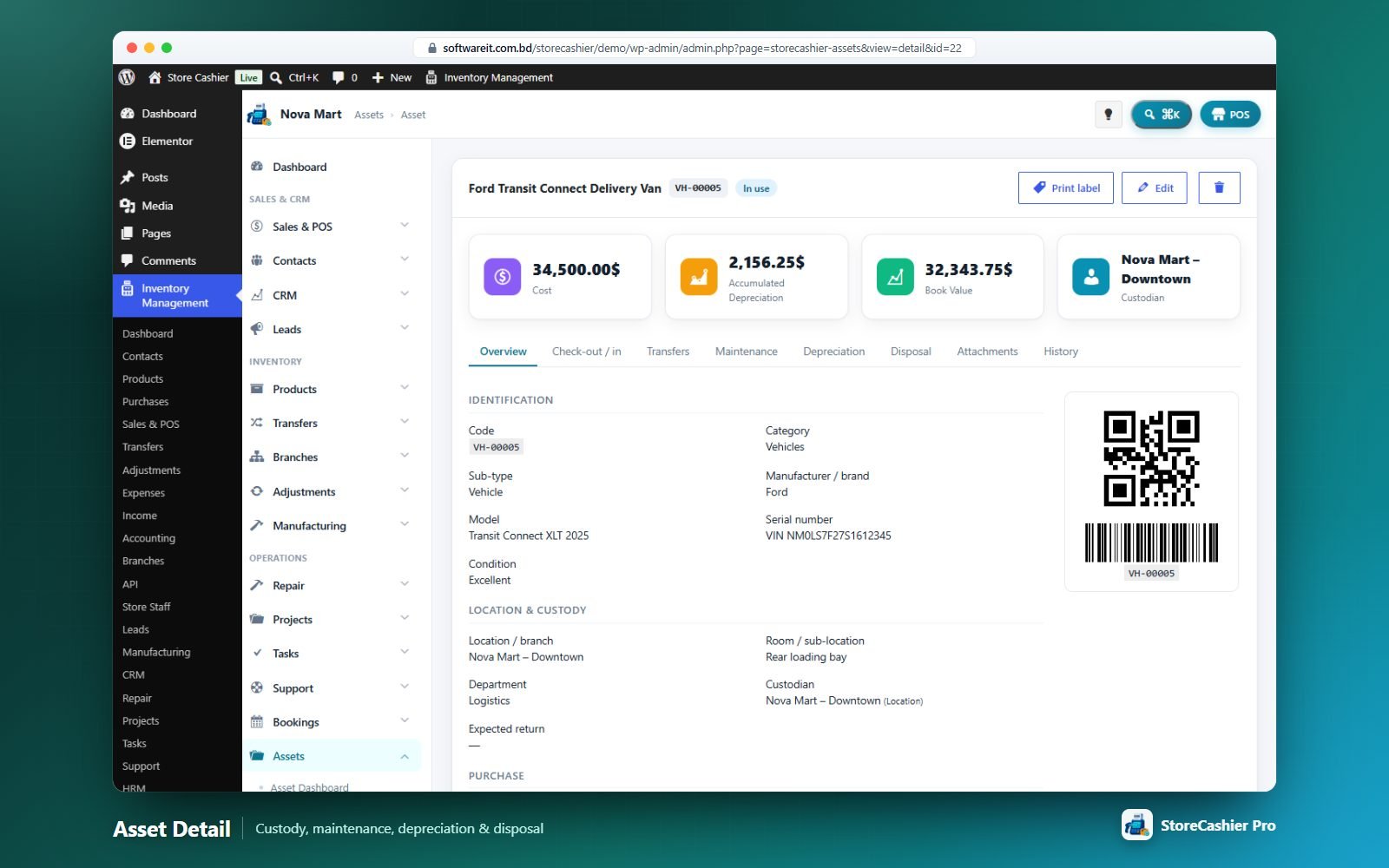
Tabs: Overview · Check-out / in · Transfers · Maintenance · Depreciation · Disposal · Attachments · History.
- Check-out / in with dates, condition and location; overdue flags.
- Maintenance schedules (repeat every N days/weeks/months, next due moves forward automatically) and maintenance logs (type, vendor, cost, paid-from account, downtime, in-progress status).
- Depreciation — Straight-line, Declining balance, Units of production (with usage readings) or None; schedule by financial year with current and projected rows.
- Disposal — date, method, proceeds into an account, buyer; gain/loss is calculated. Disposals can be reinstated.
Labels, import & export
Print Labels generates QR codes and/or Code 128 barcodes locally (sizes from 38×25 to 100×50 mm, A4/Letter sheets or label printers, up to 20 copies). Import / Export maps CSV columns (up to 5,000 rows), can update existing codes and create missing categories; exports include calculated book value, depreciation and disposal gain/loss. Five asset reports are included.
Multi-branch Module
Compare branches side by side and formalise inter-branch stock requests. Branches are your business locations.
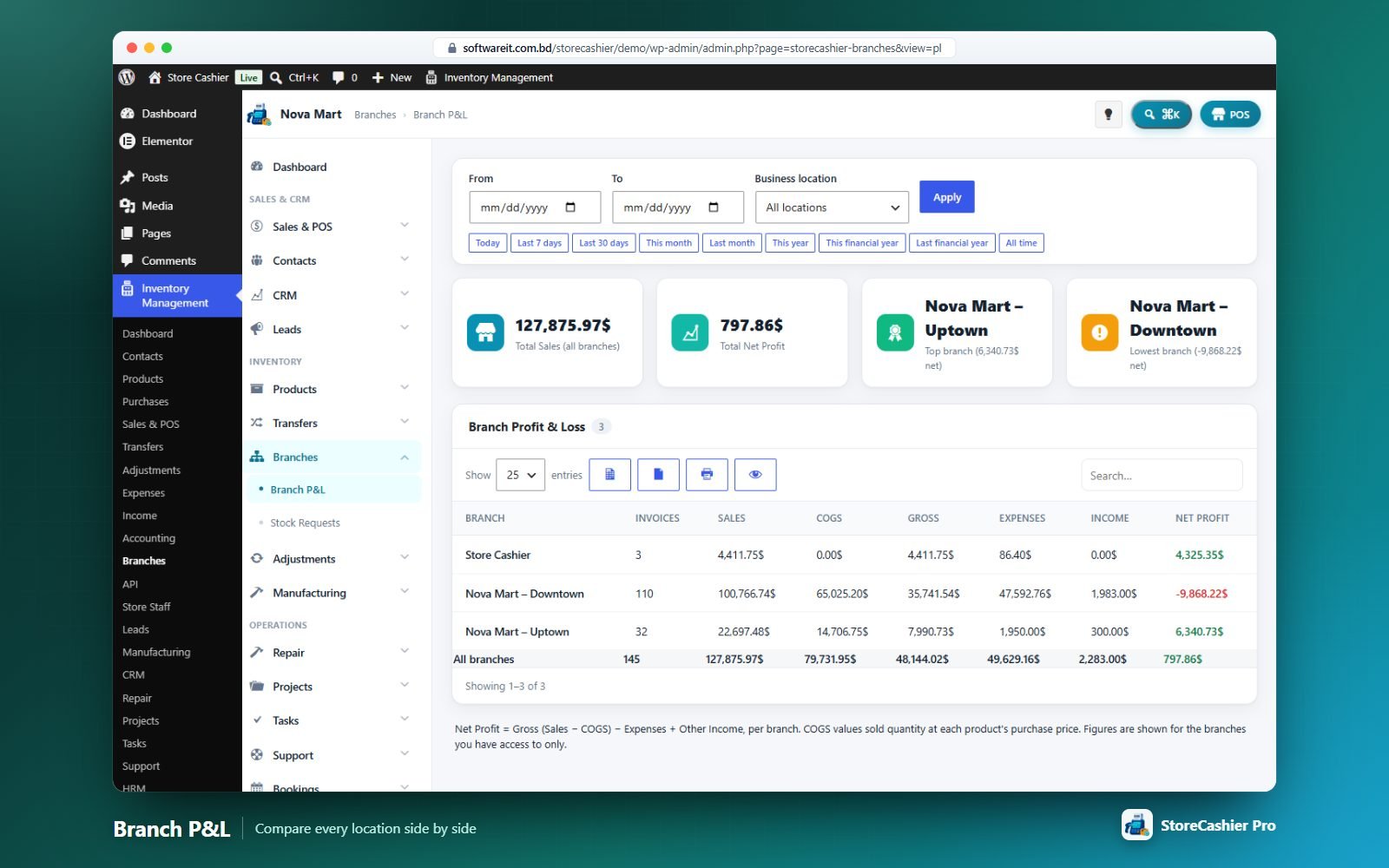
Branch P&L
For any date range: invoices, sales, COGS, gross profit, expenses, other income and net profit for each branch you can access, with an “All branches” total and top/lowest branch highlights.
Stock requests
- New request — from branch, to branch, product/variation, quantity, note. Reference
BRQ0001…. - Approval — when the Inter-branch Stock Requests approval gate is on, the request goes to the Approvals inbox.
- Fulfil — records transfer-out at the source and transfer-in at the destination in the stock ledger.
- Cancel / Delete — reverses a fulfilled movement.
HRM & Payroll Module
A complete HR suite: employee records, attendance with web punch and biometric import, leave, holidays, salary structures, payroll with tax/PF/social security and PDF payslips, loans, expense claims, lifecycle events, performance, recruitment, training and an employee self-service portal.
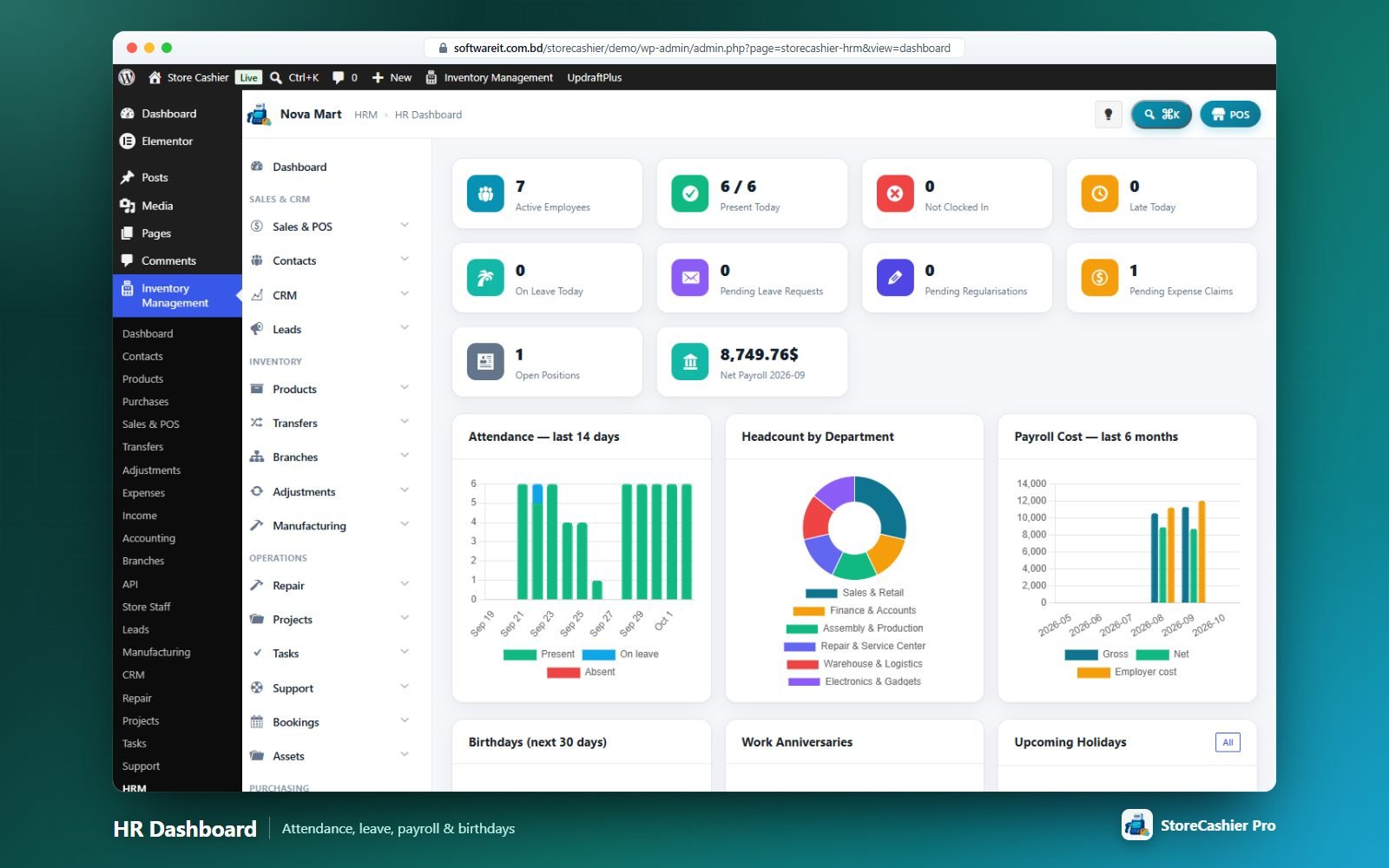
Screens: HR Dashboard · Employees · Attendance · Leave Management · Holidays · Salary & Structures · Payroll · Sales Targets · Loans & Advances · Expense Claims · Lifecycle Events · Performance · Recruitment · Training · Announcements · HR Contracts · Knowledge Base · Setup, plus the HR Headcount & Turnover, Attendance, Leave and Payroll Cost reports.
1. Setup
Start in HRM → Setup: Departments (parent, head, cost center), Designations, Grades / Bands (min/max salary), Shifts (start, end, break, late/early grace, half-day threshold, overtime-after, weekly off days, night shift) and Branches (contact details, manager, linked POS location, geofence latitude/longitude/radius and allowed punch IPs).
2. Employees
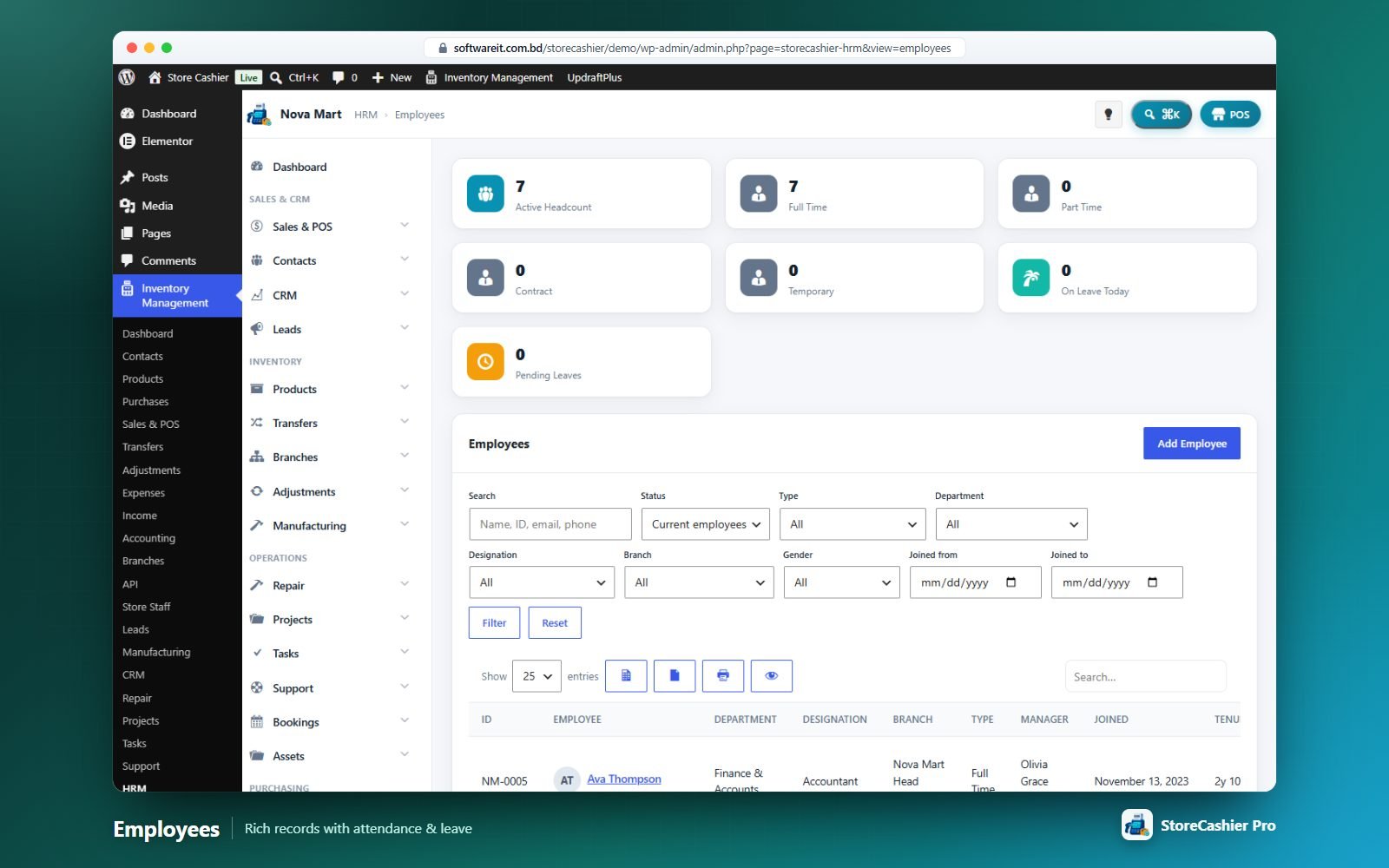
The list filters by status, type, department, designation, branch, gender and joining dates, and shows tenure, gross salary, leave left and this month’s attendance. Statuses: Active, On Probation, On Leave, Serving Notice, Suspended, Resigned, Terminated, Retired, Inactive. The tabbed employee form covers:
- Personal — photo, names, gender, birth, marital status, nationality, blood group and identity documents with expiry dates (national ID, passport, visa, work permit, driving licence).
- Contact & emergency — phones, e-mails, addresses and repeatable emergency contacts.
- Employment — auto-numbered employee ID, type, status, branch, department, designation, grade, shift, manager, work mode, joining/probation/confirmation/contract dates, notice period and the Linked WP User / POS Staff (needed for the portal, web punch and sales commission).
- Payroll, bank & tax — pay basis (monthly, bi-weekly, weekly, daily, hourly), payment method, tax and social security numbers, exemptions and multiple bank accounts.
- Education, experience, skills, certifications, family & references, custom fields and internal notes.
The profile has tabs for Overview, Personal, Employment, Salary & Payroll, Attendance, Leave, Documents, Assets, Performance & Training and History & Checklists.
3. Attendance
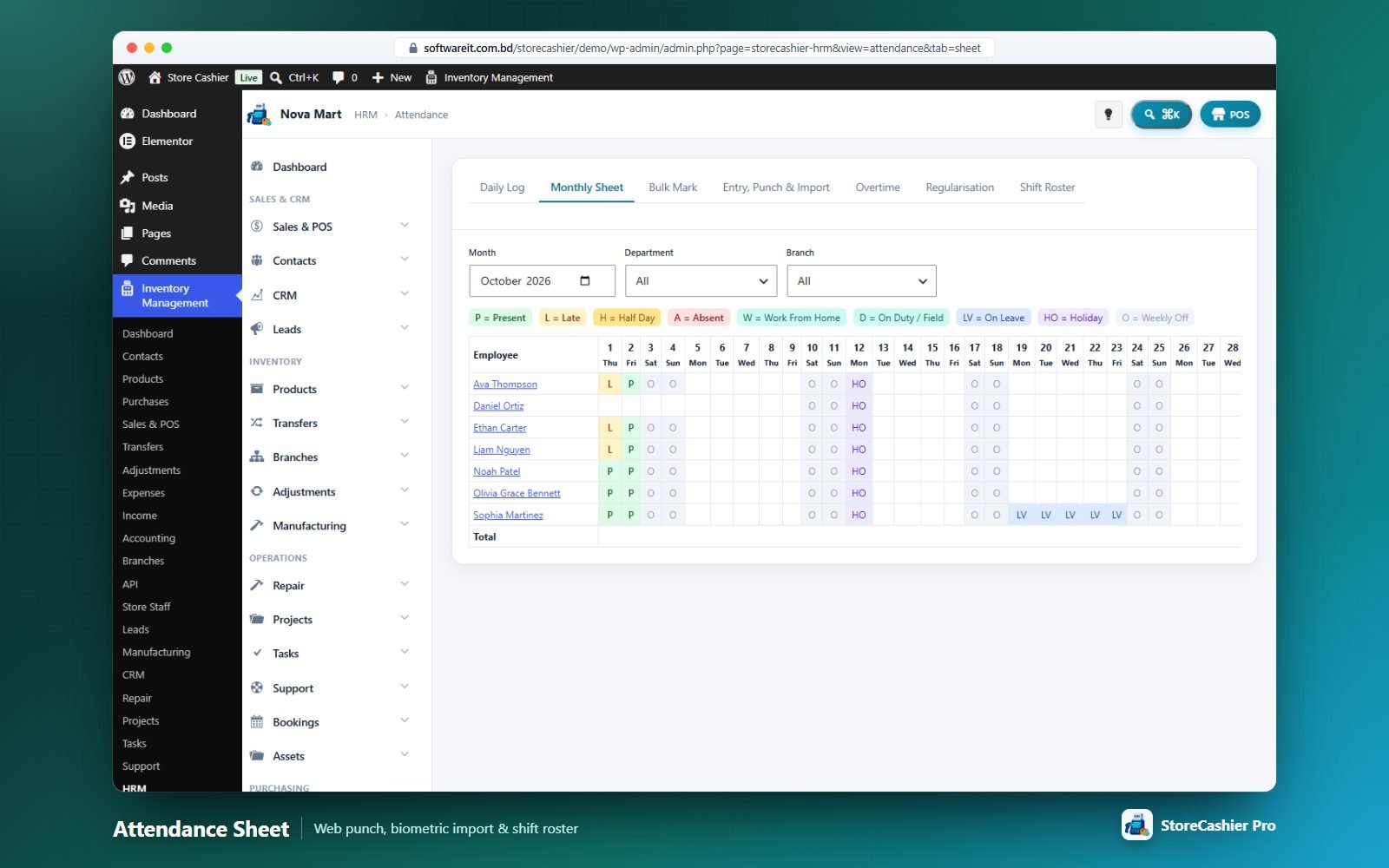
Tabs: Daily Log · Monthly Sheet · Bulk Mark · Entry, Punch & Import · Overtime · Regularisation · Shift Roster. Statuses: Present, Late, Half Day, Absent, Work From Home, On Duty, On Leave, Holiday, Weekly Off.
- Automatic calculation of late and early minutes, worked hours, half days and overtime from the shift rules; overtime rows can be created automatically.
- Biometric / CSV import — one row per day (employee, date, in, out[, status]) or a raw punch log (first punch = in, last = out).
- Web punch — clock in/out from the browser with IP allow-lists (exact, wildcard or CIDR) and an optional geofence.
- Regularisation requests for missed punches, time corrections, WFH and on-duty days.
- Shift roster — 14-day grid and bulk shift assignment.
4. Leave & holidays
Leave types define days per year, accrual (yearly, monthly or none), gender/type eligibility, carry forward, encashment, notice, max consecutive days, document requirement, half days and negative balance. Requests are validated against balance, overlap and notice rules, and can be routed through the Approvals module. The Balances tab supports manual adjustments, leave encashment into payroll and year-end carry forward; the Calendar shows approved and pending leave plus holidays. Holidays can be per branch, recurring and paid.
5. Salary & payroll
- Salary components (earning/deduction, fixed, % of basic or % of gross, taxable, pro-rated) and salary structures; every salary change is kept as a revision.
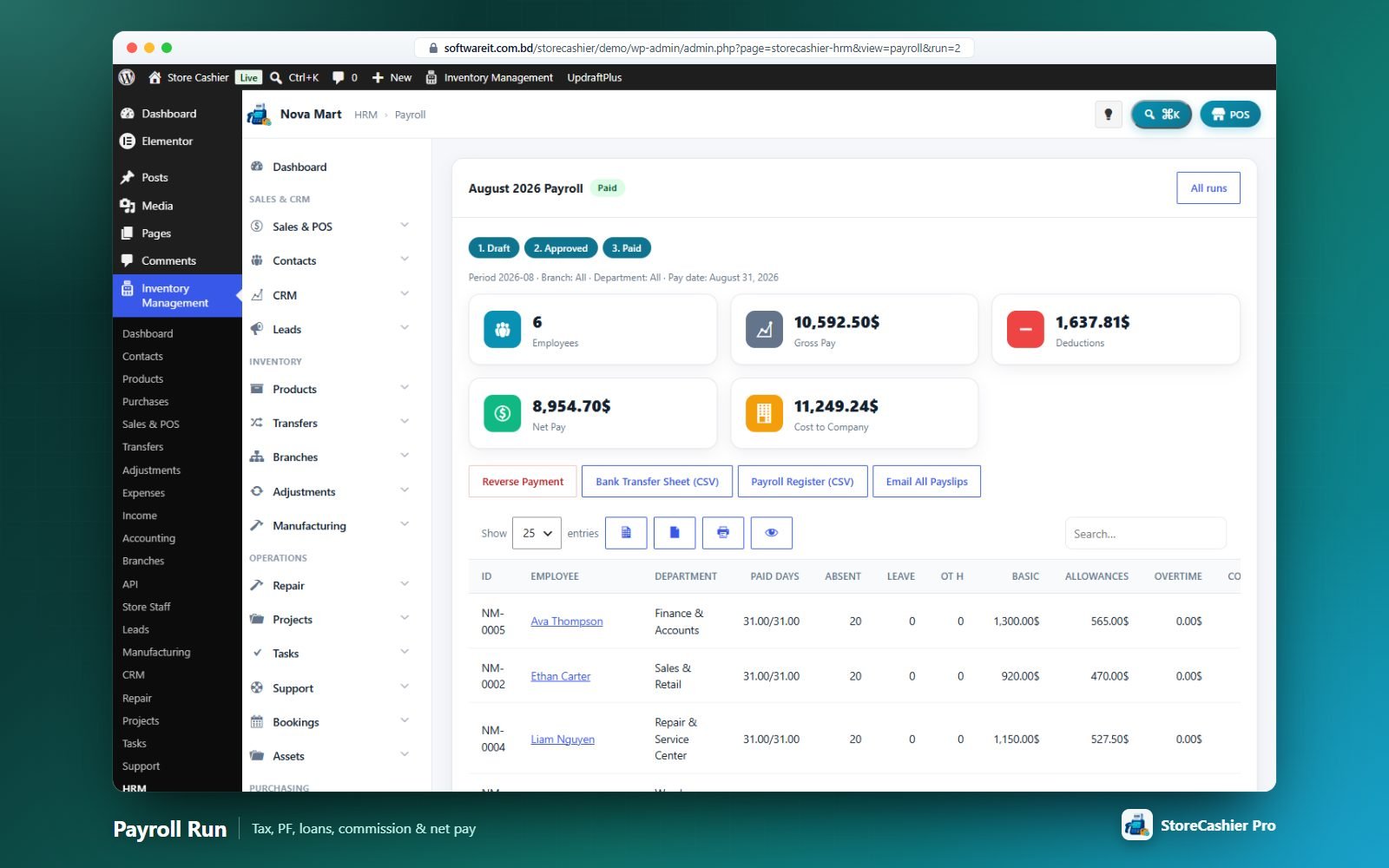
- Payroll runs per month, branch and department: Draft → Approved → Paid. The calculator handles pro-ration for joiners/leavers, daily and hourly pay, components, approved overtime, sales commission, one-off adjustments, unpaid leave, absence and late penalties, provident fund, social security, progressive income-tax slabs, loan installments and rounding.
- Mark Paid & Post posts the payout to an account (and optionally as an expense), settles loan installments and reimbursed claims and can e-mail payslips. Payments can be reversed.
- Exports — bank transfer sheet CSV and a 31-column payroll register.
- Bonuses & adjustments — bonus, allowance, incentive, commission, arrears, award, overtime, leave encashment, final settlement, reimbursement, deduction, penalty, advance recovery.
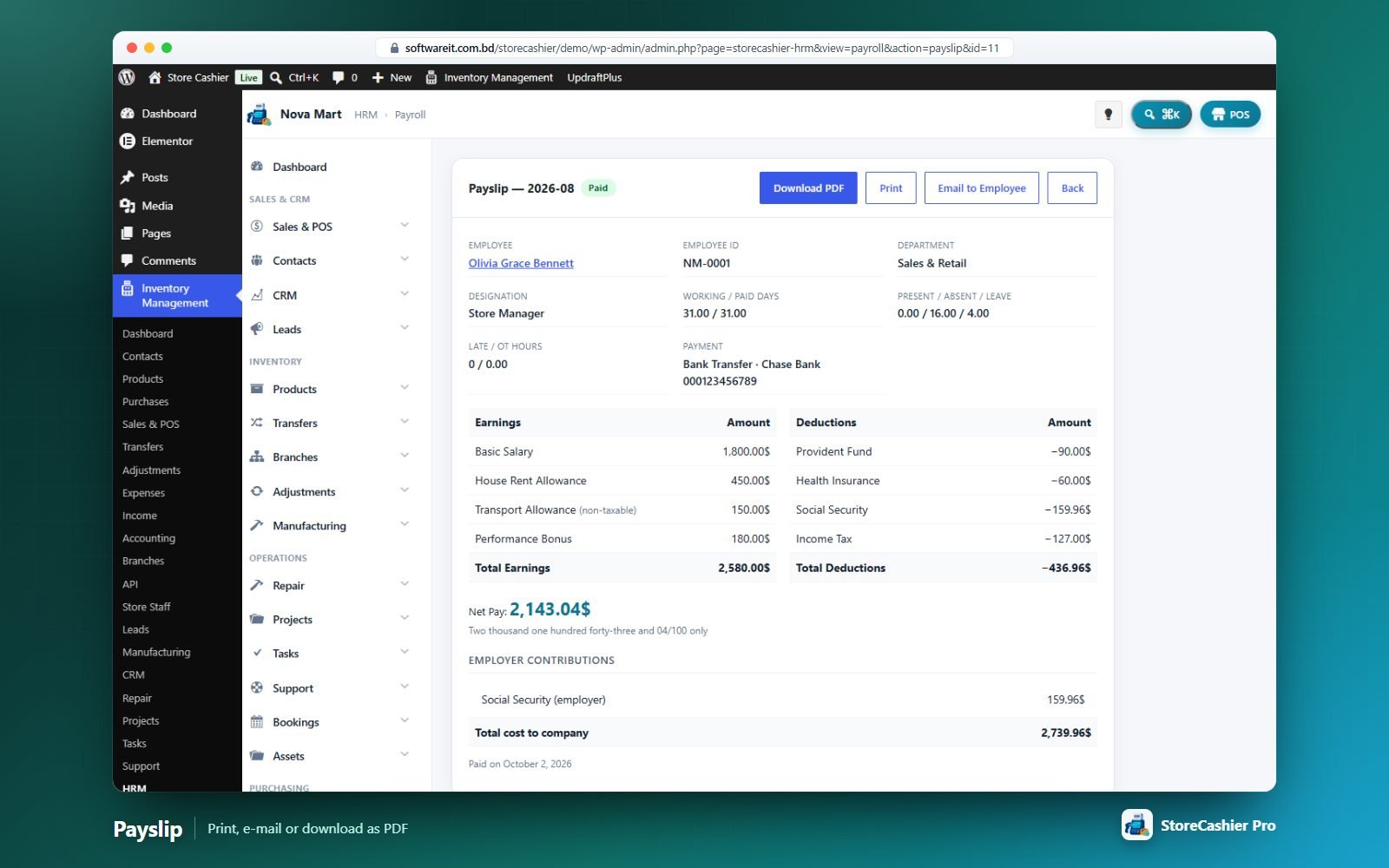
Each payslip can be viewed, printed, downloaded as PDF (generated locally) or e-mailed with the PDF attached.
6. Targets, loans & claims
- Sales targets — monthly target, commission % (on all sales or above target), minimum achievement, bonus and payroll payout. Achievement is measured from the employee’s POS sales.
- Loans & advances — amount, flat interest, installments, first deduction month, disbursement to the ledger, repayments; installments are deducted in payroll.
- Expense claims — date, category, amount, receipt; reimbursed in payroll or paid directly from an account.
7. Lifecycle, performance, recruitment & training
- Lifecycle events — joining, confirmation, promotion, demotion, increment, transfer, warning, complaint, suspension, appreciation, resignation, termination, retirement, re-hire. Completed events update the employee (department, designation, grade, salary, status) and exit events preview a final settlement (salary, leave encashment, gratuity, loans, claims). Onboarding/offboarding checklists come from templates.
- Performance — appraisal cycles, goals & KPIs with weights, 360° reviews (self, manager, peer, subordinate, client) with competency ratings, and a scorecard.
- Recruitment — job openings, applicants with stages (Applied → Hired), interviews and a pipeline board; Hire → Create Employee creates the employee, salary, documents, joining event and onboarding checklist.
- Training — programmes, enrolment by employee or department, results and certificates.
- Announcements (targeted by department, branch or employee), HR contracts with renewal alerts and an HR Knowledge Base.
8. Employee self-service portal
Employees whose WordPress user is linked to their employee record get a My HR tab in My Account (or use the [storecashier_hr_portal] shortcode). Tabs: Overview (today’s status, leave balances, announcements, holidays), Attendance (clock in/out, monthly summary, correction requests), Leave (balances, apply, requests), Payslips (PDF/View), Expense Claims, My Profile (editable contact & emergency details when allowed) and Policies. Each feature can be switched on/off in Settings › HR & Payroll.
Store Staff, Roles & Permissions
Decide exactly who can see and do what — per module, per action, per location and per payment account.
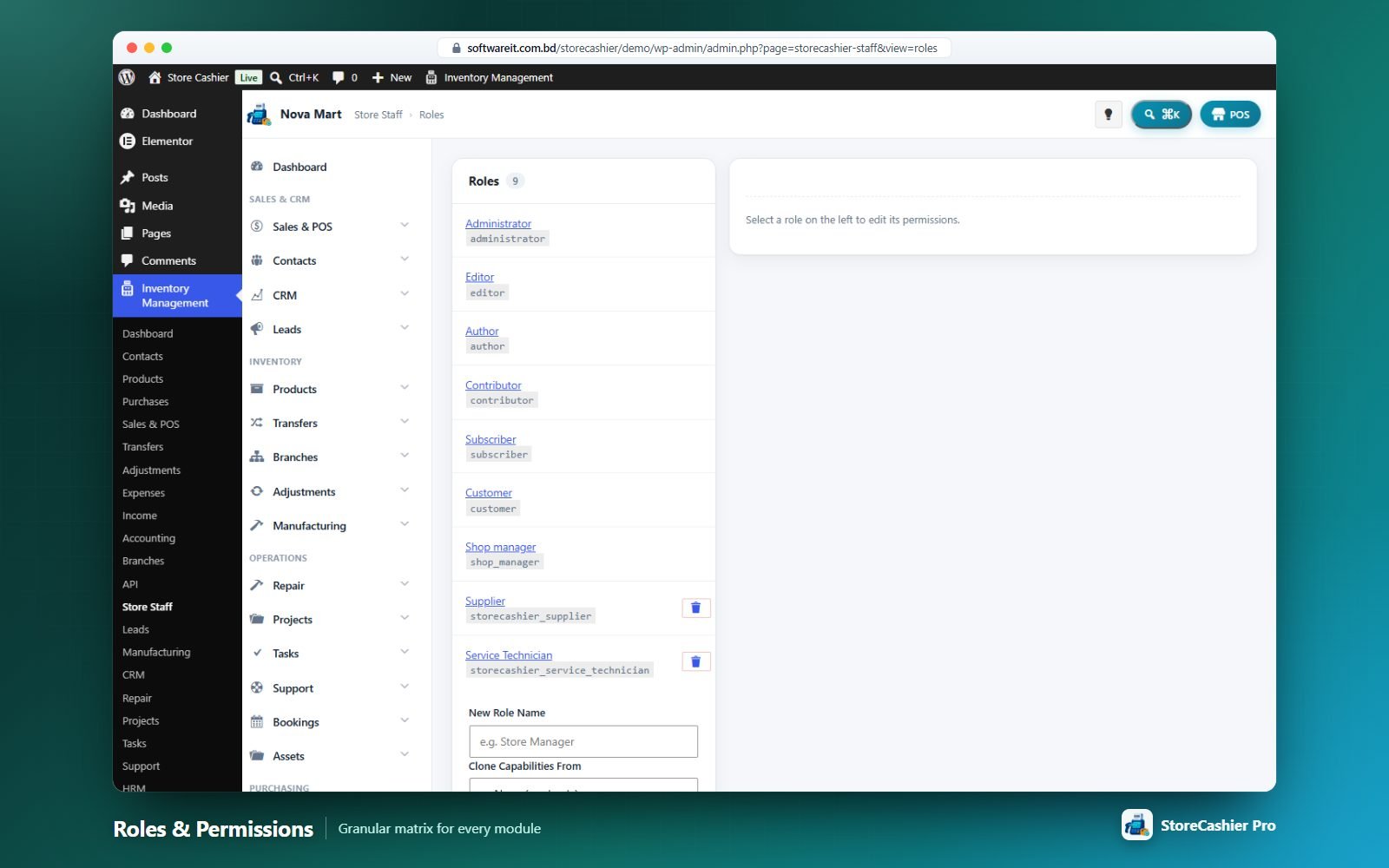
Access model
- Administrators (
manage_options) and managers (manage_storecashier) always have full access. - Everyone else must be switched on as POS Staff and hold the specific permission. Turning POS Staff off removes all plugin access.
- Menu groups only appear when the user holds that module’s view permission; dashboard cards and charts follow the same permissions.
Staff screen
Tabs All Users / Staff Only and + Add User. Columns: ID, Name, Email, Role, Locations and the POS Staff switch. Row actions:
- View Profile — e-mail, username, registered date, sales created, sales value and recent activity.
- Assign Locations — limit the user to specific business locations (all unticked = every location). Lists, reports and the POS respect this scope.
- Assign Accounts — limit which payment accounts the user can see and use (all unticked = every account).
- Edit User — the WordPress user profile.
Roles & the permission matrix
- Enter a New Role Name (e.g. Store Manager) and optionally Clone Capabilities From an existing role, then Add Role.
- Select the role and tick permissions — or Full plugin access (manager).
- Save Permissions.
The matrix offers View / Add / Edit / Delete for Contacts, Products & Stock, Purchases, Transfers, Stock Adjustments, Expenses, Income, Leads, CRM, Support Tickets, Projects & Tasks, Repair, HRM & Payroll, Manufacturing, Multi-branch, Report Builder, Assets, Bookings and Subscriptions; Sales & POS adds Use POS register; plus Accounting (view/manage), Approvals (view/decide), Audit Trail (view/export & prune), API (view/manage), Documents (view/upload/delete), Reports, Staff & roles, Settings and common WordPress/WooCommerce capabilities.
Document Library Module
One place for contracts, SOPs, employee files and record attachments — with folders, versions, expiry reminders, record links, permissions and public share links.
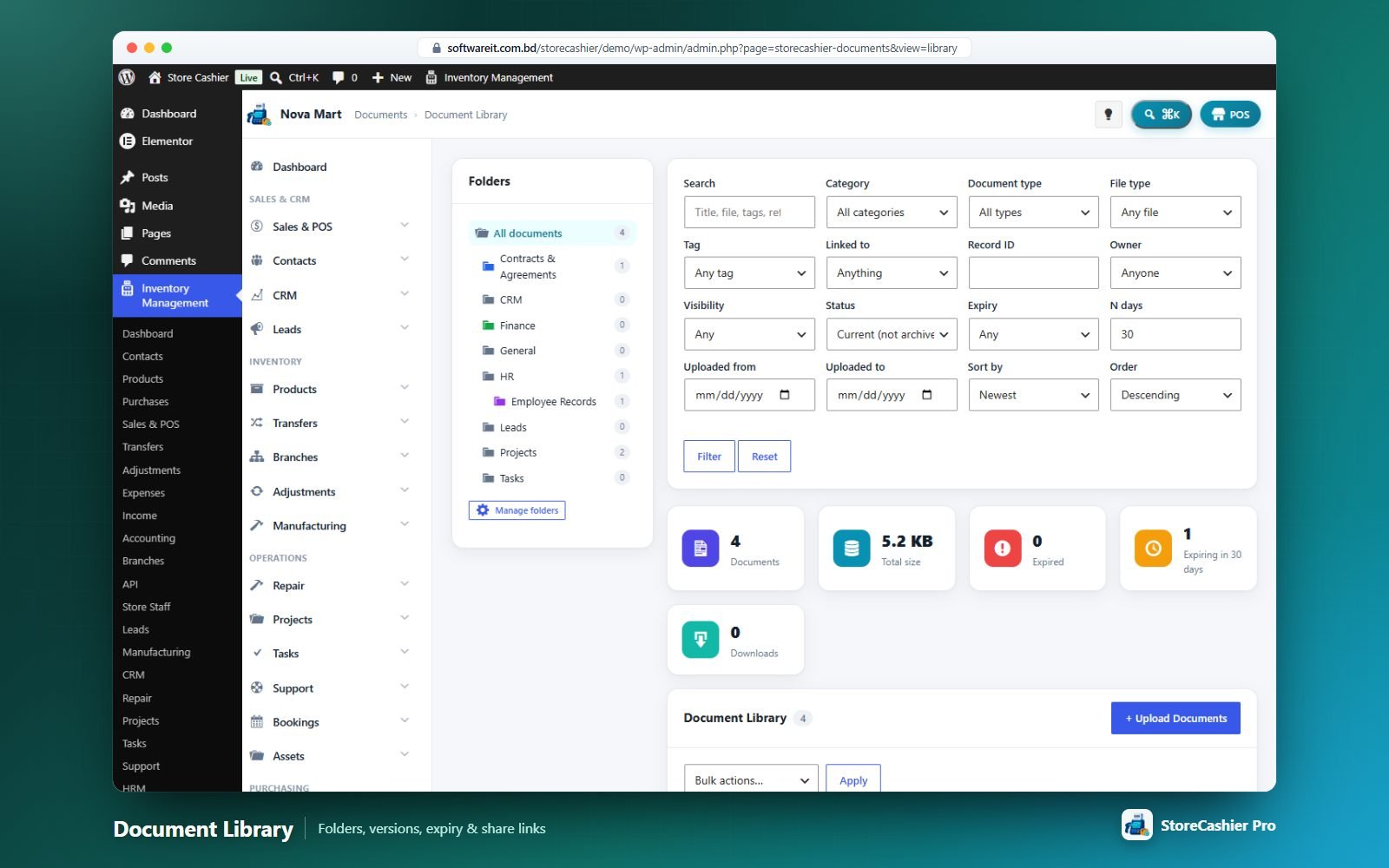
Library
A folder tree plus filters for category, document type, file type, tag, linked record, owner, visibility, status, expiry (expired / expiring within N days), upload date and sorting. Cards show documents, total size, expired, expiring and downloads. Bulk actions: Download as ZIP, move to folder, add/remove tag, set category or type, change visibility, link to record, archive/restore, delete.
Uploading
Drag and drop multiple files and set title, folder (or a new sub-folder), document type, category, tags, reference number, issue and expiry dates, reminder days, owner, visibility (all staff, managers only, private, specific roles, specific users), record links (contacts, suppliers, leads, deals, projects, tasks, employees, assets, repair jobs, tickets, bookings, subscriptions, purchases, sales, expenses, income, production orders, products, approval requests), description and internal notes.
Document view
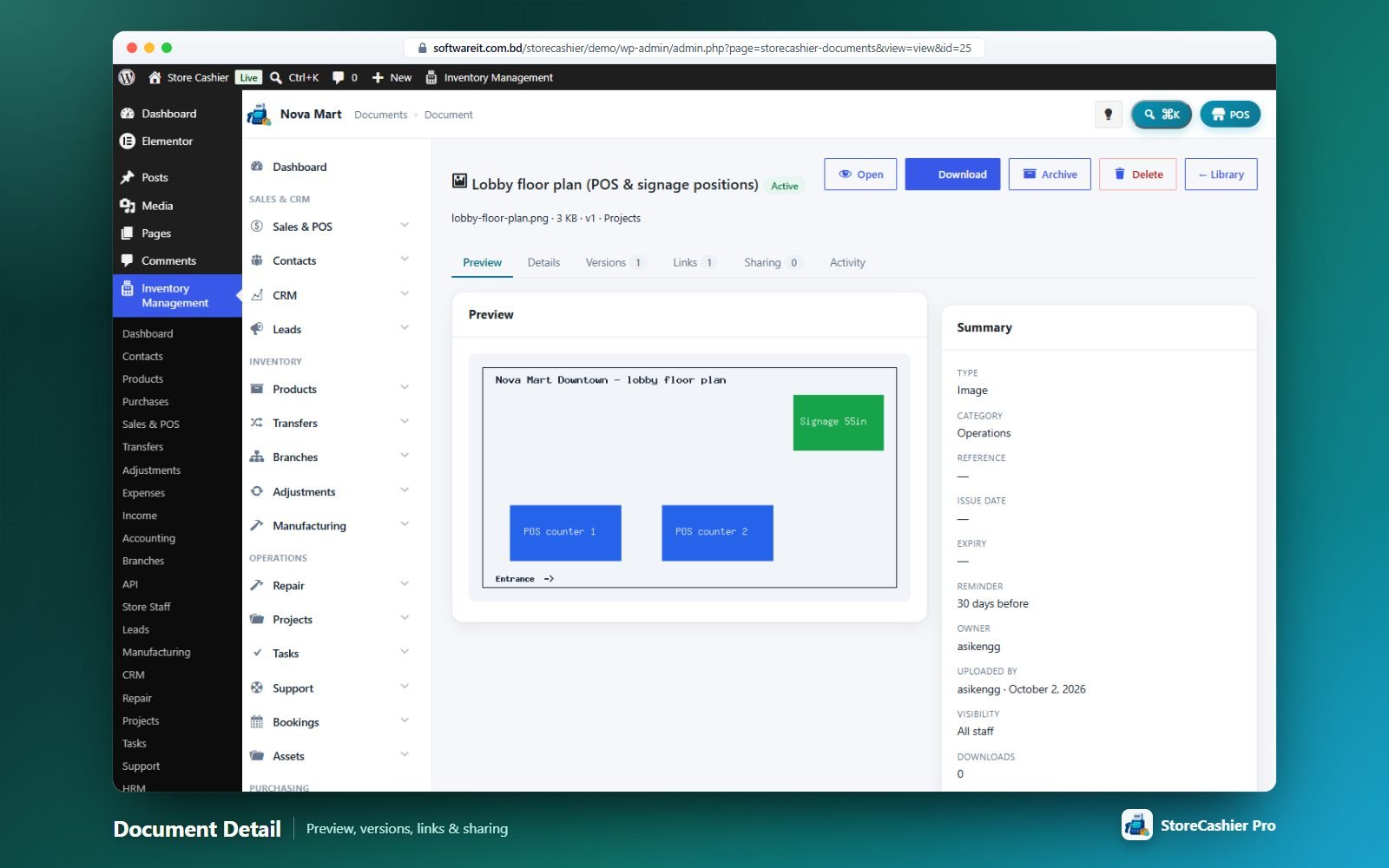
Tabs: Preview · Details · Versions · Links · Sharing · Activity. Upload a new version with a change note and restore any older version. Public share links can expire, limit downloads and require a password. Other modules show a Documents panel on their records (employees, assets, projects…).
A daily task flags expired documents and e-mails expiry reminders to the owner and extra recipients.
Approval Workflows Module
Multi-step, condition-based approval workflows with delegation, escalation and e-mail notifications.
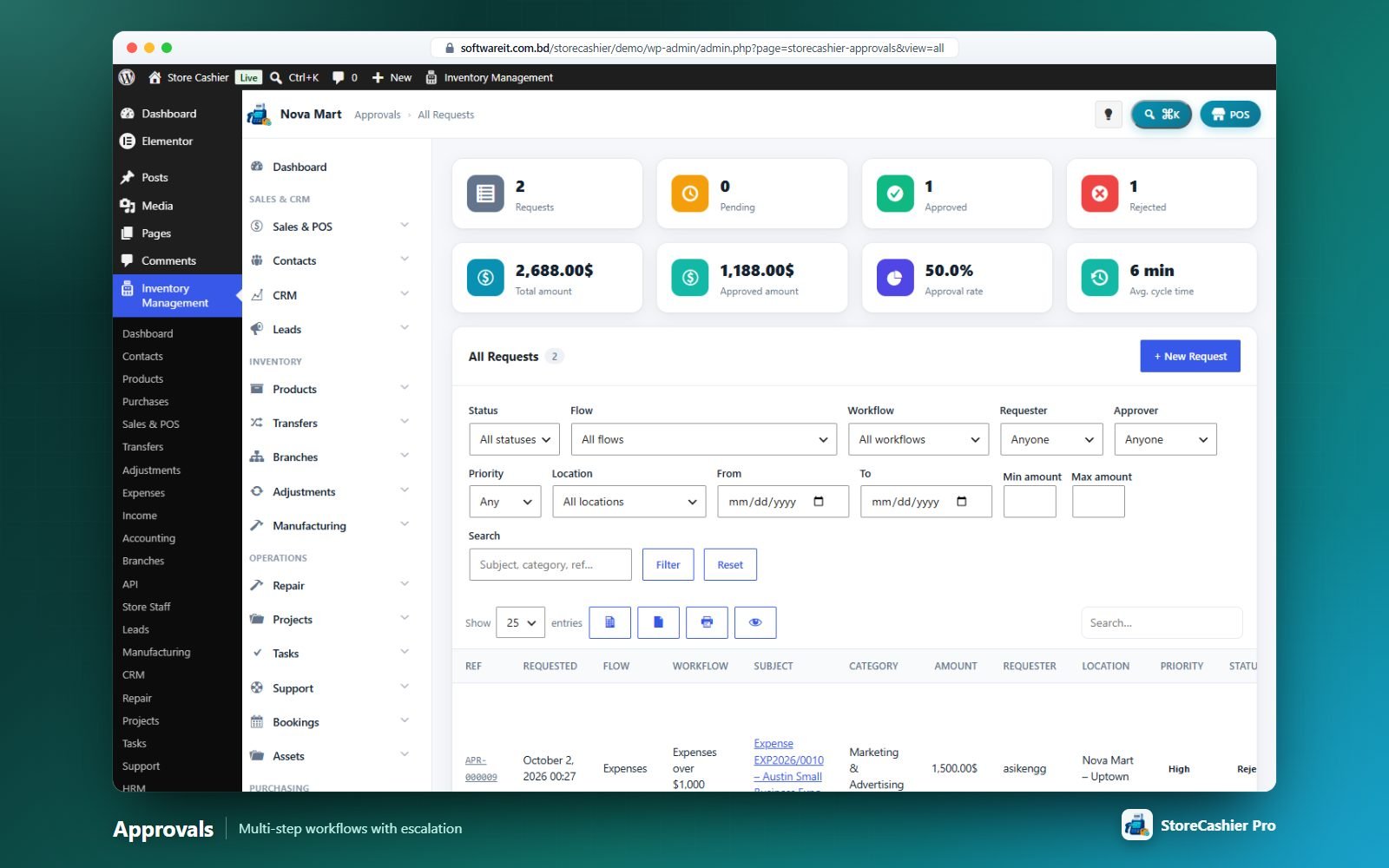
What can be approved
Turn a gate on in Settings → Approvals; records then wait for approval before they take effect:
- Leave Requests (HRM) — synchronised both ways with the leave screen.
- Manufacturing Finalise — completed production orders post stock only after approval.
- Stock Adjustments — stock moves once the adjustment is approved.
- Inter-branch Stock Requests (Multi-branch).
- Other / Custom Requests — any request raised manually with New Request (subject, amount, category, location, priority, needed by, vendor/payee, external reference, attachment, justification) — e.g. purchase requests or budget approvals.
Inbox & requests
Pending Approvals shows waiting requests with step, amount, requester, location, waiting time, due date and priority; approve or reject inline (bulk too). My Requests and All Requests show history with approval rate and average cycle time. The request view lets approvers Approve / Reject / Request more info / Comment, requesters provide information, withdraw or send reminders, and managers reassign a step. The full approval chain and history are shown.
Workflows
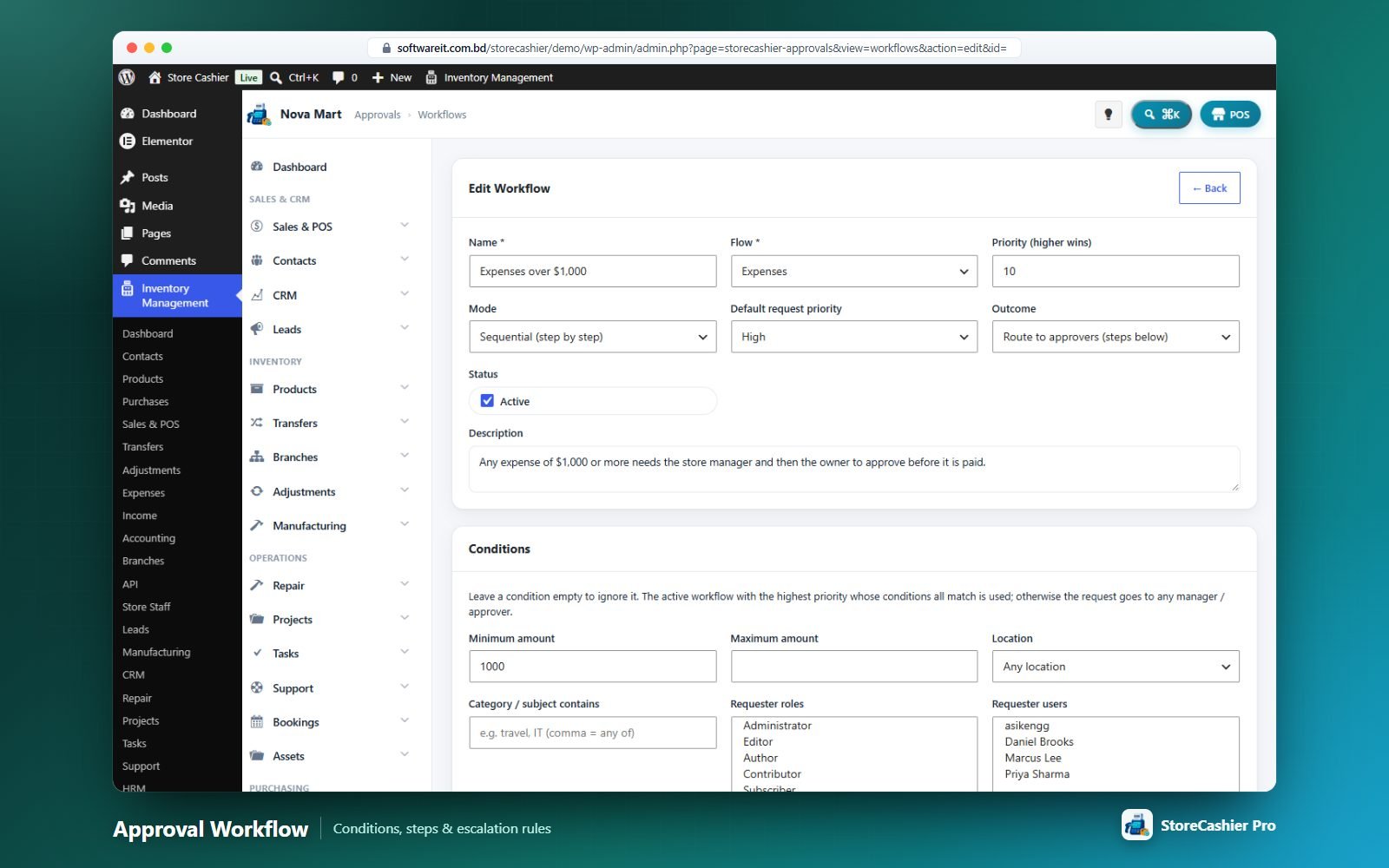
- Mode — Sequential, Parallel (any one step) or Parallel (every step).
- Conditions — min/max amount, location, category contains, requester roles or users. The highest-priority matching workflow wins.
- Outcome — route to approvers, approve automatically or reject automatically.
- Steps — approver = specific users, users with a role, the requester’s manager or any manager; any one / all approvers; due hours; when overdue: nothing, escalate, auto-approve or auto-reject; escalation targets; e-mail when the step starts.
Delegations
Out-of-office delegation: approver, delegate, flow (or all), from/to dates and reason.
Audit Trail Module
Who changed what, when and from where — with field-level before/after values.
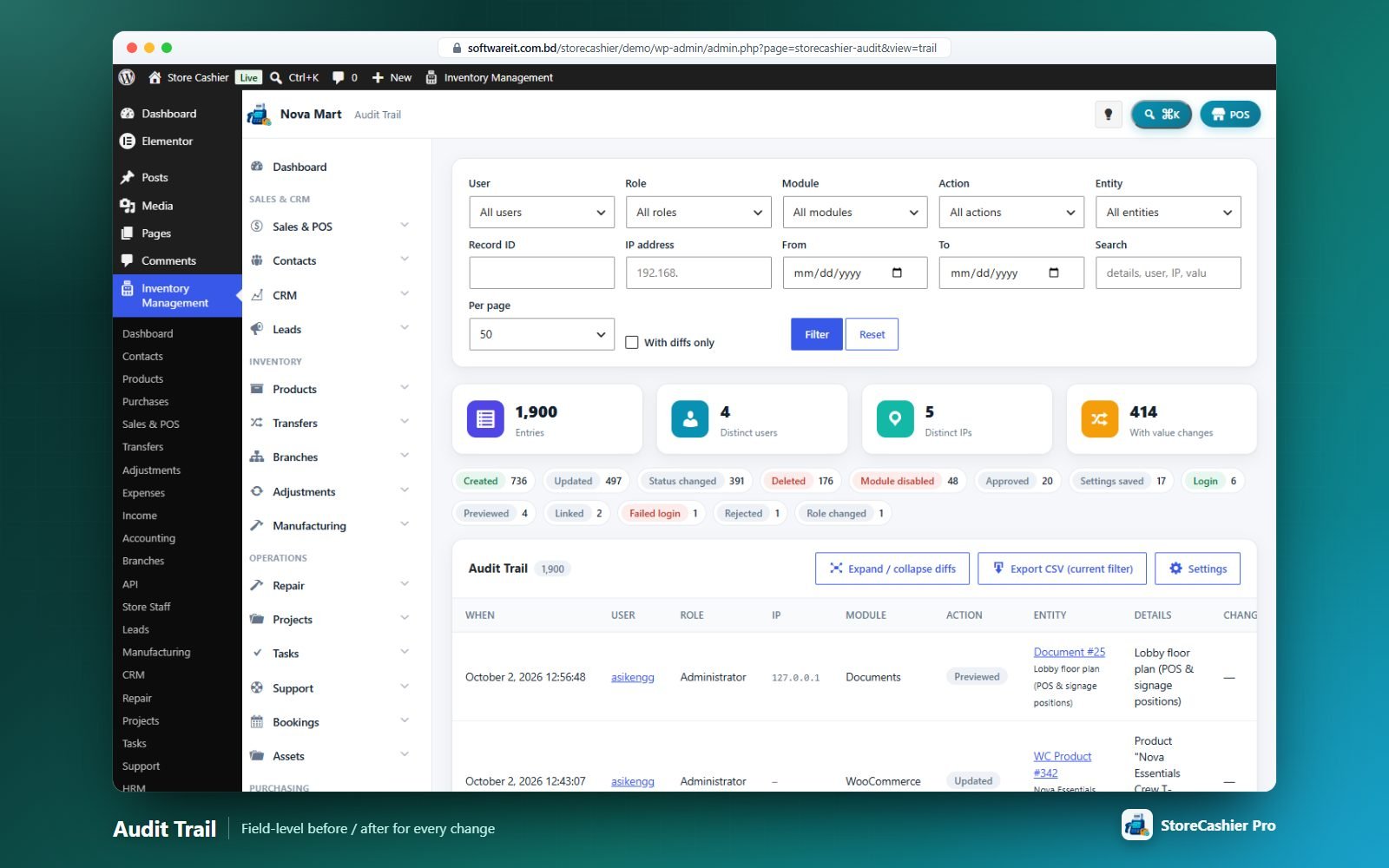
Every create, update and delete across StoreCashier is logged with user, role, IP address, module, action, entity and a field-level diff. Additional events: logins, failed logins, logouts, user and role changes, settings saves (with values), modules enabled/disabled, WooCommerce order status changes, WooCommerce product changes and document downloads/previews/share access.
- Filters — user, role, module, action, entity, record ID, IP, date range, free text, “with diffs only”.
- Entry view — full request details, Before/After table, other entries for the same record and a link to open the record.
- Export CSV of the current filter.
- Retention — keep forever, or prune by age / maximum entries, with per-action overrides; a daily task applies the policy and you can prune manually.
Reports
60 built-in reports. Most share one filter bar — From / To dates with quick ranges (Today, Last 7 days, Last 30 days, This month, Last month, This year) and a business-location filter — and every table can be searched, exported to CSV/Excel and printed.
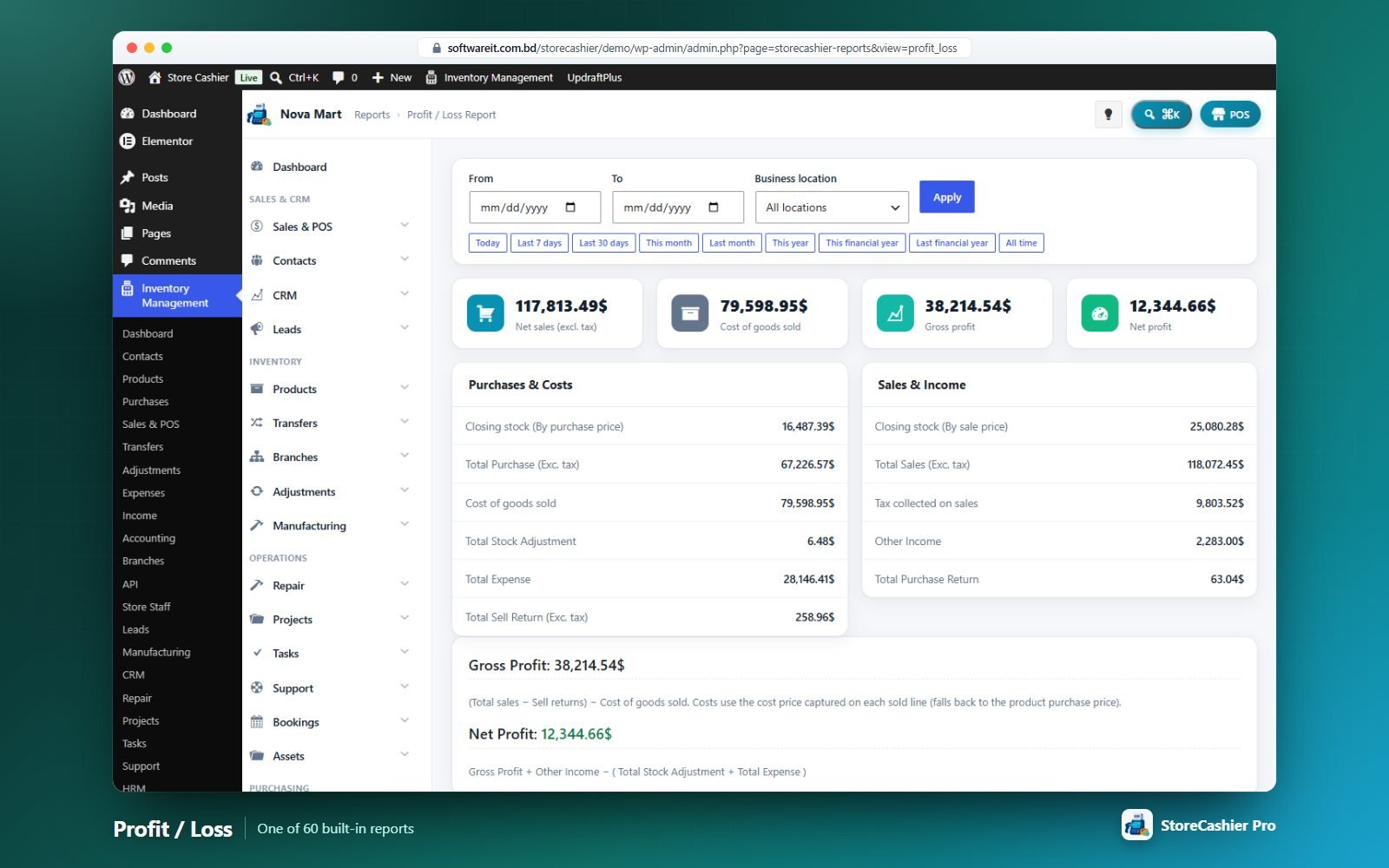
Report access follows permissions and assigned locations; module reports only appear when the module is on.
Sales
| Report | Shows |
|---|---|
| Profit / Loss | Net sales, cost of goods, gross profit, expenses and net profit. |
| Daily / Monthly Sales Summary | Sales per day or month. |
| Product Sell | Quantity, revenue, cost and profit per product (POS + WooCommerce). |
| Product Profit | Margin per product. |
| Items | Every sold line with cost and profit. |
| Category & Brand Sales | Sales by category or brand. |
| Trending Products | Best sellers in the period. |
| Payment Method Summary | Takings per payment method. |
| Sell Payment | Payments received against sales. |
| Sell Return | Credit notes and WooCommerce refunds. |
| Customer Groups & Top Customers | Segments, countries and top buyers. |
| Sales Representative | Sales per representative. |
| Staff / Cashier Performance | Sales per staff member. |
| POS Register Report | Daily takings per cashier and location by payment method. |
| Tax | Output vs input tax, net of returns, with monthly breakdown. |
| Supplier & Customer | Ledger summary of customers and suppliers. |
Purchases & stock
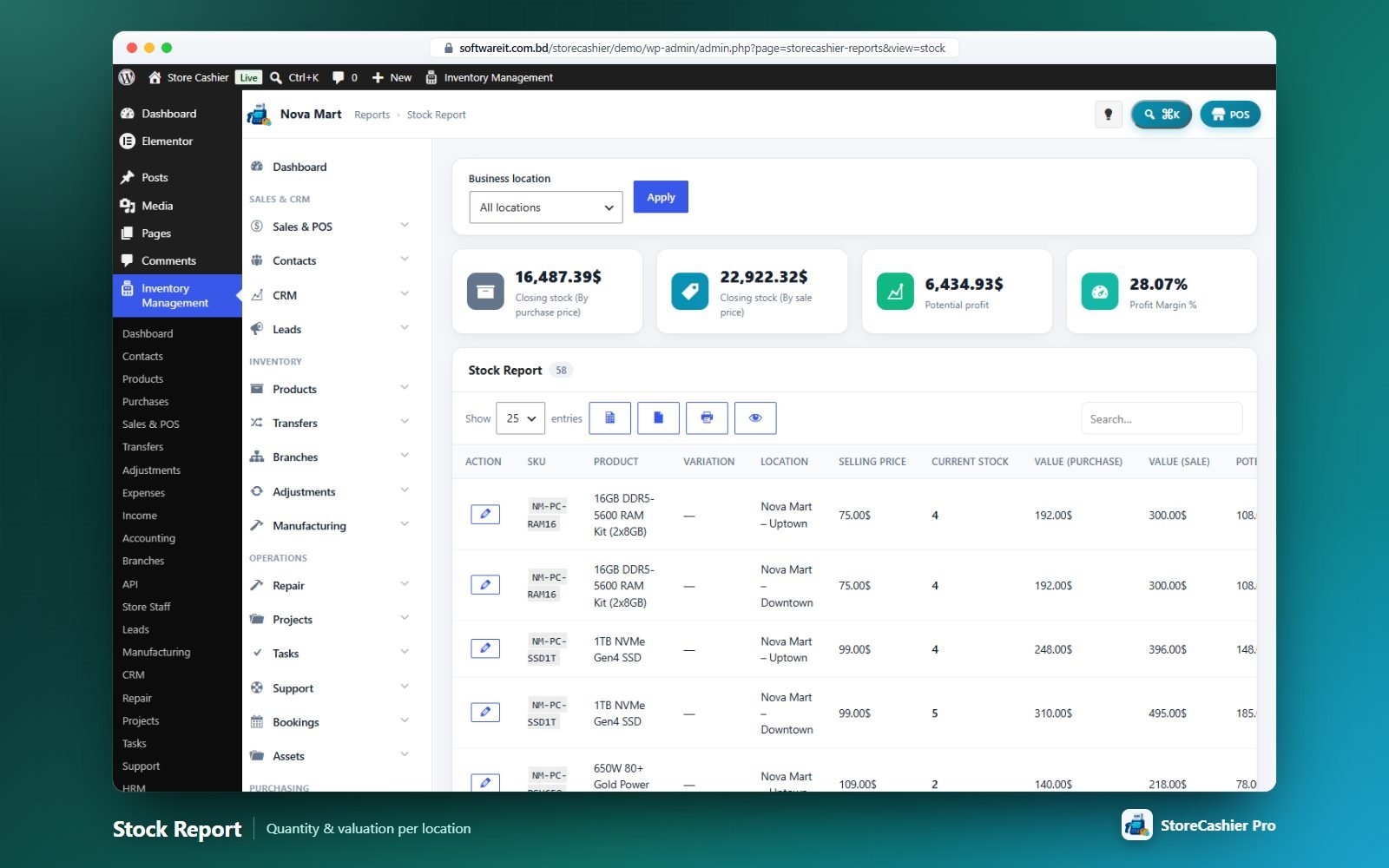
| Report | Shows |
|---|---|
| Product Purchase | Purchased lines per product. |
| Purchase Payment | Payments made to suppliers. |
| Purchase Return | Debit notes. |
| Purchase & Sale | Purchases vs sales summary. |
| Stock Report | Stock per product, variation and location with valuation. |
| Stock Valuation | Value at cost and at retail. |
| Low Stock / Reorder | Items at or below alert level with a suggested reorder quantity. |
| Expiry | Lots expiring within a chosen window. |
| Lot Report | Purchased lots with expiry and remaining quantity. |
| Stock Adjustment | Adjustments by reason. |
| Stock Transfer | Transfers between locations. |
Finance
Expense Report (by category), Income Report, Subscriptions Report (MRR, ARR, active, new vs churned, churn rate, trial conversion, revenue split, by product, 12-month trend), plus Balance Sheet, Trial Balance, Cash Flow and Payment Account Report under Accounting.
Module reports
| Area | Reports |
|---|---|
| CRM & Leads | CRM Pipeline & Forecast (value by stage, weighted forecast, win rate, deal size, cycle length, lost reasons, by owner/source); Leads Conversion (by source/status/owner, response and conversion time, source ROI). |
| Operations | Support Tickets (volume, response/resolution times, SLA compliance, CSAT); Projects Summary (profitability, budget vs actual, hours); Task Productivity; Bookings Report (occupancy, utilisation, cancellations, no-shows); Approvals Summary; Document Expiry; Audit Activity; Activity Log. |
| HR | HR Headcount & Turnover; HR Attendance; HR Leave; Payroll Cost. |
| Assets | Asset Register (as of any date); Asset Depreciation; Asset Maintenance Cost; Assets by Location / Custodian; Expiring Warranties & Insurance. |
| Manufacturing | Production Volume; Production Yield; Scrap & Wastage; Production Cost Variance; Work in Progress (WIP). |
| Repair | Repair Jobs; Technician; Turnaround; Revenue; Parts Usage; Warranty. |
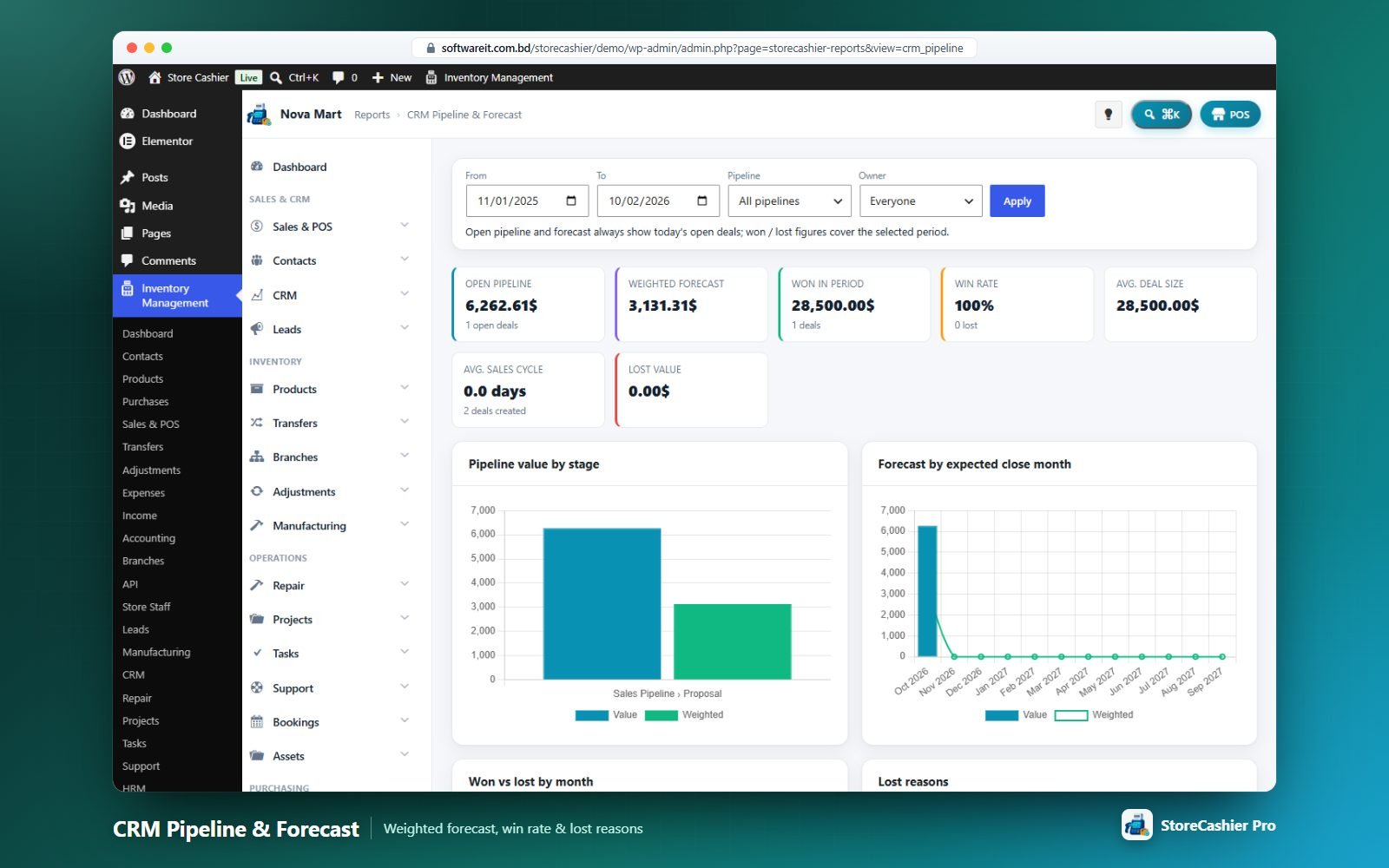
Report Tools
Rebuild sales data re-syncs every WooCommerce order into the sales records in batches — safe to run any time (see Existing Store Migration).
Report Builder Module
Build your own charts and KPI widgets without SQL, save them and pin them to the dashboard.
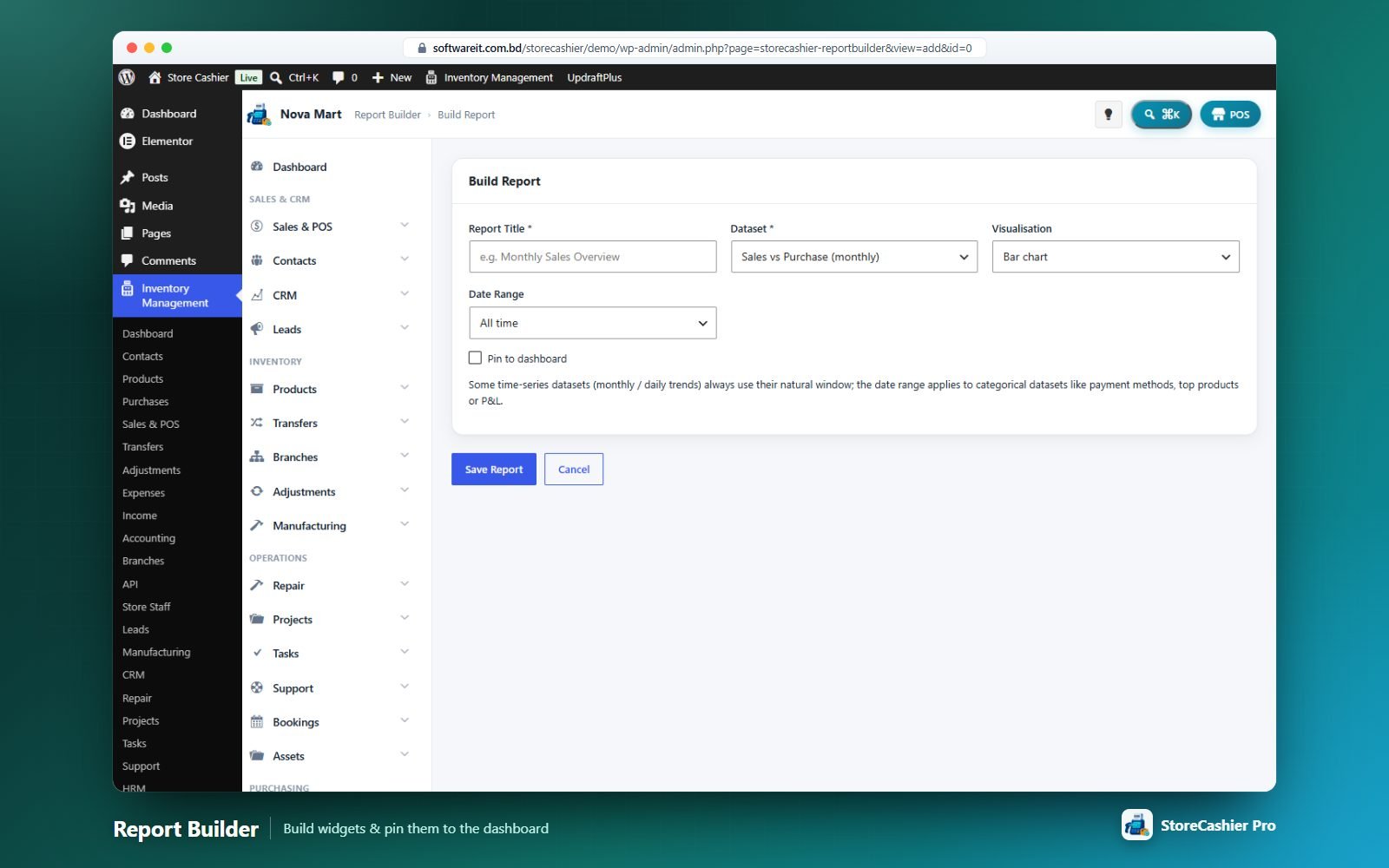
- Go to Report Builder → Build Report and enter a title.
- Choose a dataset: Sales vs Purchase (monthly), Income vs Expense (monthly), Daily Sales Trend, Sales by Payment Method, Purchases by Payment Method, Orders by Status, Top Selling Products, Top Customers, Sales by Location, Expenses by Category, Sales by Representative, Profit / Loss Breakdown or Tax Summary.
- Choose a visualisation — bar, line, pie, table or KPI cards (options depend on the dataset).
- Choose a date range — all time, today, yesterday, this week, this month, last month, last 7/30/90 days, this year or custom. (Monthly and daily trend datasets use their own fixed window.)
- Tick Pin to dashboard and save.
Saved reports can be previewed, edited, deleted and pinned/unpinned with a star. Each report only shows data the viewer is allowed to see. Settings → Report Builder controls whether pinned reports appear and how many (default 8).
Shortcodes & Elementor Widgets
Eight shortcodes and six Elementor widgets bring bookings, subscriptions, lead capture, support, repair tracking and the HR portal to your website. Each one disappears automatically when its module is switched off.
Shortcodes
| Shortcode | Attributes | Output |
|---|---|---|
[storecashier_booking_form] | product_id (0 = current product), layout (stacked|columns), button_text, show_title, show_price | Booking form for a bookable product. |
[storecashier_bookable_products] | limit (12), columns (3), orderby (date|title|menu_order|rand|price), order, category, ids, button_text, show_price, show_excerpt | Grid of bookable products. |
[storecashier_booking_availability] | product_id, resource_id, show_slots, show_legend, title | Read-only availability calendar with a Book now button. |
[storecashier_subscription_plans] | ids, category, columns (3), toggle (yes), default, highlight, badge, button_text, show_features, show_details, label_day/week/month/year, limit | Subscription pricing table. |
[storecashier_lead_form] | Generated by Leads → Web Forms (signed): fields, required, title, intro, button, source, status, owner, tags, redirect, form, custom | Web-to-lead capture form with spam protection and UTM capture. |
[storecashier_support] | — | Customer support portal: open a ticket and list your tickets (logged-in customers). |
[storecashier_repair_status] | title | Repair status lookup by job number + phone or e-mail. |
[storecashier_hr_portal] | — | Employee self-service portal. |
Elementor widgets
With Elementor active, a StoreCashier widget category appears:
| Widget | Controls | Shortcode |
|---|---|---|
| Booking Form | Product, layout, show title/price, button text, label overrides; style: accent, text, background, unavailable colours, radius, padding, typography, button colours. | [storecashier_booking_form] |
| Booking Availability Calendar | Product, resource, title, list free times on click, legend; colours. | [storecashier_booking_availability] |
| Bookable Products Grid | Number, columns, order by, order, categories, price, short description, button text; card colours and gap. | [storecashier_bookable_products] |
| Subscription Pricing Table | Plans, highlighted plan, badge, columns, button text, features, trial details, monthly/yearly toggle and labels; card, typography and button styles. | [storecashier_subscription_plans] |
| StoreCashier Products | Number of products, columns, show price. | — |
| StoreCashier Order Status | Shows the logged-in customer’s recent orders. | — |
Template overrides
Copy templates into your theme to customise them: bookings and repair templates to yourtheme/storecashier/…, subscription templates to yourtheme/storecashier-pro/….
WooCommerce My Account Tabs
Customers and employees manage their own records from the standard WooCommerce My Account page.
| Tab | Module | What users can do |
|---|---|---|
| Subscriptions | Subscriptions | View, pause/resume, cancel, reactivate, switch plan, renew early, pay renewals, change renewal payment method. |
| Bookings | Bookings | Upcoming/past bookings, pay, cancel (within rules), .ics and Google Calendar, staff updates. |
| Projects | Projects | Project progress, milestones, tasks, time log, files and messages to the team (per-project visibility). |
| My HR | HRM | Employee portal — only for users linked to an employee record. |
| Support Tickets | Support | Open, reply to, close, rate and reopen tickets. |
Each tab can be turned off in its module’s settings and disappears when the module is disabled. Rewrite rules are refreshed automatically.
REST API, Webhooks & Developer Portal Module
Connect apps, ERPs, mobile apps and automations (Zapier, n8n, Make…) with scoped API keys, webhooks and an interactive API reference.
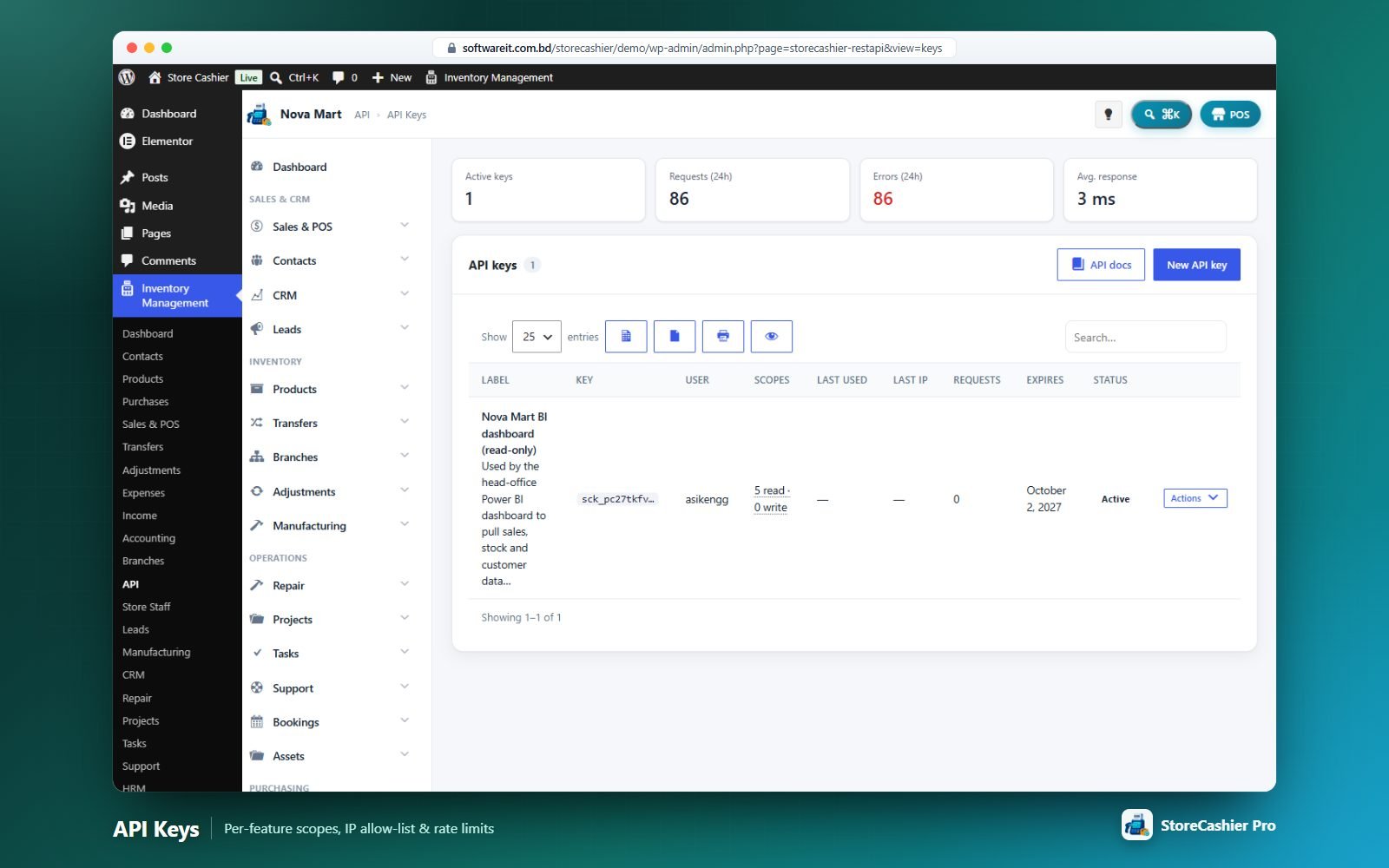
Authentication
Base URL: /wp-json/storecashier/v1. Send the headers X-SC-Key (sck_…) and X-SC-Secret (scs_…). The secret is shown once and stored hashed. Each key acts as a WordPress user, so the user’s StoreCashier permissions also apply.
Creating a key
API → API Keys: label, description, user, permissions (Full access or Read/Write per feature), expiry date, IP allow-list (IPs or CIDR ranges) and rate limit. Keys can be regenerated, disabled, revoked or deleted; the list shows last use, last IP and request counts.
Scopes
Per-feature feature:read / feature:write scopes for products, stock, sales & orders, POS, purchases, transfers, adjustments, manufacturing, contacts, leads, CRM, tickets, bookings, subscriptions, accounts, expenses, income, approvals, reports, projects, tasks, repair, assets, documents, HRM, audit, settings and webhooks — offered only for active modules.
Endpoints
Standard CRUD with paging (page, per_page ≤ 100), search, ordering, date ranges and field filters (X-WP-Total headers) for products, categories, brands, units, stock and movements, orders, POS sales, purchases, transfers, adjustments, manufacturing, contacts, accounts, payments, expenses, income, leads, deals, proposals, estimates, contracts, projects, milestones, timesheets, tasks, tickets, bookings, resources, assets, subscriptions, repairs, HR (employees, attendance, leaves, departments, leave types, payroll), approvals, documents, audit log, locations, tax rates and webhooks. Action endpoints include /ping, /me, /stock/adjust, /pos/lookup, contact payments and summary, account ledger, approval decisions, lead notes, ticket replies, 21 /reports/{slug} and /openapi (OpenAPI 3.0 or Postman export).
Limits & logging
Per-key rate limit (default 120 requests/minute) with X-RateLimit-* headers, optional HTTPS enforcement, brute-force protection, and a Request Log (route, method, status, error, IP, duration) with configurable retention.
Webhooks
Register a payload URL and pick events: sale.finalized, order.created, order.status_changed, stock.moved, product.synced, payment.received, deal.won, approval.decided and {type}.created/updated/deleted for 25 record types. Each POST is signed with HMAC-SHA256 (X-SC-Signature, X-SC-Signature-256) and carries X-SC-Event, X-SC-Delivery and X-SC-Timestamp. Failed deliveries are retried with back-off (up to 6 attempts); every attempt is logged and can be redelivered. Use Send test ping to verify your endpoint.
Developer portal
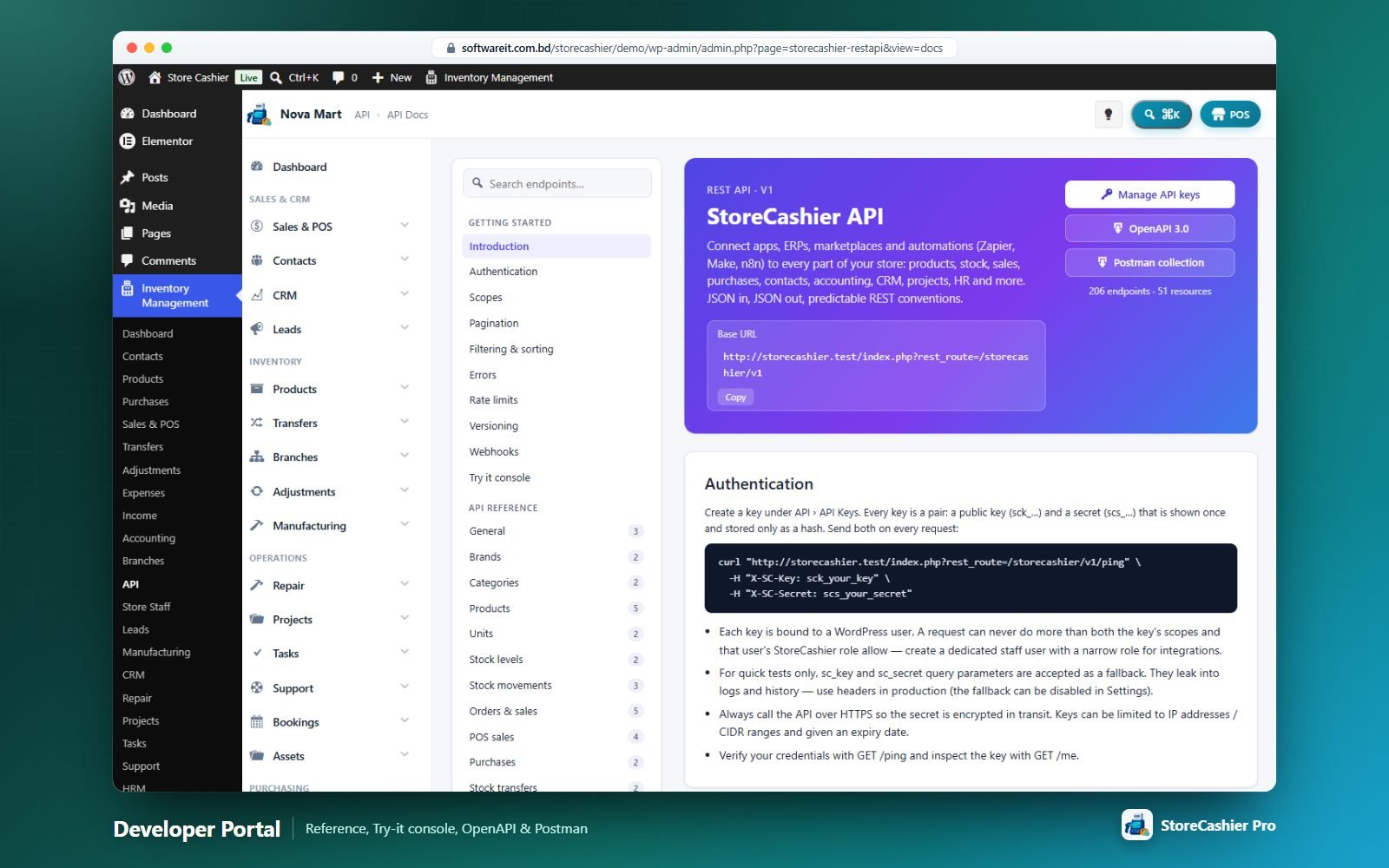
API → API Docs is generated from the live routes: getting started, authentication, scopes, pagination, filtering, rate limits, errors, versioning, webhook signature verification samples (PHP, Node.js, Python), a searchable per-resource reference with parameters and examples, a Try it console and downloads for OpenAPI 3.0 and a Postman collection.
Settings — Business & General
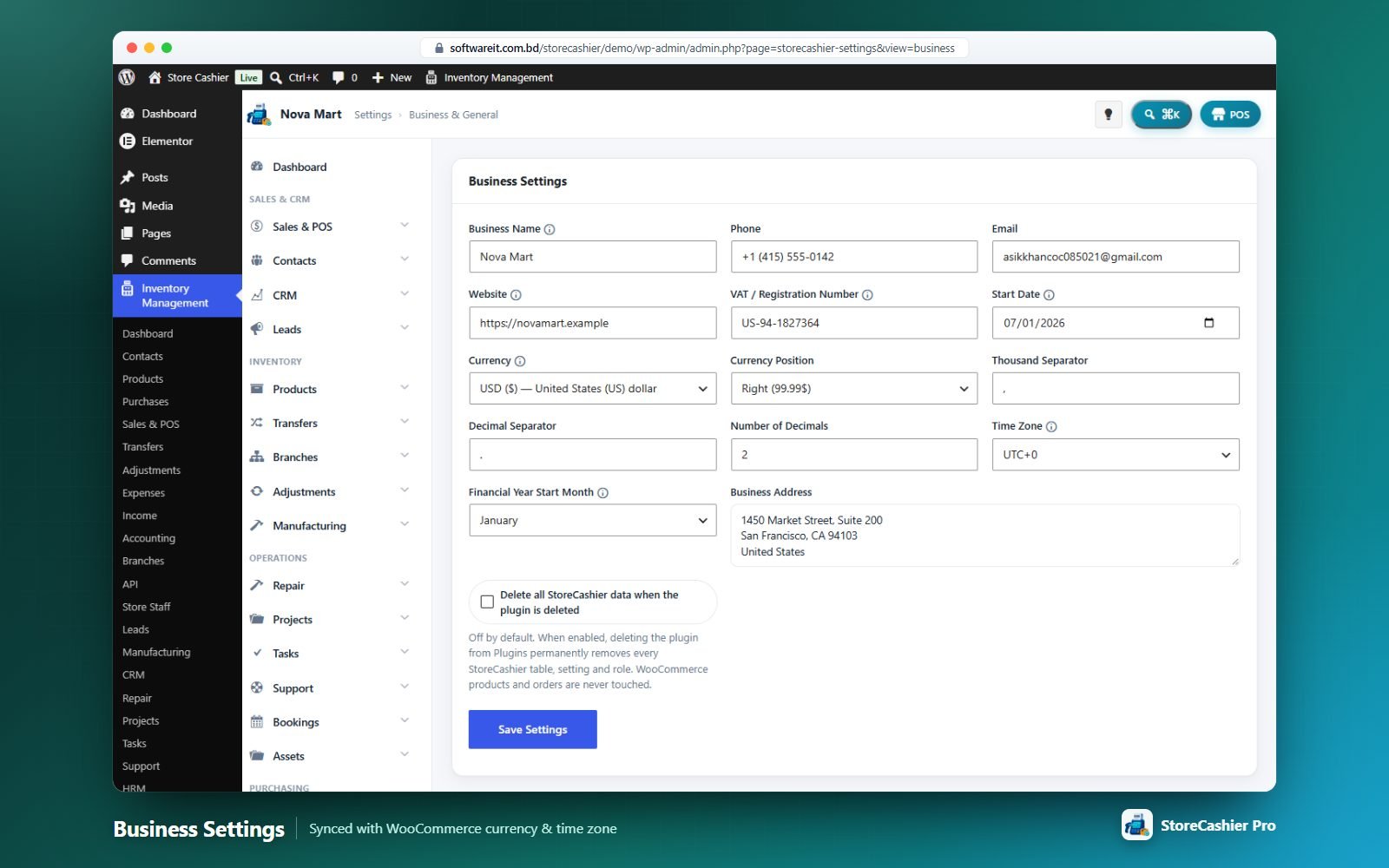
| Field | Notes |
|---|---|
| Business Name, Phone, Email, Website | Shown on invoices, labels and the POS header. |
| VAT / Registration Number | Printed when “Show VAT Registration Number” is on. |
| Currency, Currency Position, Thousand/Decimal Separator, Number of Decimals | Two-way synced with WooCommerce — change it here or in WooCommerce. |
| Time Zone | Synced with Settings → General. |
| Business Address | Used on invoices and statements. |
| Delete all StoreCashier data when the plugin is deleted | Off by default. WooCommerce data is never touched. |
Settings — Business Locations
Shops, warehouses and branches. Stock, POS registers, staff scope and reports are per location.
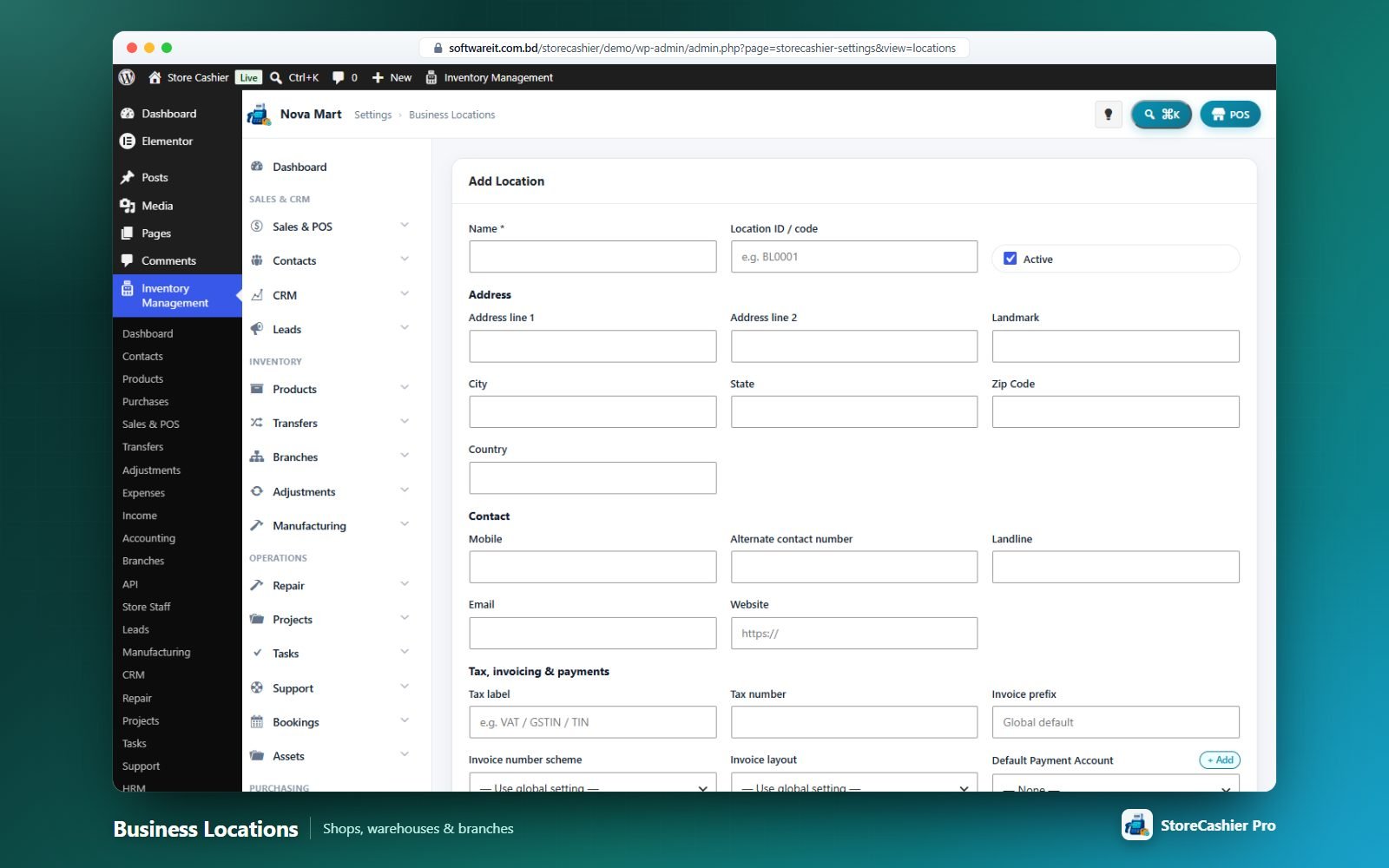
Fields: Name, Location ID / code, Active; address (lines, landmark, city, state, zip, country); contact (mobile, alternate, landline, email, website); tax label and number; invoice prefix, invoice number scheme and invoice layout overrides; Default Payment Account (pre-selected when this location is used); opening hours.
Settings — Tax
StoreCashier uses WooCommerce’s native tax engine. This tab shows whether tax is enabled, whether prices are entered inclusive or exclusive of tax, and your tax classes and rates, with a Manage in WooCommerce button. Business Tax Identity: Tax 1 name and registration number, Tax 2 name and registration number (printed on documents).
Settings — Products & Stock
| Field | Default | Notes |
|---|---|---|
| SKU Prefix / minimum length | SC / 4 | Auto SKU when left blank (e.g. SC-0041). |
| Barcode Prefix / minimum length | — / 6 | Auto barcode when left blank. |
| Default Unit | — | Unit for new products. |
| WooCommerce sync qty | On | Keep WooCommerce stock equal to the ledger total. |
| Manage stock for new products | On |
Bulk Stock Tools: Enable Manage Stock on all products, Disable Manage Stock on all products (marks all In Stock), Sync all quantities to WooCommerce.
Settings — Contacts
Default Credit Limit (for new customers), Customer ID Prefix (CO), Supplier ID Prefix (SU), Link every contact to a WordPress user, Also create WordPress users for guest WooCommerce customers, and the lists of Customer groups, Supplier groups, Price groups, Supplier categories and Contact sources.
Settings — Orders & POS
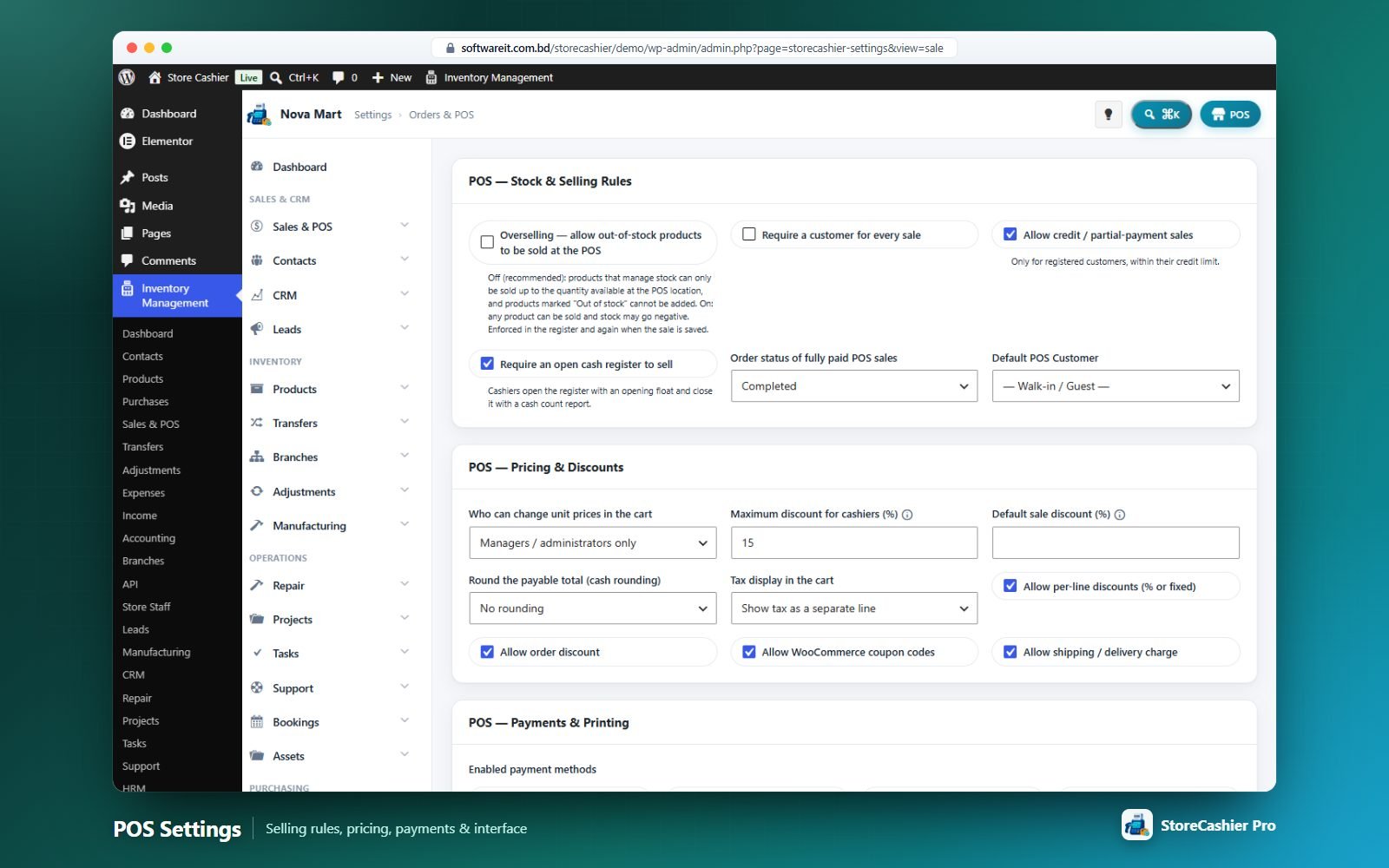
POS — Stock & selling rules
| Setting | Default |
|---|---|
| Overselling — allow out-of-stock products to be sold | Off |
| Require a customer for every sale | Off |
| Allow credit / partial-payment sales (registered customers, within credit limit) | On |
| Require an open cash register to sell | Off |
| Order status of fully paid POS sales | Completed (or Processing) |
| Default POS Customer | Walk-in / Guest |
POS — Pricing & discounts
| Setting | Default |
|---|---|
| Who can change unit prices in the cart | Managers / administrators only (or Every cashier, Nobody) |
| Maximum discount for cashiers (%) | No limit |
| Default sale discount (%) | — |
| Round the payable total (cash rounding) | No rounding (0.05, 0.10, 0.50, 1.00) |
| Tax display in the cart | Separate line (or “incl. tax”) |
| Allow per-line discounts / order discount / WooCommerce coupons / shipping charge | On |
POS — Payments & printing
Enabled payment methods (Cash, Card, Bank transfer, Mobile wallet, Cheque, Gift card / voucher, Other), default payment method, quick cash buttons (5,10,20,50,100), default print layout (Receipt 80 mm or A4 invoice) and Print the receipt automatically after each sale.
POS — Register interface
Default product view (grid/list), products per page (24), low-stock badge threshold (5), quantity per barcode scan (1), theme (auto/light/dark), and toggles for exact-match auto-add, product images, stock on cards, sound, multiple carts, hold/park, calculator and keyboard shortcuts — plus the keyboard shortcut map.
Automatic inventory deduction
Enable automatic deduction on order status change, the statuses that deduct (default Processing and Completed) and the Default Business Location for orders without a location. POS sales always deduct from the register’s location.
Settings — Invoice & Receipts
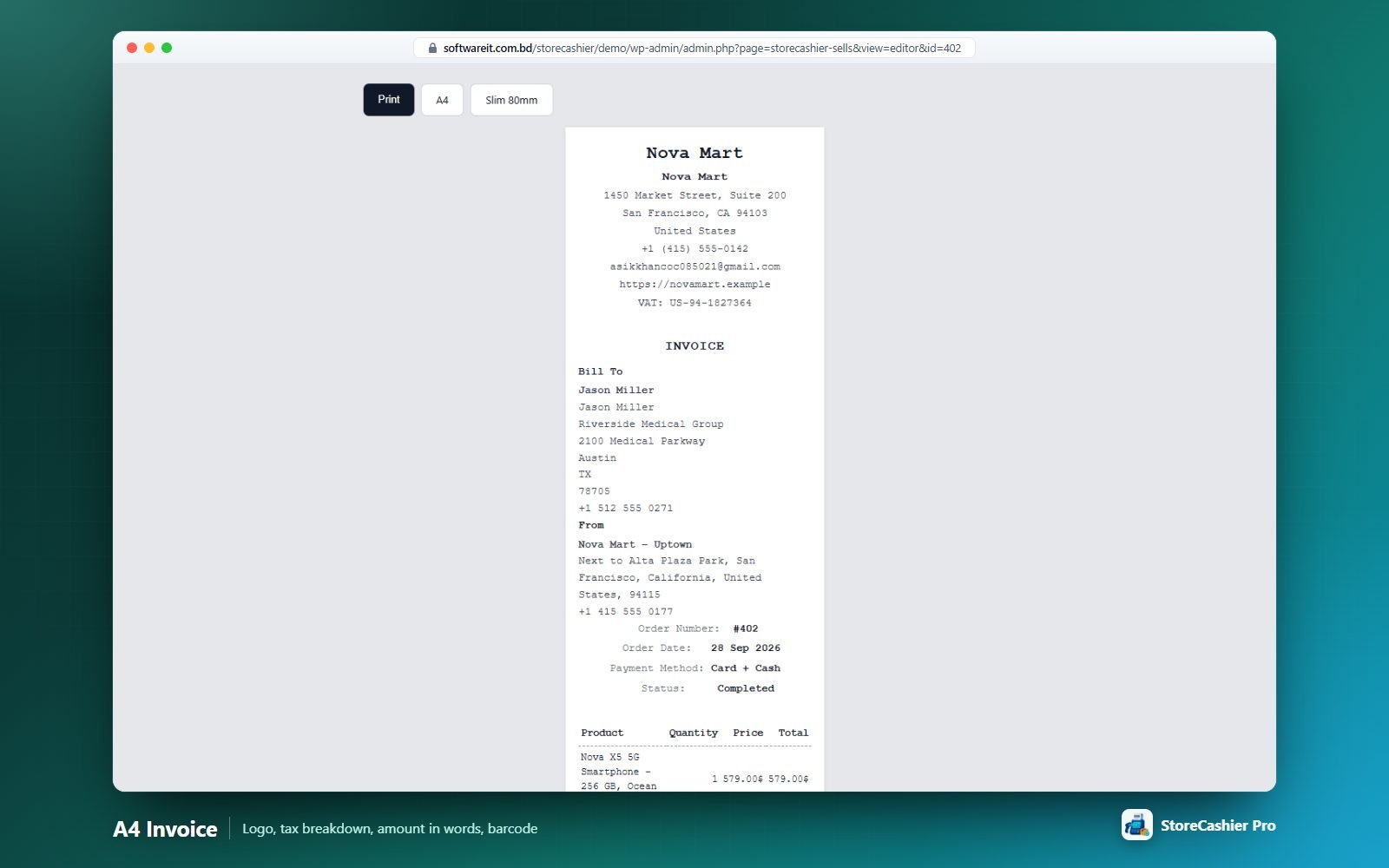
Invoice Settings: number scheme (Prefix + Year + Counter or Prefix + Counter), prefix (INV, overridable per location), default layout (Standard A4 or Slim 80 mm) and Show Tax breakdown.
Standard Layout and Slim Layout each have: logo, logo height/width, date format, header text, footer text and feature toggles — logo size, order ID, date format, warehouse info, Bill To, note, previous due, amount in words, footer, barcode and VAT registration number.
Invoices and packing slips print from All Orders, the order editor, the WooCommerce order screen and the POS; bulk printing produces one order per page.
Settings — Barcode & Labels, Prefixes, Custom Fields
Barcode & Labels
Defaults for Print Labels: label sheet, barcode based on (Barcode / SKU / Product ID) and show/size for product name, variation, price, business name and packing date. Labels are printed as Code 128.
Reference Prefixes
Purchase (PO), Sell Return (CN), Purchase Return (PR), Expense (EXP), Income (INC), Stock Transfer (ST), Stock Adjustment (SA), Payment (PAY), Business Location (BL).
Custom Fields
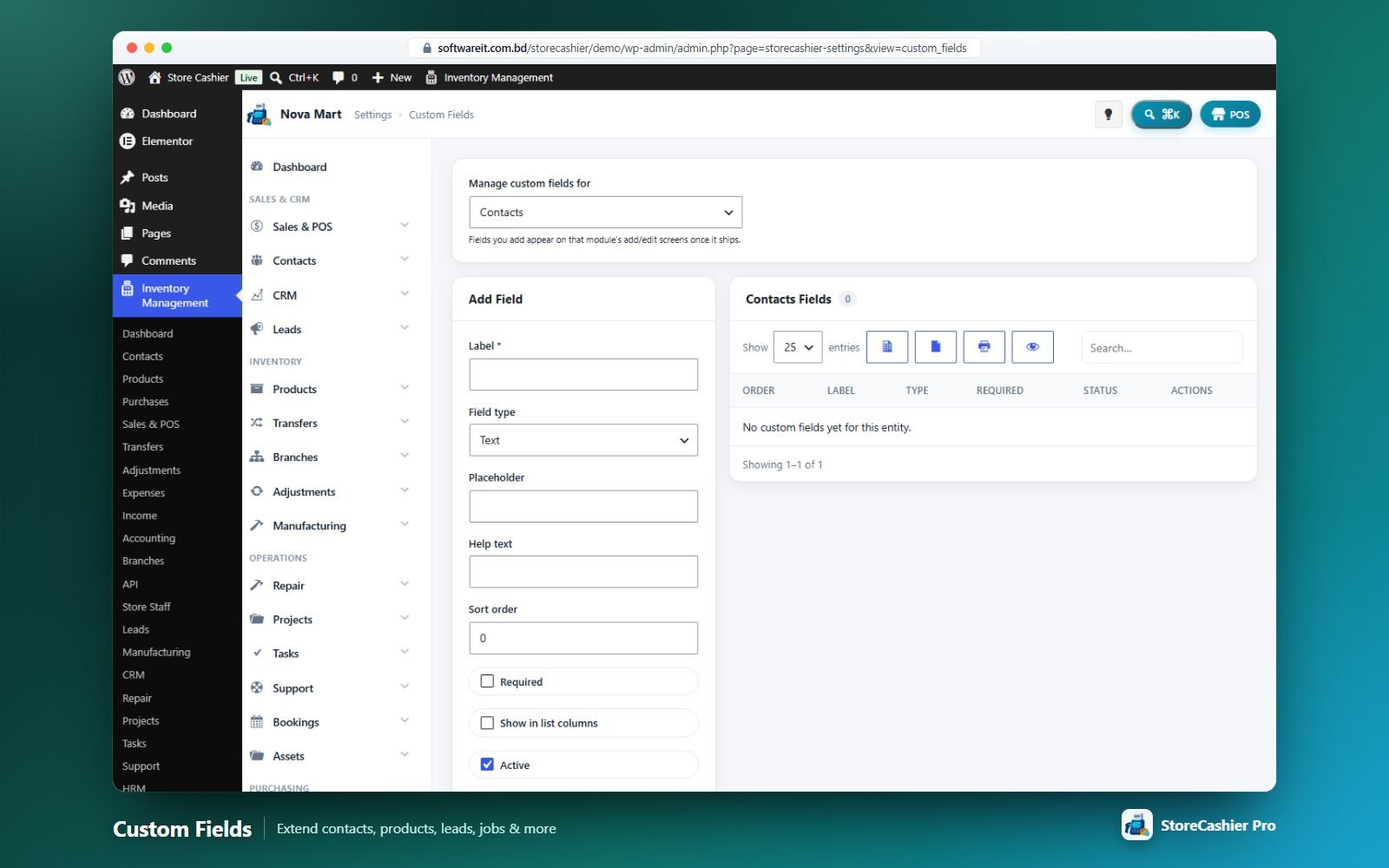
Add extra fields to Contacts, Products, Leads, Support Tickets, Projects, Repair Jobs, Employees and Assets: label, type (text, text area, number, date, e-mail, URL, dropdown, radio, checkbox), options, placeholder, help text, sort order, required, show in list columns and active.
Settings — Email, SMS & WhatsApp Notifications
Notify customers about new orders (website and POS) and status changes by e-mail, SMS and WhatsApp.
| Tab | Settings |
|---|---|
| Email Settings | Mail driver (WordPress or SMTP), from name and e-mail, SMTP host, port, username, password, encryption (TLS/SSL/none). |
| SMS Settings | Provider: Twilio, Vonage (Nexmo), Plivo, MessageBird, Infobip or a Custom HTTP provider (URL, method, content type, headers, body with {to}, {message}, {sender}); sender ID. |
| WhatsApp API | Meta WhatsApp Cloud API (phone number ID, access token) or a custom API. |
| Email Template | New order and status-change e-mails (subject + rich body, wrapped in an invoice-style design with Preview), statuses to notify on, and Attach the sale invoice as a PDF. |
| SMS / WhatsApp Template | New order and status-change messages. |
Template placeholders: {order_id} {order_number} {customer_name} {customer_phone} {customer_email} {order_total} {order_status} {order_date} {items} {payment_method} {order_url} {site_name}.
The PDF attachment is generated locally by the built-in PDF writer (Latin characters; amounts are written with the currency code).
Settings — Module Tabs
Each optional module adds its own settings tab (hidden when the module is off).
| Tab | Highlights |
|---|---|
| Approvals | Require approval per flow, policy (comment on reject, self-approval, withdraw, attachments, prefix, default approvers), default due time and overdue action, e-mail notifications and reminder interval. |
| Documents | Max upload size, allowed extensions, default folder and visibility, require title, protected folder, categories and types, versioning, expiry reminders, public share link defaults. |
| Leads | Statuses and option lists, won/lost/default status, assignment rule and team, duplicate checks, scoring points and temperature thresholds, follow-up automation and notifications, web-form defaults, consent and confirmation e-mail. |
| CRM | Pipelines and stages (probability, rotting days, type, colour), numbering and validity, option lists, client portal & e-signature automation, e-mail templates, default terms and content templates. |
| Support Tickets | Departments (with agent and e-mail), categories, statuses, priorities with SLA hours, portal shortcode, My Account tab, customer priority, attachments (types, size, count), e-mail options. |
| Projects & Tasks | Project statuses/categories/roles, billing and progress defaults, rates, budget alert, timesheet rules (approval, rounding, locking, timers), invoicing target, customer portal defaults, task statuses/labels/priorities, WIP limits, reminders, dependencies and e-mails. |
| Repair | Numbering, defaults, workflow lists, estimate approval and stock rules, taxes, invoice status, warranty, customer e-mails per status, tracking page and printing (header, footer, terms, label size). |
| HR & Payroll | Employee numbering, working hours, attendance and overtime rules, web punch geofence/IPs, leave rules, payroll posting, salary calculation, provident fund, social security, income tax slabs, payslip e-mails, final settlement, portal permissions and HR lists. |
| Manufacturing | Order numbering, default locations, stock posting mode, shortage blocking, costing defaults, batch pattern, shelf life, job cards, QC requirements and checklists. |
| Multi-branch | Links to locations and Branch P&L, approval gate status. |
| API & Webhooks | Enable API, default rate limit, require HTTPS, query-string auth fallback, request logging and retention. |
| Report Builder | Show pinned reports on the dashboard and maximum pinned widgets. |
| Audit Trail | Enable/pause, capture diffs, excluded actions/entities, events to record, retention policy and Prune Now. |
| Recurring Billing | Income account and category for recurring invoices; mixed carts, failed-payment retry days, default grace period and trial reminder for subscription products. |
| Bookings | Cart hold time, reminder hours, notification e-mails, button text, week start, virtual by default, My Account tab, .ics and Google Calendar links, auto-complete, global availability rules and holidays. |
| Assets | Asset numbering, depreciation defaults and financial year, alert window and check-out period, label defaults and pick-lists. |
| License | Activate, re-verify or deactivate your purchase code. |
Frequently Asked Questions
Do I need WooCommerce?
Yes. Products, variations, customers and orders live in WooCommerce; StoreCashier adds inventory, POS, accounting and all other modules around them.
Does the POS create real WooCommerce orders?
Yes. Every POS sale is a WooCommerce order with the location, cashier, payments and register recorded — online and counter sales share one order list, one stock pool and one set of reports.
Is it compatible with HPOS and the block checkout?
Yes. StoreCashier declares compatibility with High-Performance Order Storage and the Cart & Checkout blocks, and only uses the WooCommerce CRUD API for orders.
I already have a store with orders and stock. Will installing change my stock?
No. Existing orders are imported into the reports with the business location Not selected, which never changes stock. Your current WooCommerce quantities become opening stock when you sync products. See Existing Store Migration.
Can I sell when stock is zero?
Only if you enable Overselling in Settings → Orders & POS. Otherwise the POS limits each sale to the stock available at the register’s location.
Can I hide modules I don’t need?
Yes — Settings → Modules. Disabled modules disappear from menus, the API, My Account and widgets, but their data is kept.
Can I limit what cashiers can do and see?
Yes: custom roles with a granular permission matrix, the POS Staff switch, location and payment-account scoping, price-edit rules and a maximum cashier discount.
Does it work with barcode scanners and thermal printers?
Yes. Scanners work anywhere on the POS screen (no need to focus a field), and receipts print on 80 mm thermal printers or as A4 invoices.
Does the POS work offline?
No — it needs a connection to complete sales. Carts are kept in the browser, so nothing is lost if the connection drops briefly.
Do I need Elementor?
No. Elementor is optional; every booking and subscription widget has a shortcode equivalent.
Are barcodes, QR codes and PDFs generated online?
No. They are generated locally inside the plugin. Only services you configure yourself (SMTP, SMS, WhatsApp, payment gateways) are contacted.
Is it translation-ready?
Yes. All 8,000+ strings use the storecashier-pro text domain and a .pot file is included in /languages.
Will I lose data if I deactivate or delete the plugin?
No. Data is kept unless you explicitly enable “Delete all StoreCashier data when the plugin is deleted”.
Support
Open a ticket on our support portal or write in the CodeCanyon item Comments. Please include your WordPress, WooCommerce, PHP and StoreCashier versions, the steps to reproduce and any error messages.
🛟 Open a Support Ticket 🖥️ Live Demo
Before contacting support
- Update WordPress, WooCommerce and StoreCashier to the latest versions.
- Temporarily deactivate other plugins and switch to a default theme to rule out conflicts.
- Enable
WP_DEBUG_LOGand share relevant lines fromwp-content/debug.log. - For report totals after importing old orders, run Reports → Report Tools → Rebuild sales data.
Changelog
Version 1.0.0
Initial CodeCanyon release. Built on the StoreCashier free edition (WordPress.org).
- Settings → Modules — switch any optional module on or off; disabled modules hide their screens, REST routes, My Account tabs and widgets while keeping their data.
- POS register — keyboard shortcuts, scanner-anywhere, overselling rule, multiple carts, hold / draft / quotation, cash register sessions, calculator, split payments, credit sales, cash rounding, light/dark theme and a mobile layout.
- In-plugin product editor and order editor that work directly with WooCommerce data (HPOS compatible), including WooCommerce CSV product import/export of StoreCashier inventory data.
- Bookings (WooCommerce bookable products) and Subscriptions (WooCommerce subscription products) with My Account tabs, e-mails and Elementor widgets.
- My Account tabs for support tickets, projects and the HR employee portal.
- Quick Setup wizard.
- REST API scopes for every feature, request logs, rate limits, webhooks for all record types and an interactive API documentation portal.
- WooCommerce customer sync and WordPress user sync for contacts; existing orders imported with the “Not selected” business location (no stock movement).
- Quick-add popups, command palette records, dark mode toggle and smart table toolbars everywhere.
- CRM, Leads, Manufacturing, Repair, Projects, Tasks, Support, Assets, Approvals, Documents, Audit Trail and HRM & Payroll modules.
- 60 built-in reports and rich list screens with filters and totals.
- WooCommerce HPOS and Cart/Checkout blocks compatibility.